SMS/Email Broadcasting
SMS/Email Broadcasting
To create SMS/Email broadcasting, you must first create a contact. To make contact, first, you need to create a group.
Create group
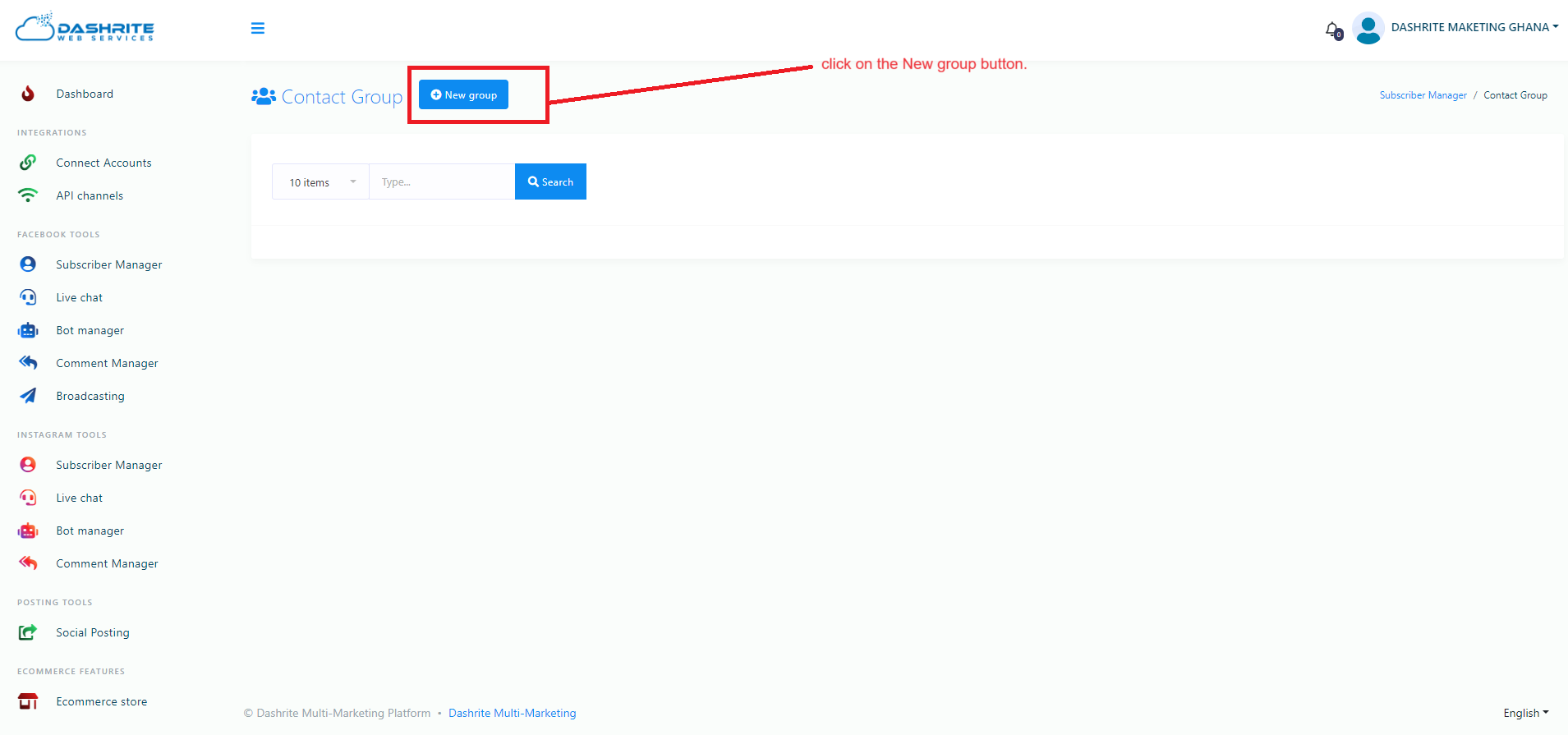
A new page called Contact Group with a New Group button will appear. Click on the New Group button.
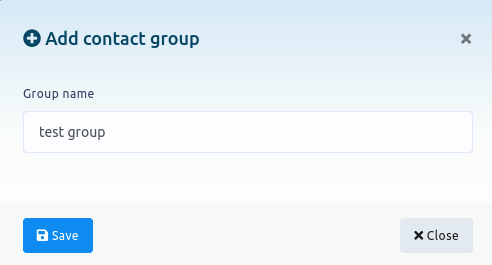
Instantly, a modal with a field called group name will appear. Write a name in the field for the group and click the save button. A successful message will appear. Now click the close button to close the modal form.
Now, the group will appear in the list of the group. You can also edit and delete the group by clicking the edit and delete icon.
Create Contact
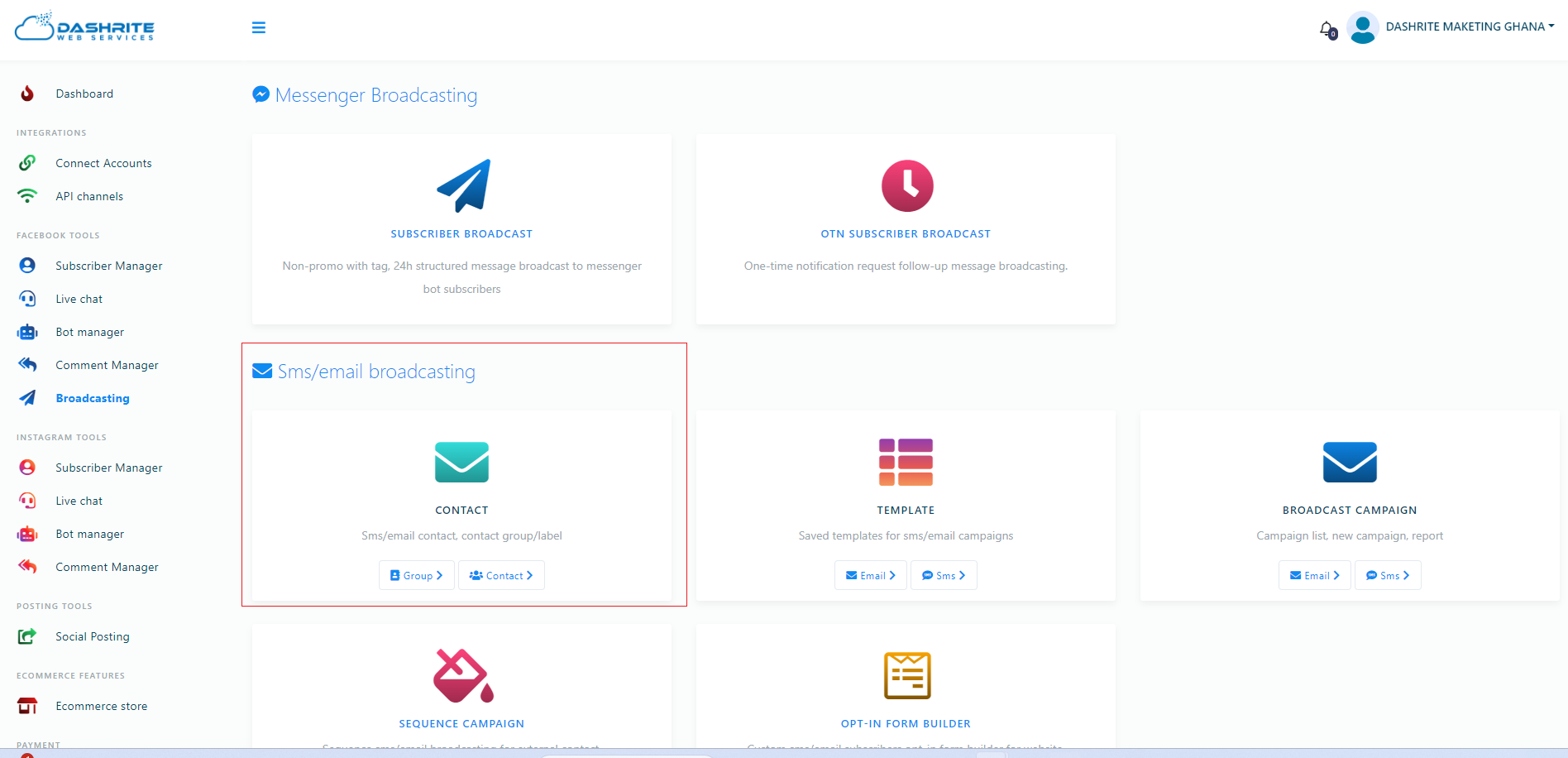
Return to the broadcasting interface and click the contact button in the CONTACT option.
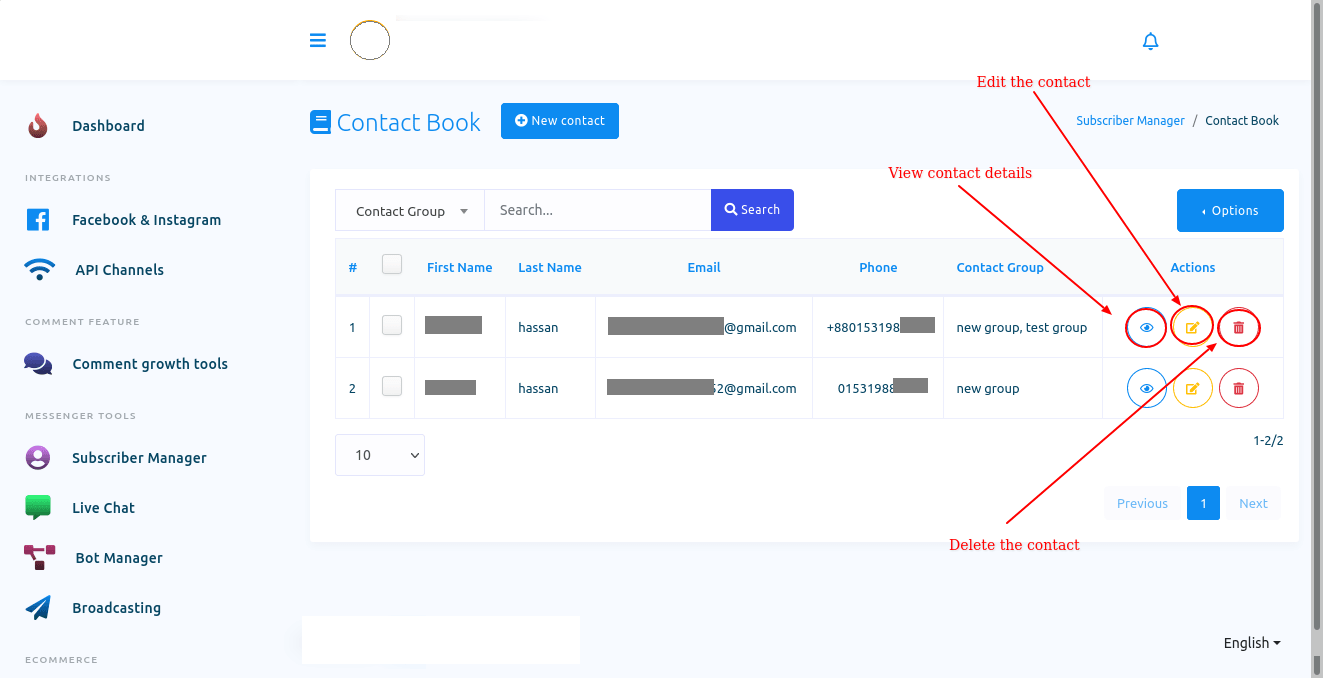
A Contact Book page will appear with a New Contact button. The predefined contacts will be on the page. You can edit and delete the predefined contacts by clicking the edit and delete button. You can also see the contact details by clicking the view details(eye icon) button.
Click on the New Contact button.
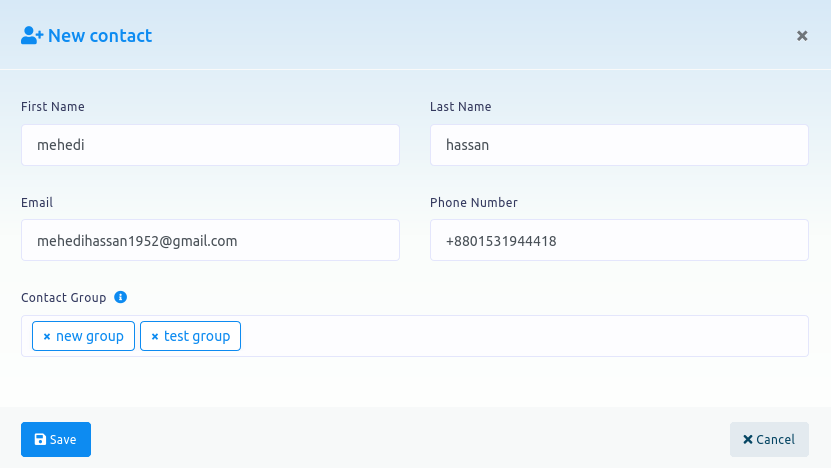
Instantly, a modal form with some fields will appear. Fill out the form and click on the Save button. A successful message will appear. The contacts you create will appear in the list on the Contact Book page.
Click the edit and delete button to edit and delete the predefined contacts from the list.
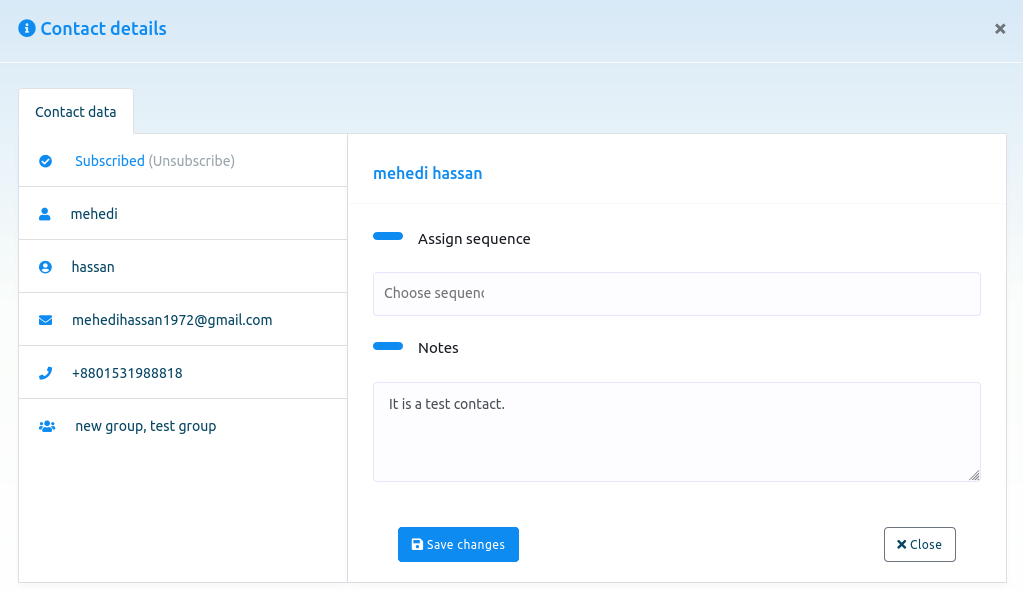
You can also see the contact’s details by clicking the view details(eye icon) button. A modal with contact details will appear when you click the eye icon.
You can assign a sequence to a contact on the modal and write a note for them. Of course, you can see the contact details on the modal form.
Import, export, and delete contacts
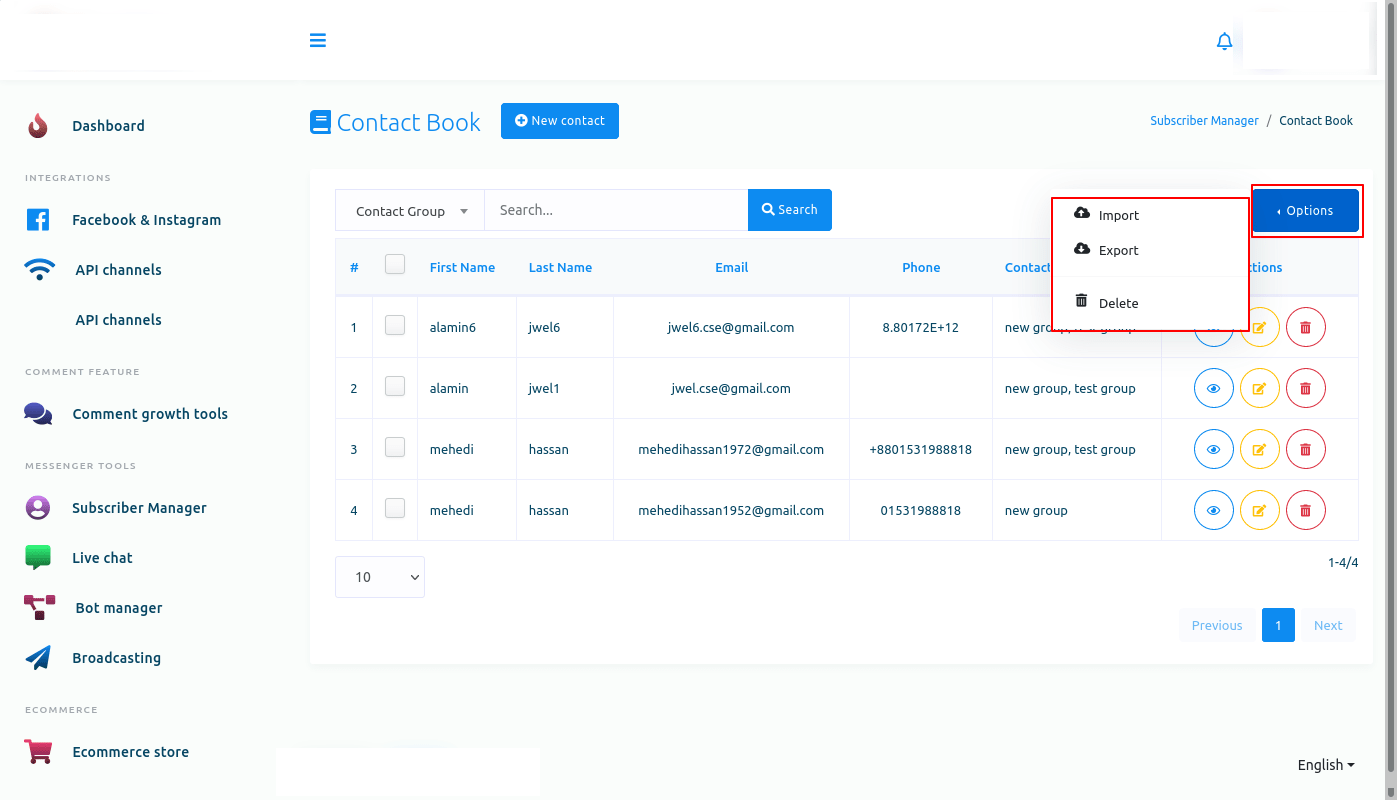
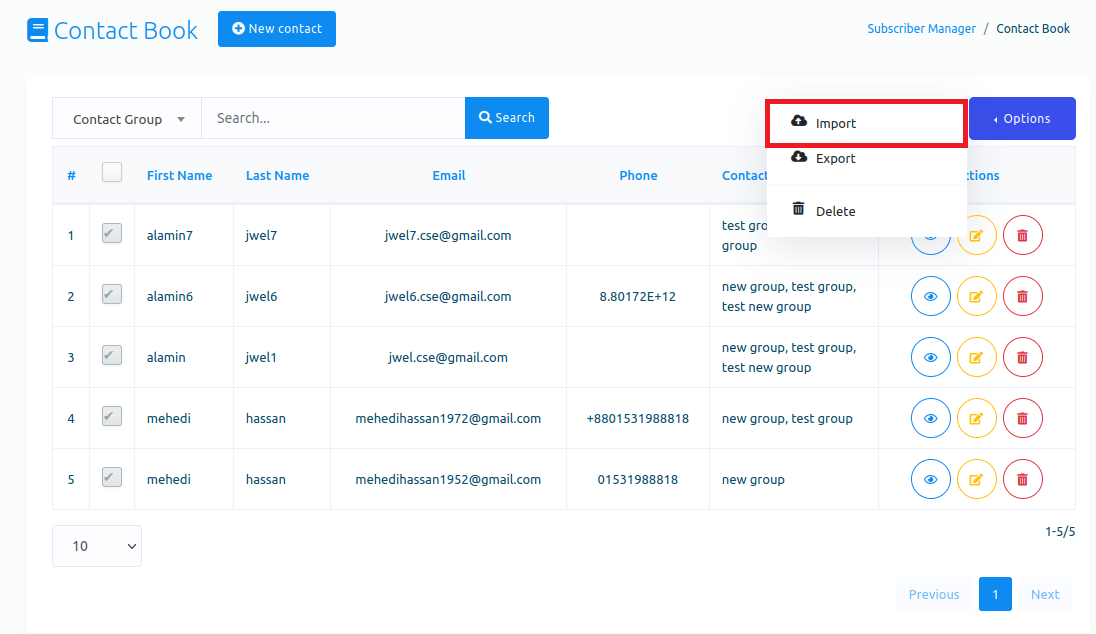
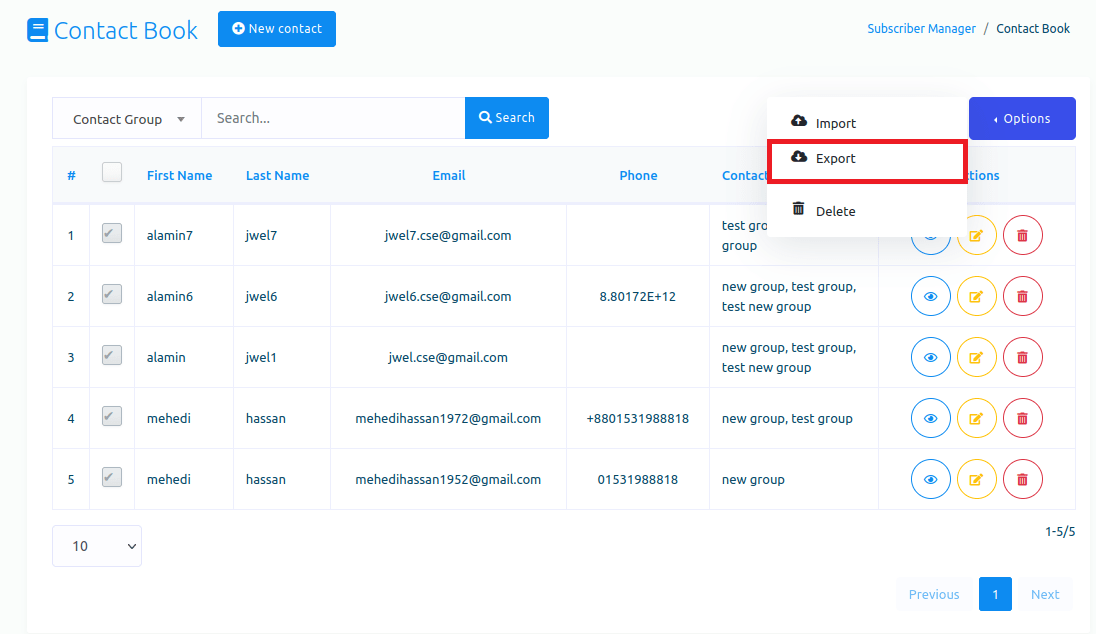
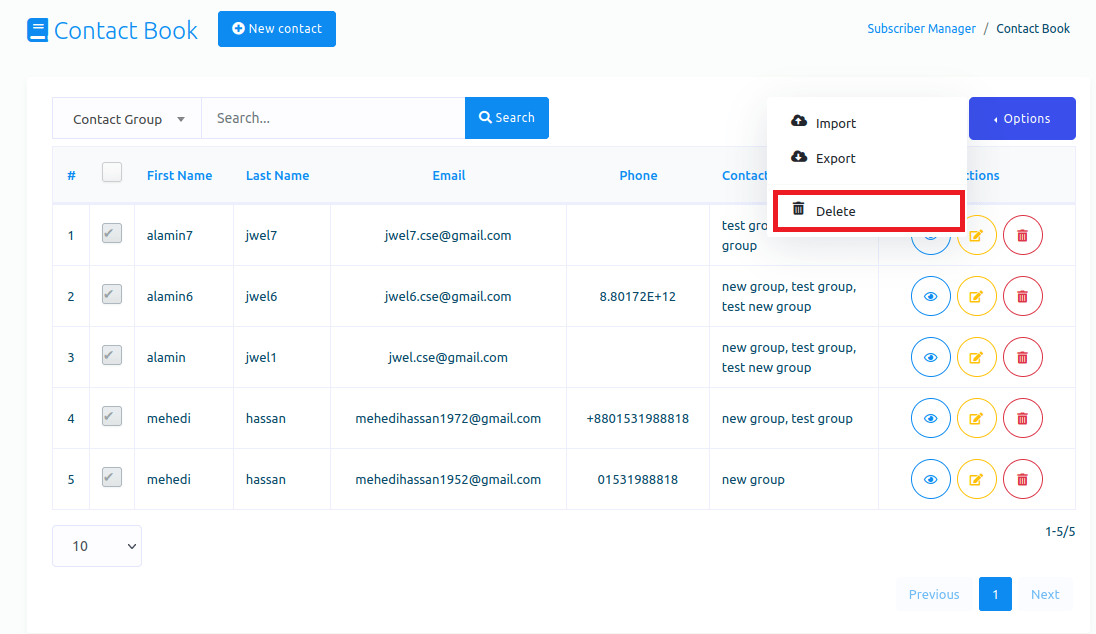
You can also easily import and export contacts and delete selected ones. Click on the options button on the Contact book page, and instantly, a drop-down menu of three buttons—import, export, and delete—will appear.
Import contacts
To import contacts, click on the import button.
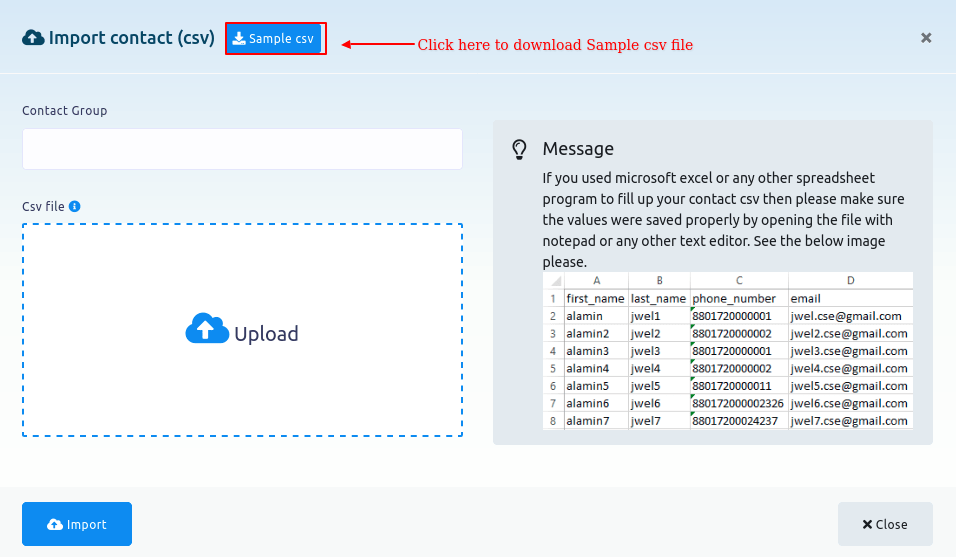
Instantly, a modal form called import contact(CSV) will appear. First, download the sample CSV file to see how to organize it.
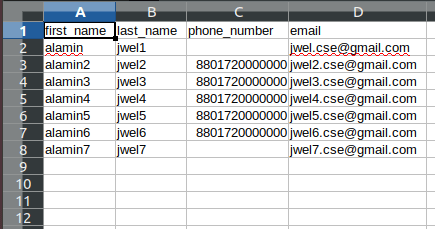
The sample CSV file
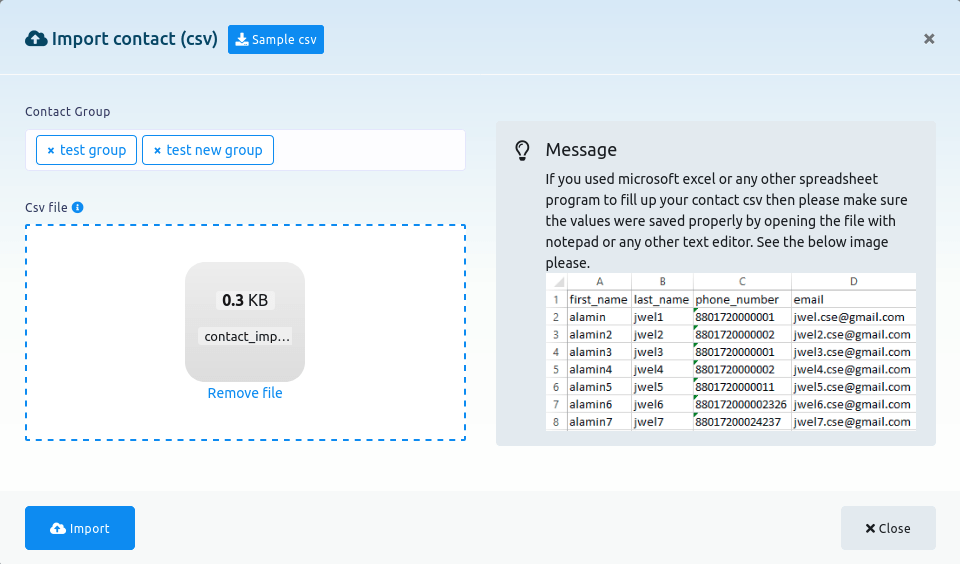
Select contact groups in the Contact group field of the modal form. Click on the Contact group field, and a drop-down menu with different contact groups will appear. From the drop-down menu, select contact group. Of course, you can choose multiple contact groups.
Then, you must upload a CSV file of contacts you want to import. Click on the upload button. Then, click on the import button of the modal form.
A successful message will appear instantly. Then click on the cross button, and the modal form will disappear.
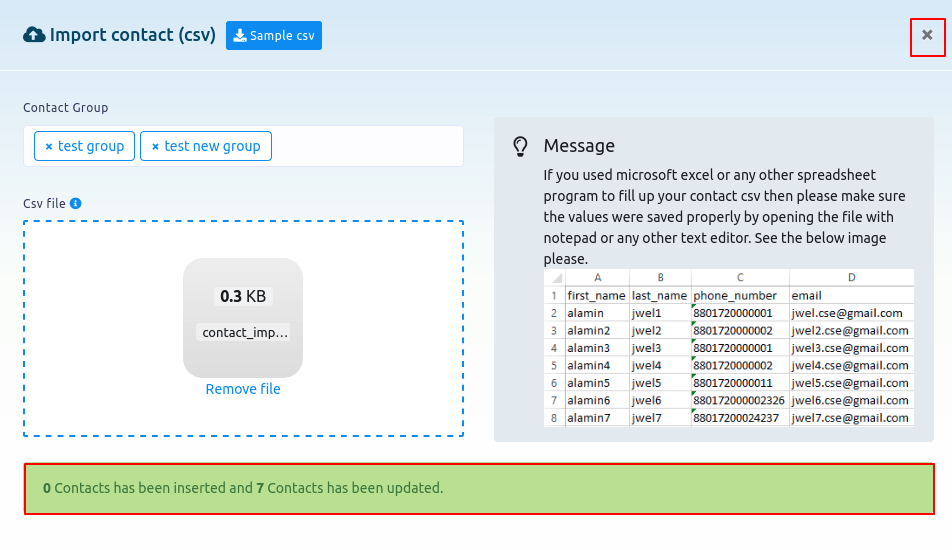
You will see that the contacts have been added to the list.
Export contacts
To export contacts, first, you have to select the contacts you want to export.
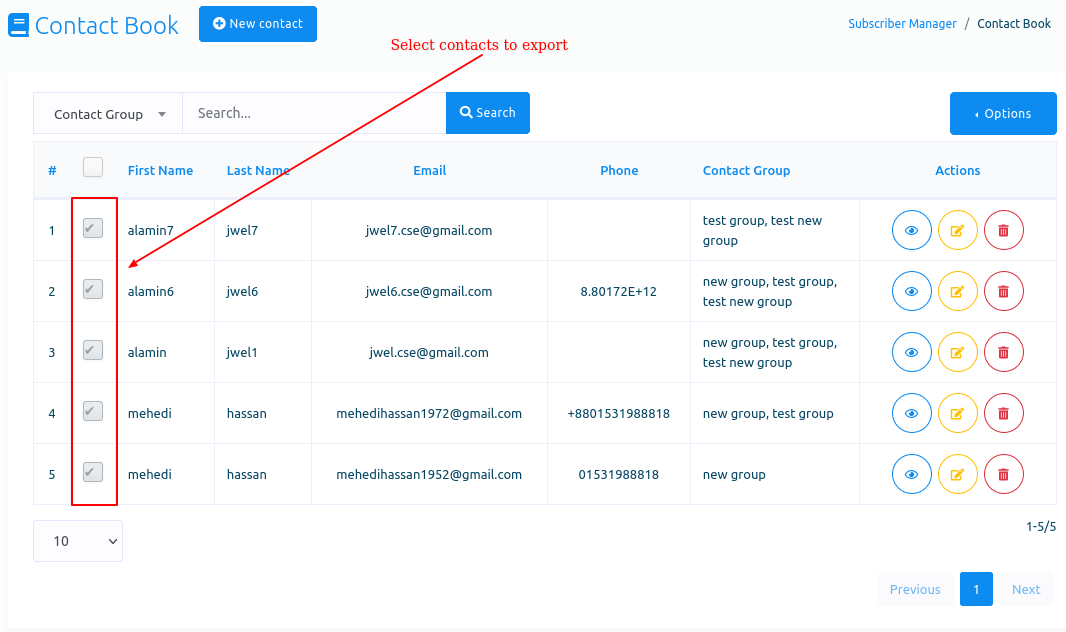
After that, click on the export button in the drop-down menu of the Options button. A CSV file of the selected contacts will be downloaded.
Delete contacts
To delete contacts, first, you have to select the contacts you want to delete.
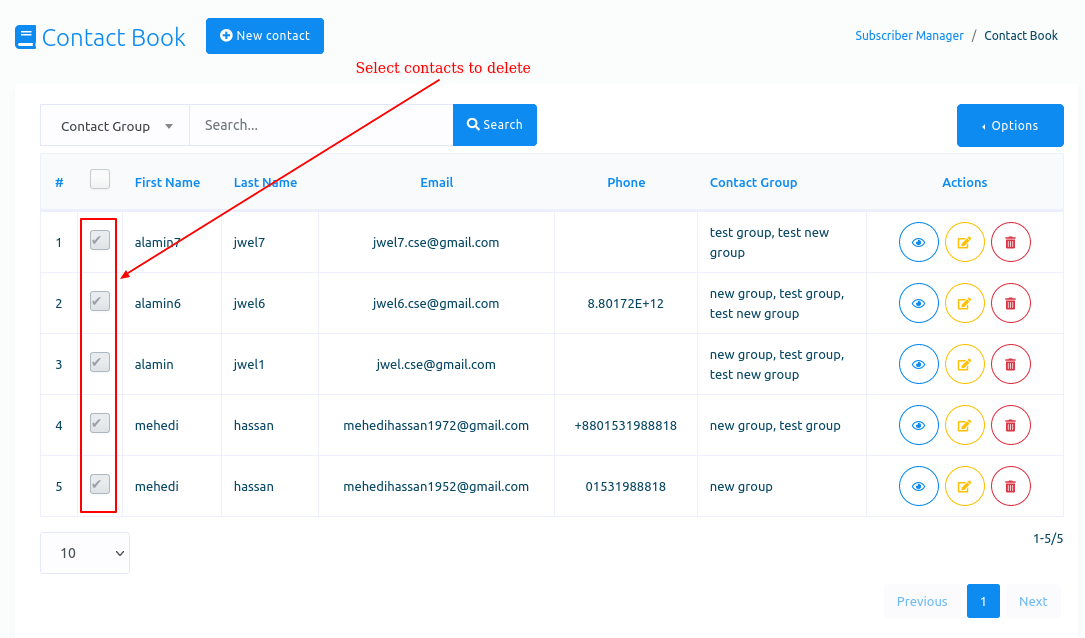
Then click on the delete button of the drop-down menu of the option button.
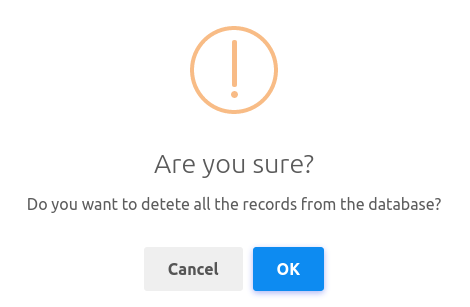
Instantly, a modal form will appear with the ok and cancel buttons. To delete the contacts, click the ok button, and the selected contacts will be deleted.