
Confirmation And Reminder
Confirmation And Reminder
If you make a setting, Confirmation, and Reminder can send abandoned cart recovery reminders to clients if they leave your virtual restaurant after adding food items to the cart. This feature is essential because it can recover lost sales by returning potential customers to your virtual restaurant. The feature can also send confirmation messages just as customers finish purchasing so that the customers can be confirmed about their purchase.
To change a setting, click the ‘Confirmation and Reminder’ option in the left menu. Instantly, a form will appear that you have to fill out. At the top, you will see three options—Messenger, SMS, and Email. Select Messenger to send a Confirmation message and an Abandoned Cart Recovery Reminder via Messenger, and select SMS and Email, respectively.
If you want to set the confirmation message for messenger, first, select messenger at the top of the form, and next, select ‘checkout messenger’ at the bottom right. Afterward, you must write the content in the ‘messenger content’ box. The My Order button, with the order page link embedded, will be automatically added to the confirmation message. This button is a powerful tool that allows your clients to access their order history easily. And remember, you can change the label of my order button to suit your restaurant’s style and tone.

Likewise, you can set confirmation messages for Sms and Email.
The Dashrite Multi-Marketing App’s e-commerce store allows you to send up to three abandoned cart reminders within one hour to 24 hours. Each reminder can be set differently. To set abandoned cart reminders for Messenger, start by selecting Messenger at the top, then choose from the available Messenger reminders. Click under the selected reminder to reveal a drop-down menu from which you can choose the hour for sending the reminder. You also have the option to stop the reminder by choosing the ‘do not send’ option from the drop-down menu.
Customizing the content in the ‘Messenger content’ box is easy. You can easily edit or rewrite it to suit your brand’s tone and style.
The product link is embedded in a button called the View Details, the product link embedded, and the ‘Checkout’ button with the checkout page embedded would automatically be added to the reminder. Of course, you can change the labels of the two buttons. The client can see all the items added to the cart by clicking the View Details button. Also, the clients can enter the checkout page directly by clicking the Checkout button. You can also insert a coupon code in the message box while editing the content to give discounts on the products.
The Dashrite Multi-Marketing App is designed to handle client actions automatically, ensuring a seamless user experience. For instance, if a client leaves your virtual restaurant and returns to finish purchasing before an abandoned cart recovery is sent, the app will automatically stop the recovery and send a confirmation message instead. Similarly, if a client receives an abandoned cart recovery reminder and returns to finish purchasing, the app will stop other recovery reminders in the queue and send a confirmation message.
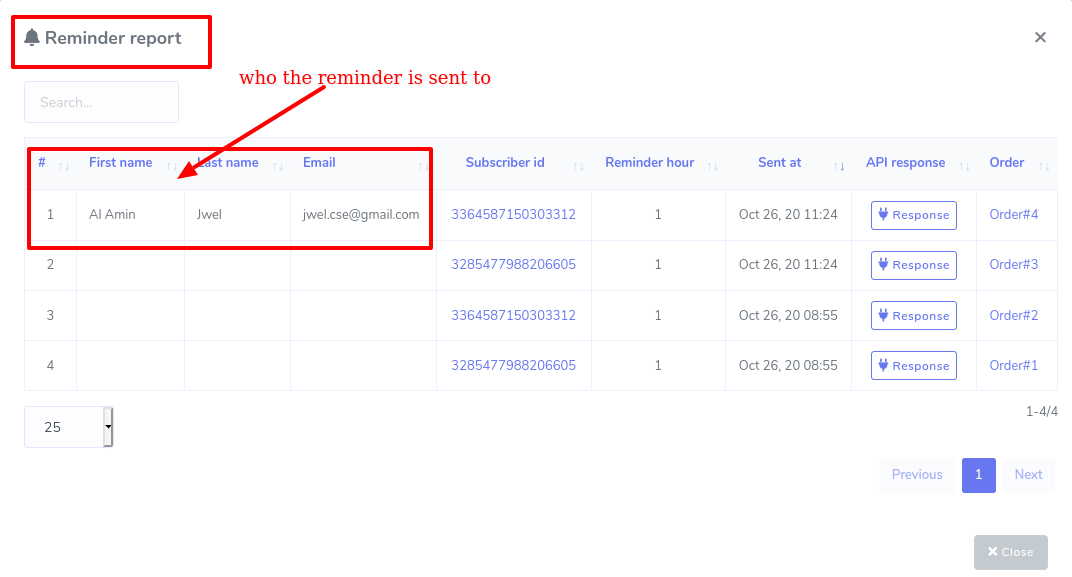
Reminder Report:
You can see the Abandoned Cart Reminder report by clicking on the Reminder report at the left panel of the Dashboard.
QR Code For Confirmation and Reminder
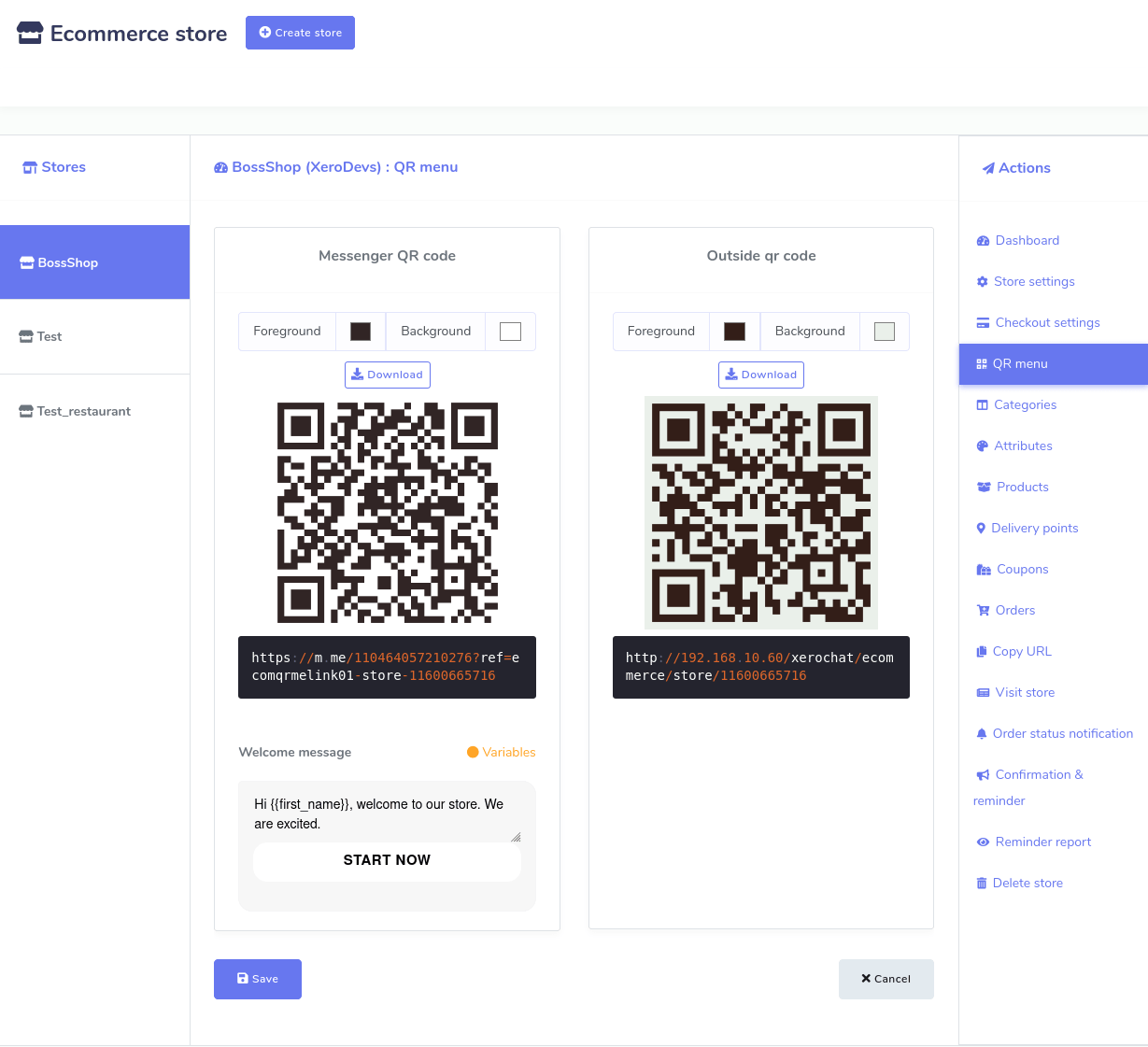
Once you have finished creating your virtual restaurant, you need the QR codes to provide them to your clients. By scanning the QR codes, your clients can quickly enter your restaurant via Facebook Messenger and browsers.
Obtaining the QR codes is a straightforward process. Simply navigate to the QR menu, and the ‘QR menu’ page will appear. Here, you’ll find two QR codes-one for messenger and the other for browsers. You can easily save the QR codes to your device with a single click on the Download button.
Now print the QR code and attach it to any suitable place, for example, on the wall and the table, so your clients can quickly notice and scan the QR code to enter your virtual store, meaning to get the virtual menu. Once the QR code is checked, the virtual menu will appear on your mobile screen inside Messenger or browsers. From the virtual menu, your clients can choose foods and give orders while sitting at your restaurant’s table without talking to your server.
During the COVID-19 pandemic, the QR code menu became essential because, using it, people needn’t come in direct contact with anyone while eating out.
Under the messenger QR code, you can write a welcome message for your clients. After writing the message, click on the Save button. Then, your QR code will hold the message you have written.