
Orders
Orders
You can see the details of the orders your clients give on a page called Orders. Most importantly, using a thermal printer, you can quickly print the invoices for the orders. To see the details of orders and print the invoices, click ‘Orders’ in the ‘Action Menu’ on the left side of the dashboard. Without delay, all the orders listed will appear on the page. Move the bottom scroll bar to see all the details of the orders. From the page, you can change the status of the orders. Click on the ‘Status’ field beside the specific order, and a drop-down menu with ‘Pending,’ ‘Approved,’ ‘Rejected,’ ‘Shipped,’ ‘Delivered,’ and ‘Completed’ will appear. You can select one of them to see the order status later.
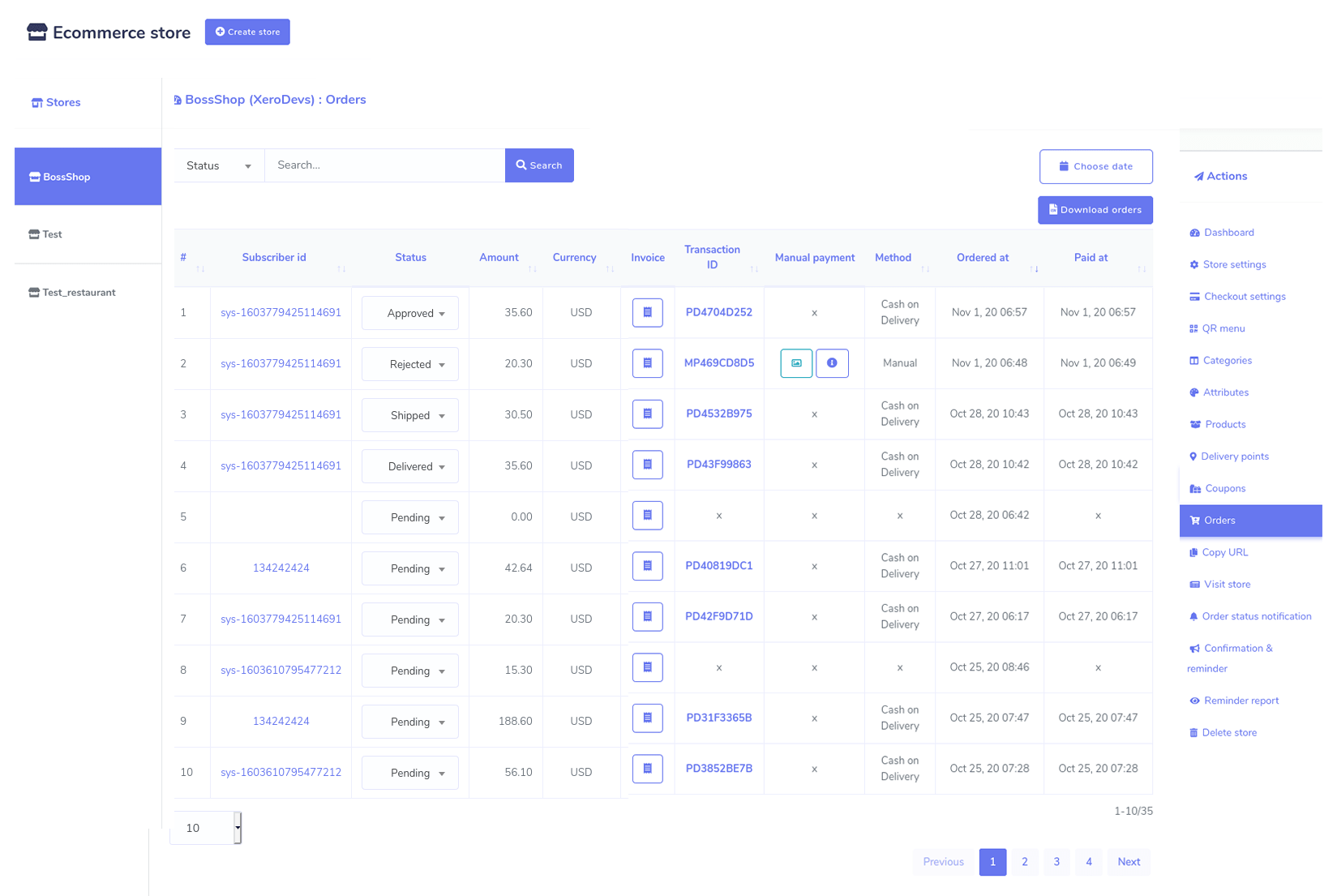
To print the invoice, click on the invoice field. Instantly, the order invoice will appear and be ready to be printed. At the top of the page, you will see three options — Large A4, Thermal 88mm, and Thermal 57mm. Click on one of them, and the print option will appear. After the invoice is printed, give the copy to your cook.
By clicking the Choose date button, you can see only the orders given at a specific time, such as last month, giving you full control over your order history. You can also download the list of orders in a CSV file by clicking on the Download Orders button.