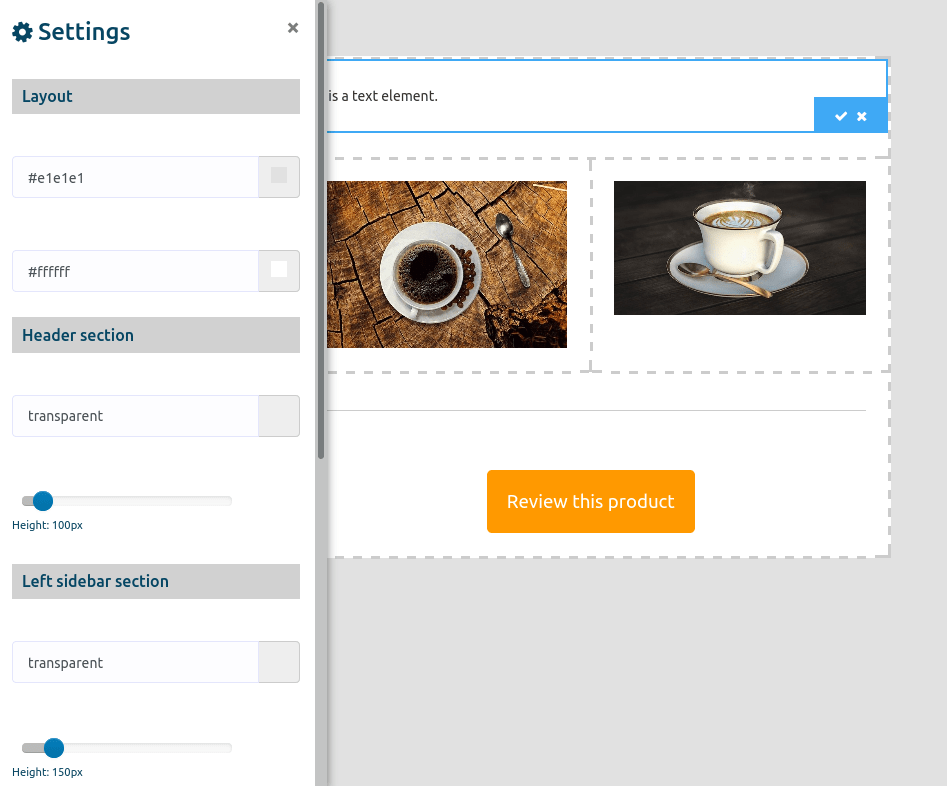
Creating A Template By Drag And Drop
Creating A Template By Drag And Drop
On the other hand, if you want to create a template by dragging and dropping, click on the drag-and-drop option in the drop-down menu.

Instantly, a page with four options—no sidebar, left sidebar, Right sidebar, and both sidebar—will appear.

With the four options, you can create four types of templates. Click on any option, and an editor will appear. On the right side of the editor, you will see a sidebar with some elements: text, image, link, and divider. Now, you must drag and drop the element onto the editor.
Now drag the text element and drop it on the editor. Double-click on the text element, and a field will appear. In the field, you have to write your text. Then click on the tick to save the text. Likewise, by clicking on the cross button, you can delete the text and the element.
Now drag the image element from the sidebar and drop it on the editor. Double-click on the image element to upload an image. After you have uploaded an image, it will appear on the image element.
Likewise, drag a link element where you must provide a URL. Click on the component, and a modal form will appear. In the modal’s first field, you must provide a URL. Then, you have to write the link’s title. You can also change the color and background color of the link’s bar and the size and position of the preview.
You can also drag and drop the divider element to divide it and change its color.
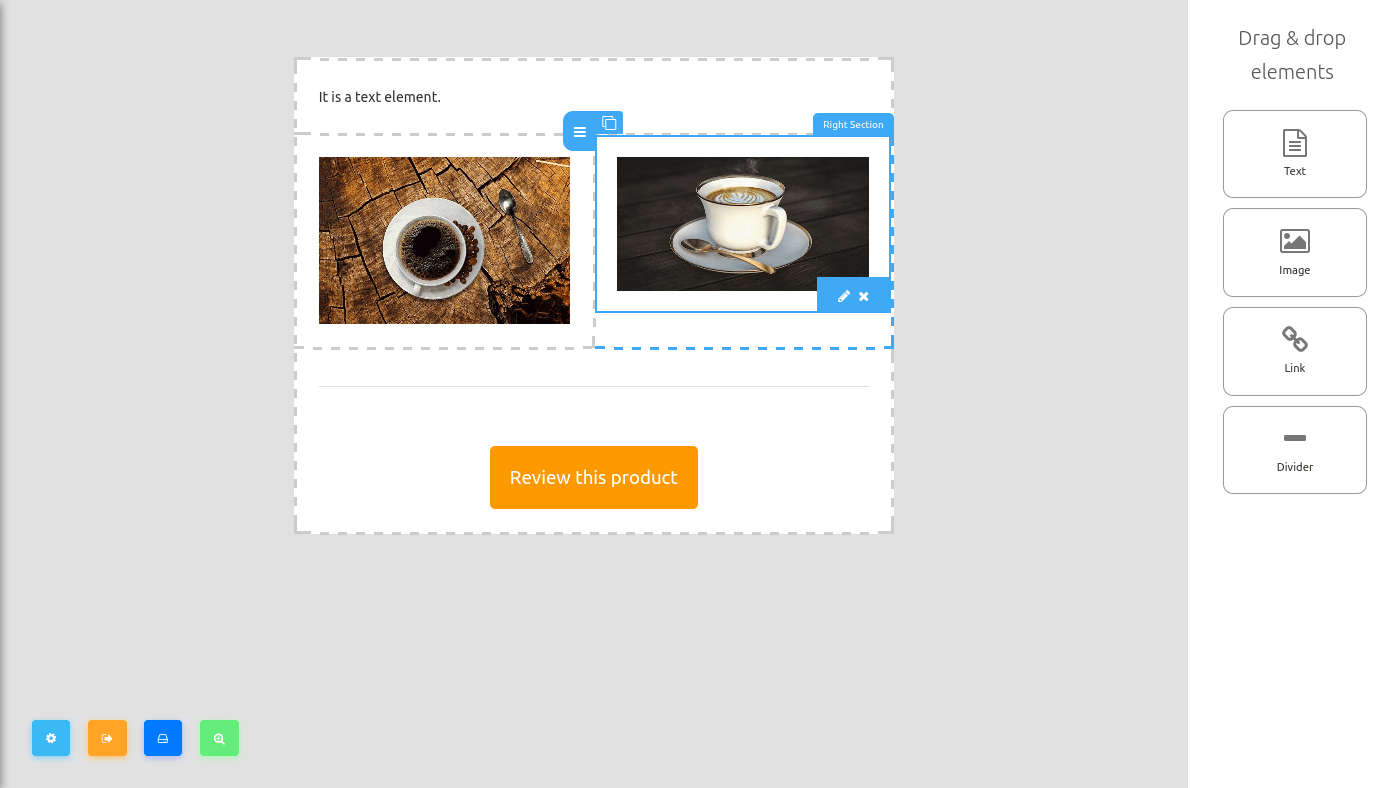
On the left bottom side of the editor, you will see some buttons: Layout options, save and quit, save template, and preview button.
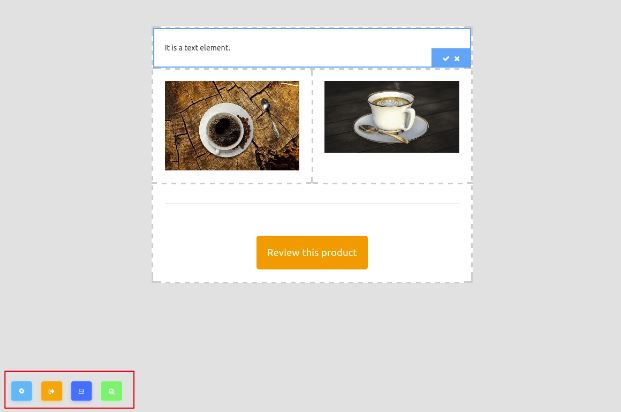
Now click on the Layout options, and a left sidebar will appear. From the sidebar, you can change the template’s layout.