
Generating Virtual Restaurant
Generating Virtual Restaurant
First, you must create a store for your virtual restaurant and add food items. Then, you have to make some settings so that your virtual restaurant works appropriately.
To create a store, go to the left panel of the Dashrite Muilti-Marketing App Dashboard > click on the ‘E-commerce store’ menu.
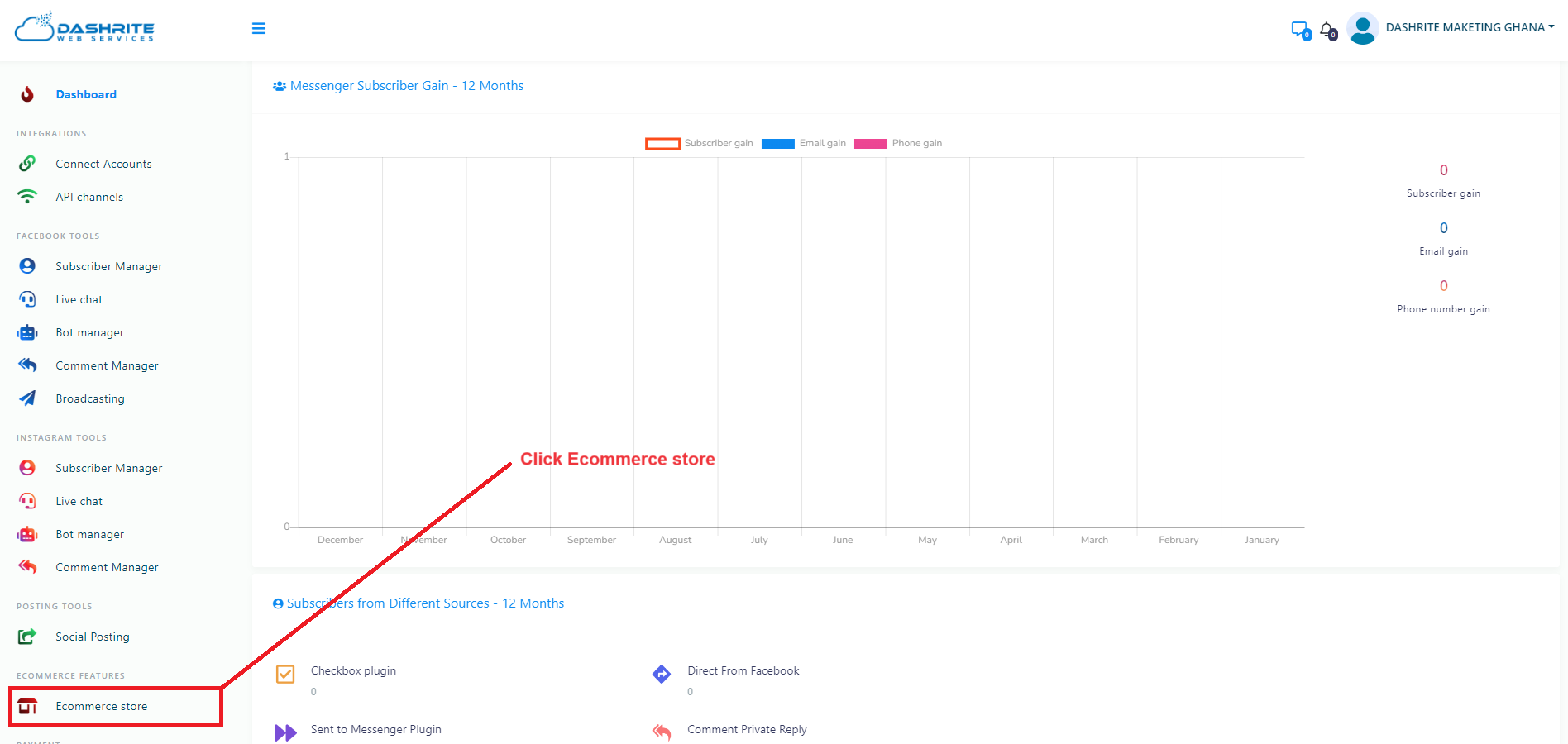
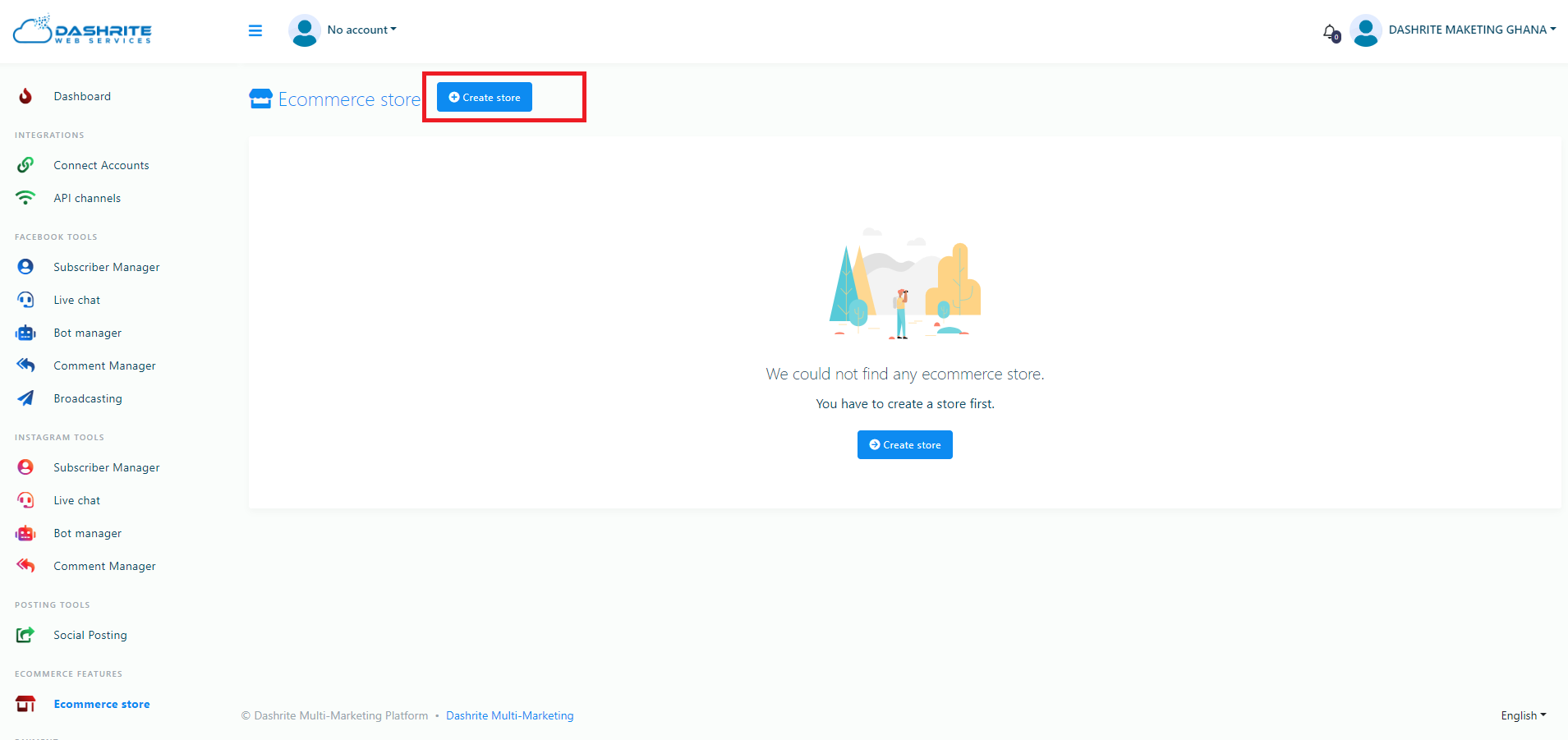
When you click on an E-Commerce store, its interface will appear, with a Create Store button at the top of the page. Other existing stores listed will appear under the ‘Store’ menu on the left side. After selecting an existing store, you can add more products and edit its settings.
Create new and edit existing stores.
To create a new store, click on the Create store button first. Instantly, a form will appear. You must fill out the form, select a Facebook Page, provide some initial information about the virtual restaurant, write down the Terms of service and refund policy, and upload the logo and favicon.
In the form, there is a special box called local that needs a bit of explanation. Just as you click on the box, a drop-down menu of some languages will appear– you can select any language. Your virtual restaurant will open in the language that you choose. For example, if you select English, your virtual restaurant will appear to your customers in English.
Two boxes, ‘Facebook Pixel ID’ and ‘Google Analytics ID,’ also need some explanation.
Facebook Pixel ID is a code you can place inside your website’s source code. The code automatically collects and stores data about your website visitors. Because of the Facebook Pixel code, you can run Facebook Ads for targeted audiences who have visited your website before using the data. Please visit the link to see how to create a Facebook Pixel ID.
Google Analytics ID also works like Facebook Pixel ID to re-target website visitors in Google ads. Please visit the link to learn how to create a Google Analytics ID.
After completing the form, click the Create Store button at the bottom. If you correctly fill out every compulsory field, a pop-up box with a successful message will appear.
Add Category
Now, you have to add some categories to your store to add food items in different categories. Category is an important thing when arranging your food items. If your food items are correctly organized, your clients can quickly review and choose from other items. To add a category, click on the option called ‘Categories’ in the ‘Action menu’ on the right side of the Dashboard. Instantly, a page will appear with the Add Category button at the top-right.
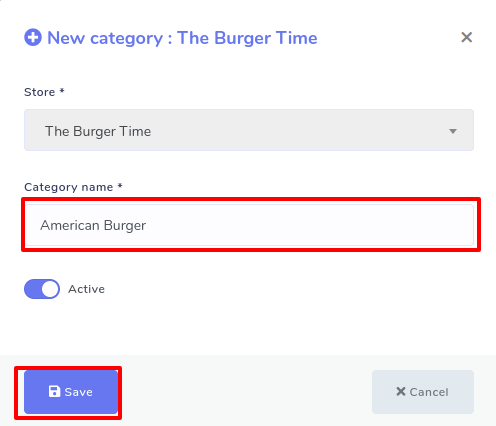
Click on Add Category> Write down the category name > Click the ‘Save’ button.
Now click the Add Category button, and a pop-up form will appear immediately. Fill out the form and write down a category name. Then click on the Save button. This Category has been added to your store.
Of course, you can add as many categories as you want. All your categories with the Edit and Delete buttons will be listed on the ‘Categories’ page. You can edit and delete a category by clicking the edit, edit, and delete buttons. You can also see its status—whether it is active or not.
Add Attribute
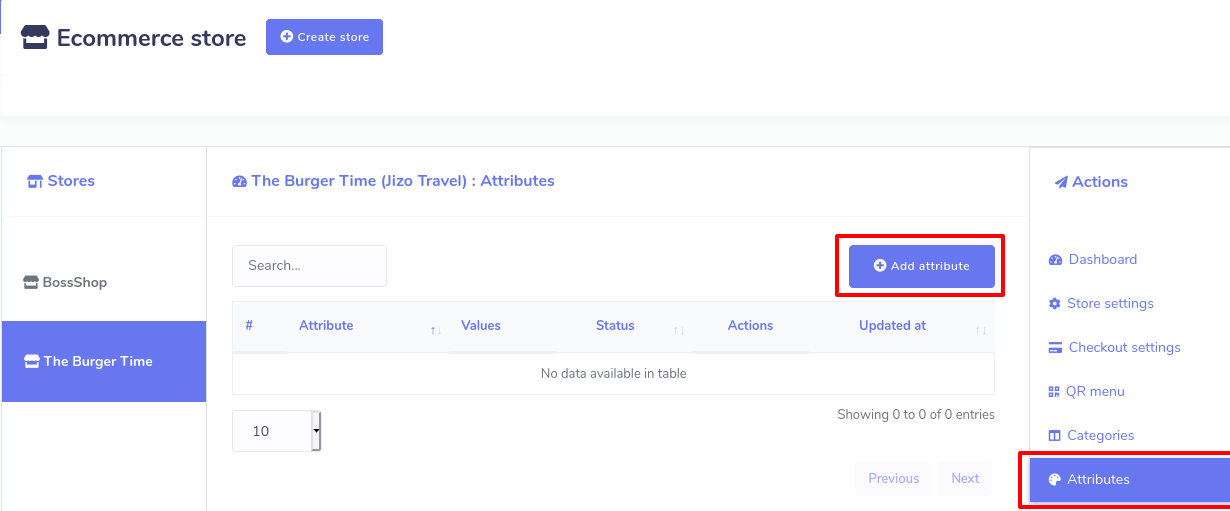
To add the Attribute, click on Attributes > Add Attribute> Write down Attribute Name > Provide Attribute Value > Enable or Disable two radio buttons as you see fit > Save.
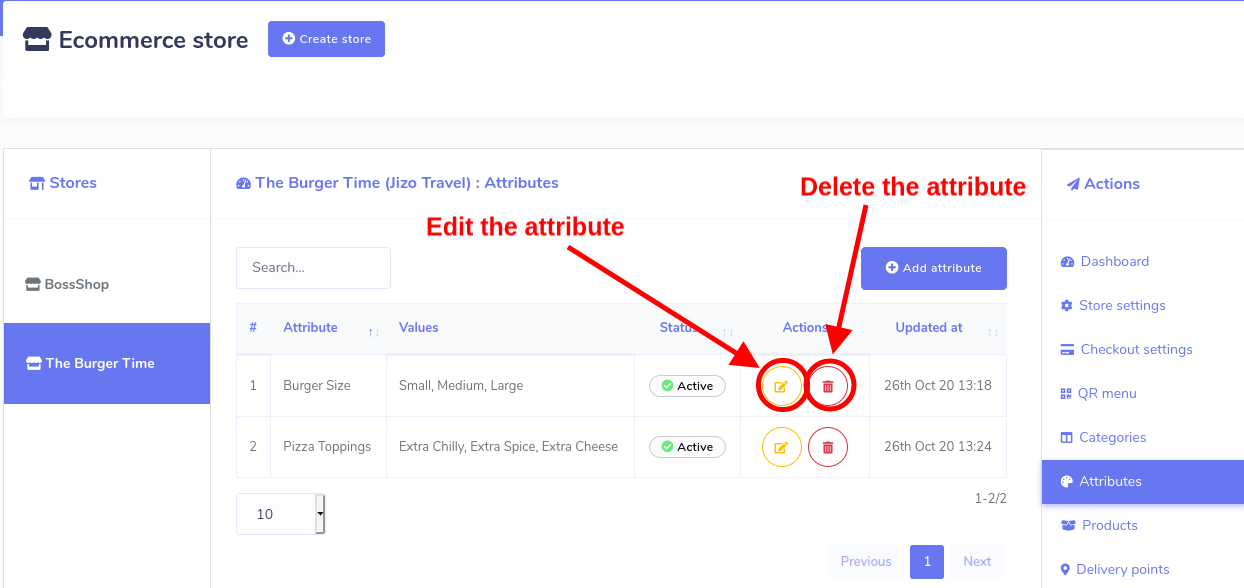
Just as you click on the Attributes option in the Action menu on the left side of the dashboard, a page called ‘Attributes’ will appear with the ‘Add attribute’ button at the top-right of the page.
Now click the Add attribute button, and a pop-up box will appear. In the box, write down the attribute’s name and give attribute values in comma-separated. Then, turn on or off three buttons called ‘Multi-select,’ ‘Optional,’ and ‘Active’ as you see fit for the attribute.
You can make the attribute Active or Inactive by clicking the Active button. If you add an attribute called ‘Pizza toppings’ and add three values like ‘Extra Chilly,’ ‘Extra spice,’ and ‘Extra cheese’ and turn on a multi-select button, your customers can order a Pizza with Extra Chilly, Extra spice, and Extra cheese at the same time.
On the other hand, if you turn off the Multi-select button, a client can only have one attribute value for a specific food item. For example, if you disable ‘Multi-select’ for an attribute called ‘pizza toppings’ with three values called ‘Extra Chilly,’ ‘Extra spice,’ and ‘Extra cheese,’ a client can only order a pizza either with extra chilly, extra spice or extra cheese.
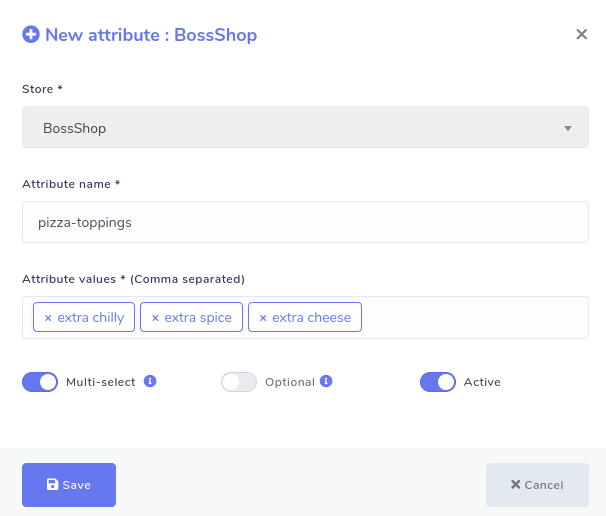
As for the multi-select button, you must remember that you can’t enable it for attributes like ‘Size’ because a food item can’t simultaneously be small, medium, and large– it is not logically possible. However, you can enable the multi-select button for attributes like toppings because toppings can have extra chill, extra spice, and extra cheese simultaneously. Moreover, allowing the multi-select button is helpful for attributes like pizza toppings because customers can order a pizza with extra Chilly, extra spice, and extra cheese in the toppings simultaneously.
On the other hand, if you turn on the Optional button, your clients can avoid selecting attributes for a specific food item. Then, the clients can order particular food items with no additional ingredients. For example, if you enable the Optional button for ‘Pizza toppings’, a client can order a pizza with no extra ingredients.
But if you turn off the ‘Optional’ button, the client must choose an attribute. Otherwise, they can’t order the food item. For attributes like size, a client must select a size value, whether small, medium, or large.
Then comes the ‘Active’ button. If you turn on the active button, the attribute will appear when you add a food item to the store; otherwise, it will not appear.
Like the Category option, after you add one or more attributes, they will appear on the page. Of course, you can add as many attributes as you want. You can also edit and delete any attribute from the page and see its status.
Now click the Add attribute button, and a pop-up box will appear. In the box, write down the attribute’s name and give attribute values in comma-separated. Then, turn on or off three buttons called ‘Multi-select,’ ‘Optional,’ and ‘Active’ as you see fit for the attribute.
You can make the attribute Active or Inactive by clicking the Active button. If you add an attribute called ‘Pizza toppings’ and add three values like ‘Extra Chilly,’ ‘Extra spice,’ and ‘Extra cheese’ and turn on a multi-select button, your customers can order a Pizza with Extra Chilly, Extra spice, and Extra cheese at the same time.
On the other hand, if you turn off the Multi-select button, a client can only have one attribute value for a specific food item. For example, if you disable ‘Multi-select’ for an attribute called ‘pizza toppings’ with three values called ‘Extra Chilly,’ ‘Extra spice,’ and ‘Extra cheese,’ a client can only order a pizza either with extra chilly, extra spice or extra cheese.