
Checkout Settings
Checkout Settings
Setting up a checkout setting for your virtual restaurant is a breeze with Dashrite Muilti-Marketing App’s ‘E-Commerce store.’ The platform has seamlessly integrated popular online payment methods—PayPal, Stripe, Mollie, Razorpay, and Paystack—making it easy for your customers to pay. In addition, it supports manual payment and cash-on-delivery systems, giving you and your customers flexibility.
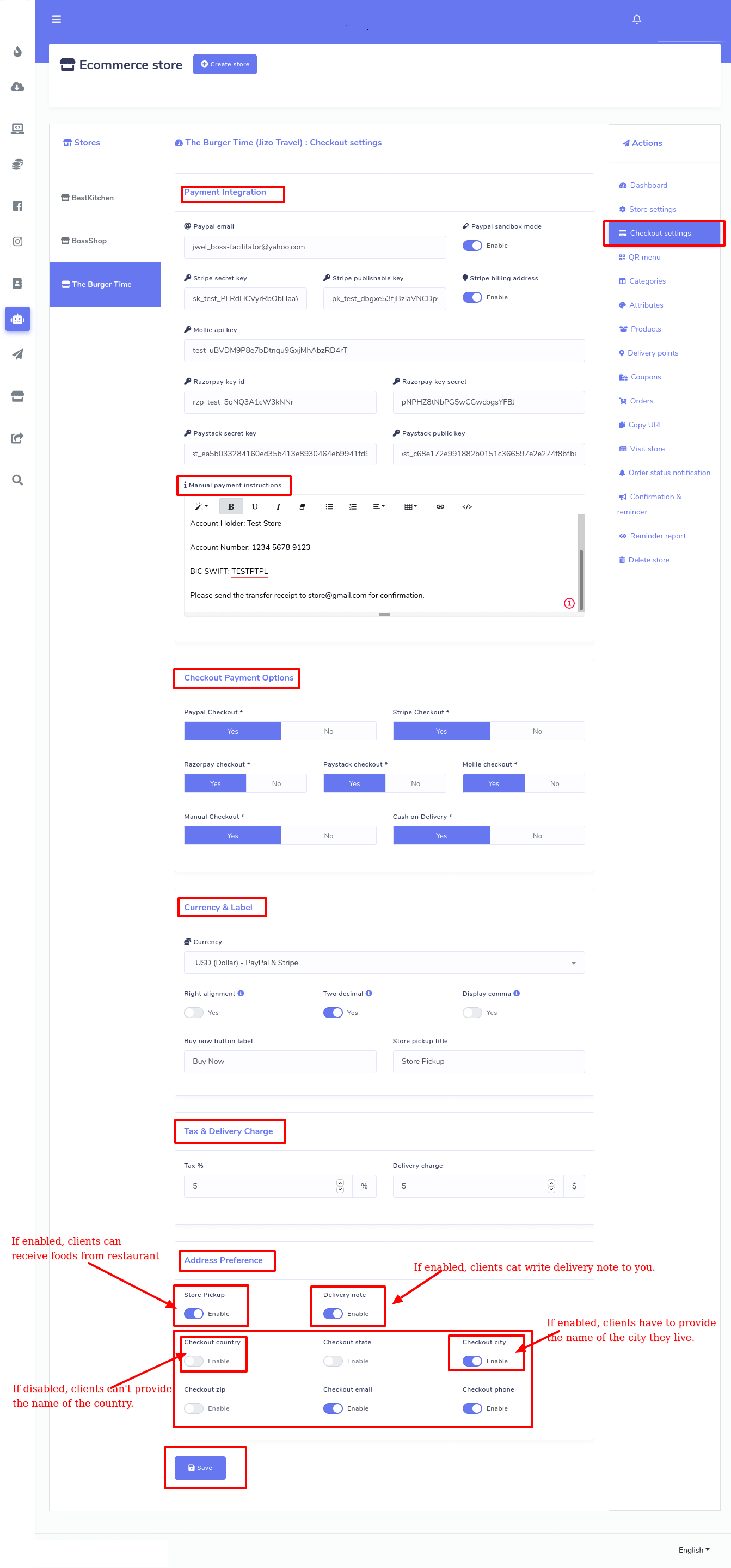
Now, you can set a specific checkout for a particular store. Action > Checkout settings To set up a checkout, click on ‘Checkout settings’ in the ‘Action’ menu on the left side of the store dashboard. Instantly, a form will appear that you have to fill it out. First, you must provide your account information for any or some of the online payment methods you want to enable. Then, you have to write down the instructions for manual payment in the text area called ‘Manual Payment Instruction.’
After that, you will get a checkout payment option. From here, you can enable online payment methods and manual checkout for your store. And ‘Cash on Delivery’ is enabled by default.
After that, you will get the ‘Currency and Label’ option. Here, you have to select the currency of online payment methods, the currency through which the clients will give the payment. For example, if you choose USD(Dollar) for PayPal and Stripe, your customers must pay in Dollars via PayPal and Stripe. Then you will see, in a row, three radio buttons called Right alignment, Two decimal, and Display comma. By placing your mouse cursor on the tooltips, you can see the functionality of these buttons. Then, you must put labels for the ‘Buy Now’ button and Store Pickup title.
Then came the Tax and Delivery charge option. Here, you have to provide the tax percentage and the delivery charge.
Your content goes here. Edit or remove this text inline or in the module Content settings. You can also style every aspect of this content in the module Design settings and even apply custom
Then comes the address preference area. At first, you see a radio button called Store Pickup. If you enable the button, the clients can order food via your virtual restaurant and receive food items at your authentic restaurant’s table. But if you turn off the Store Pickup button, you must give a delivery address where the food will be delivered. Next to the Store Pickup button, you will see a button called Delivery Note. If you enable the ‘Delivery note’ button, your clients will get a text area where they can write a delivery note. They can tell you how they want the delivery in the delivery note. For example, he can know that they wish the delivery person to wear a mask while delivering the food.
Then come some radio buttons you can turn on and off to determine which information your clients must provide while giving their delivery addresses. The buttons are essential. You don’t need the country, state, city, and country zip most of the time because you already know the area of your clients. So you don’t need to bother your valued customers by providing their country, state, city, and country zip you know beforehand. On the other hand, if you are uncertain of your customers’ area, enable country, state, city, and country zip so they have to provide them.
After filling out the checkout setting form, click the Save button, and your checkout setting will be set. It’s a straightforward process that ensures your virtual restaurant is ready for orders.
CSS to this text in the module Advanced settings.