
OTN
OTN
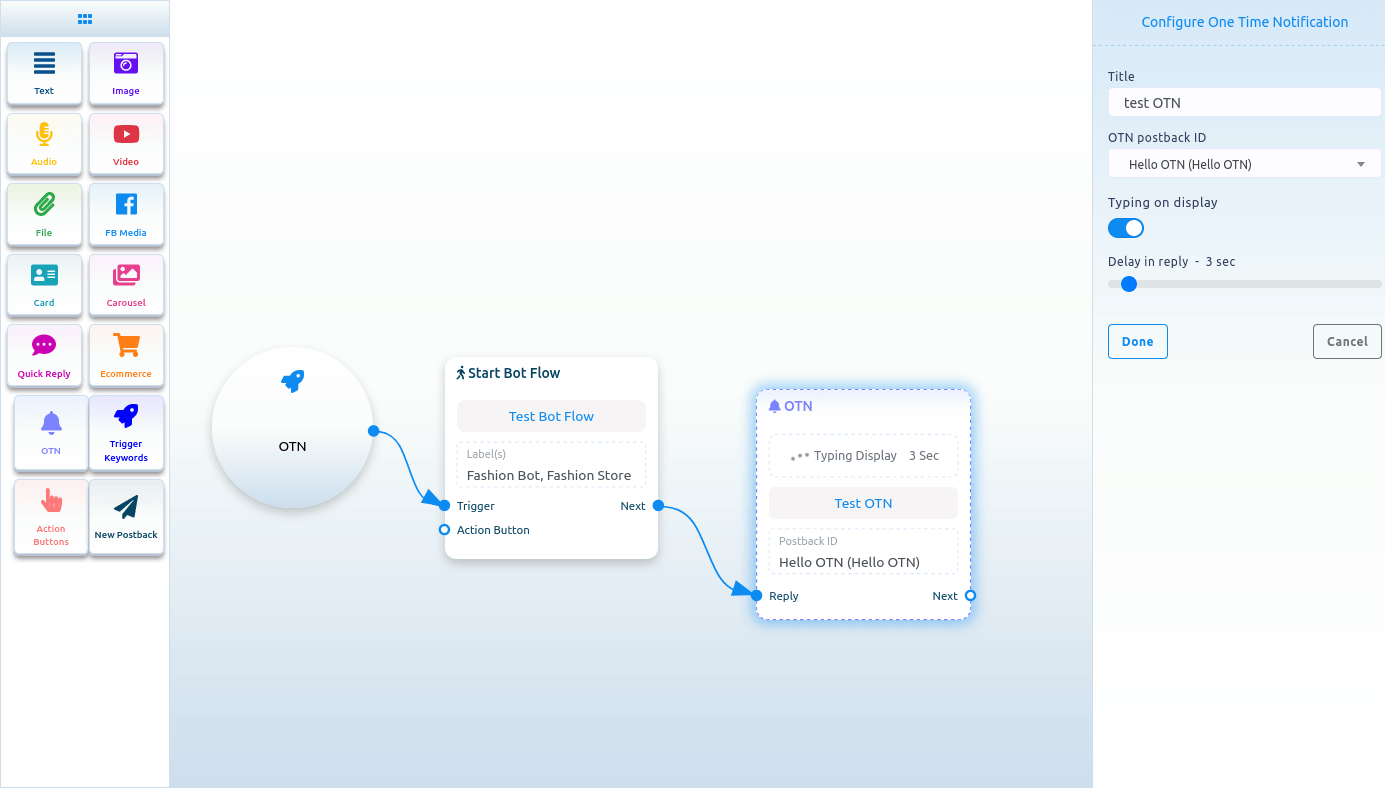
To add the OTN component, drag it from the doc menu and drop it in the editor. Instantly, the OTN component will appear in the editor.
Now, double-click on the OTN component. A right sidebar called configure OTN with two fields will appear.
First, you must write a title for the OTN component in the title field. Then, select a predefined OTN postback from the OTN postback ID field.
Also, you can enable typing on display and select delay time in seconds.
Then click on the Done button.
Create Otn Postback
If you don’t have a predefined OTN postback, you must create one first. To make an OTN postback, select New OTN from the drop-down menu of the OTN postback ID field. Click on the Done button.

Now click on the New OTN component, and a right sidebar called Configure New OTN will appear with some fields. Give a template name in the template name fields and choose labels in the labels field. You can enable typing on display and select a delay in reply in seconds. Then click on the done button. The information will appear on the New OTN template.

Now click on the New postback Component, and a right sidebar called Configure new postback will appear with some fields. Give a title in the title field and choose labels in the Choose labels field. Now click on the done button. You have to connect a component with the new postback component. After that, click the Save button, and your bot with OTN will be saved.

Action buttons
To add an Action Buttons component, drag the Action Button component from the Doc menu and drop it on the editor. Instantly, the Action Buttons component will appear on the editor.
Now, double-click on the Action Button component, and a right sidebar called Configure Action Button with a field called Action Button will appear. From the field, you have to select an Action button. Click on the Action Button field and drop-down menu of different Action Buttons – Get Started template, No match template, Un-subscribe template, Re-subscribe template, Email quick reply template, Location quick reply template, Birthday quick reply template, Chat with human template, and Chat with robot template – will appear. You must select an action button template from the drop-down menu. Then click on the done button. Instantly, the name of the Action button template will appear on the Action button component.
You must connect the action button component with the start bot flow component.