
Quick Reply
Quick Reply
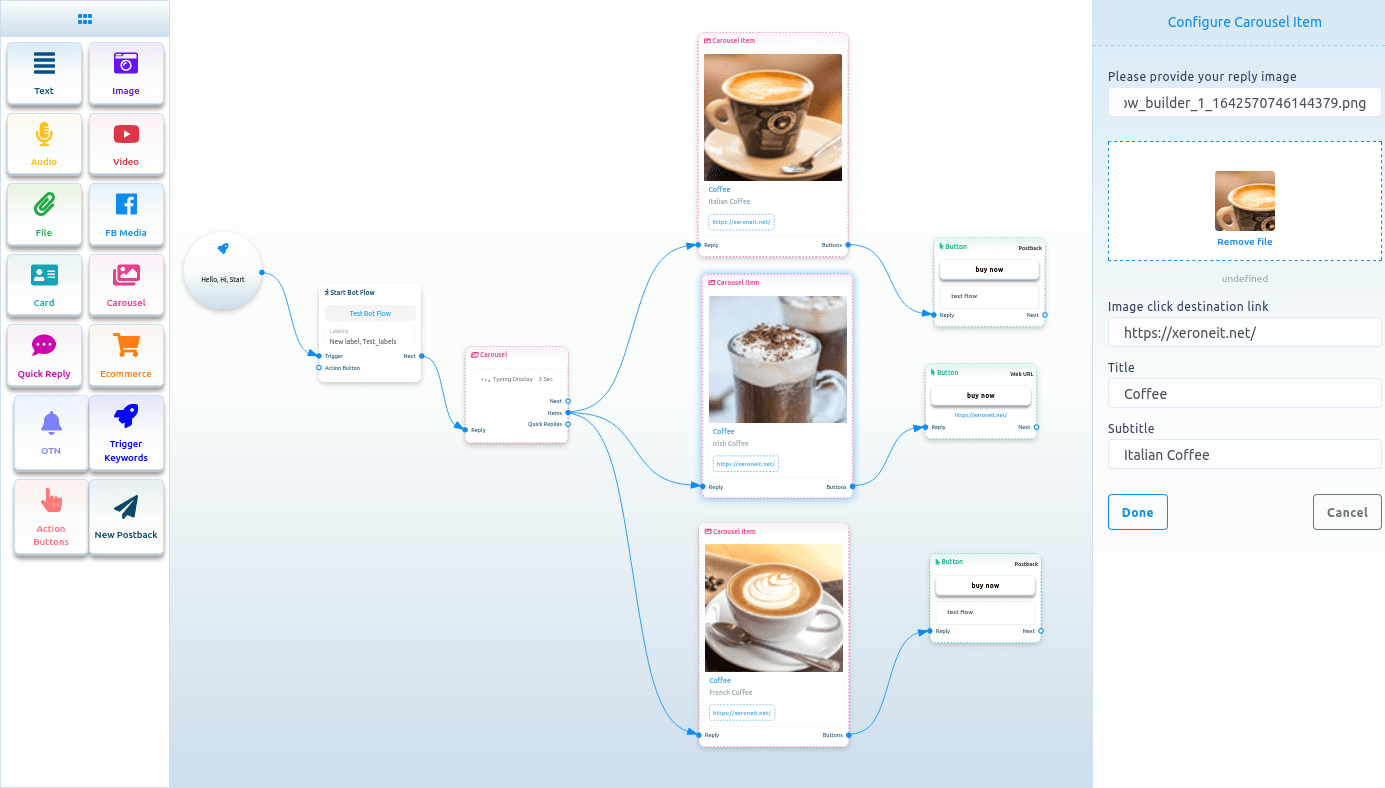
To add the Quick reply component, drag the Quick reply component from the Doc menu and drop it on the editor. Instantly, the Quick Reply component will appear in the editor. You can also add a Quick Reply component by dragging your cursor from the Quick Reply output of an element and dropping it in the editor.
Now, double-click on the Quick Reply component, and a right sidebar called Configure Quick Reply will appear. Now, in the quick reply type field, you must select a quick reply type. Click on the quick reply type field, and a drop-down menu of quick replies – New postback, Postback, Phone, and Email – will appear.
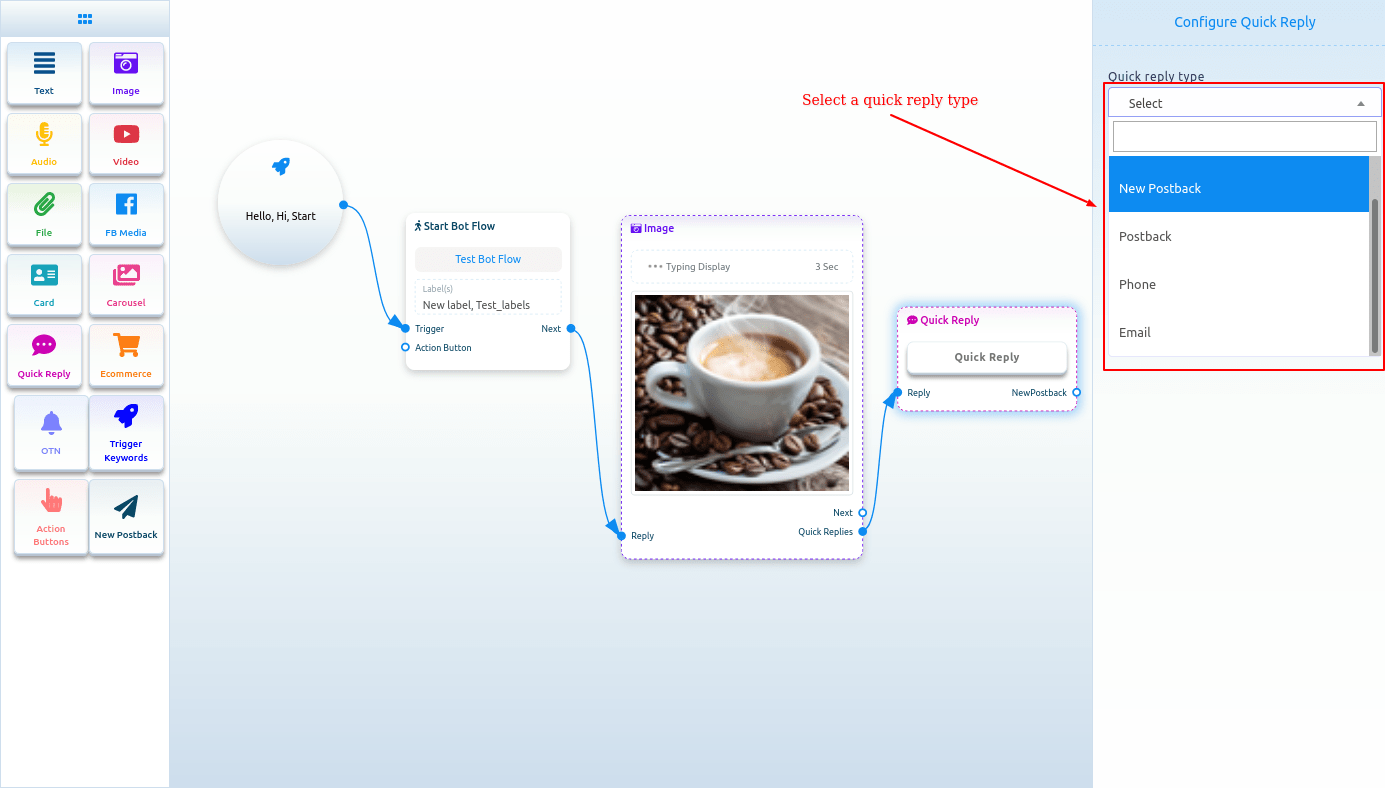
New postback as a quick reply type
Select new postback as the quick reply type and a field called button text will instantly appear. Now, you have to provide a text for the button in the button text field. Then Click on the done button.

quick_reply_new_postback_component_connected.png
A new postback component will appear and be connected to the quick reply component.
Now, double-click the new postback element, and the right sidebar, Configure new postback, will appear. In the title field, give a title for the New postback. Select a label from the Choose label field. Now click on the done button.
After that, you must add another component to the output.
Postcomponent’s Output Quick Reply
If you select postback as the quick reply type, two fields will appear button text and postback id. In the button text field, you must write a text for the button. From the postback ID field, you have to select a postback. Click on the postback ID field, and a drop-down menu of different postback IDs will appear. From the drop-down menu, select a postback ID. Click on the Done button. The postback ID will appear in the Quick Reply component.
Phone as a quick reply
Select phone as the quick reply, type in the quick reply field, and click the done button. In this case, the fast reply will collect your phone number from your Facebook Profile and show it in the messenger. When a user clicks on the phone number, the system will receive it, and the user will get a message that the system has received your phone number.
Email as a quick reply
Just select Email as the quick reply type in the quick reply type field and click on the done button. In this case, the fast reply will collect your Email address from your Facebook Profile and show it in the messenger. When a user clicks on the phone number, the system will receive the email address, and the user will get a message that the system has received your Email address.