
Site Visit And URL Copying
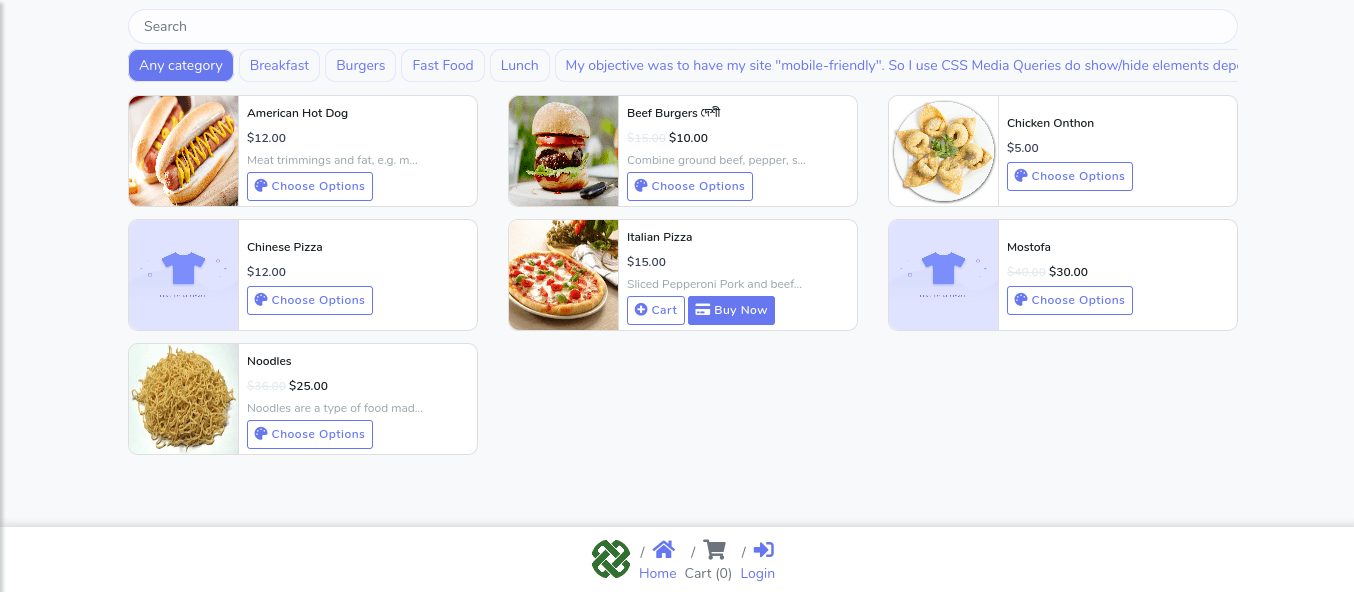
Store Visit
Copy URL
Once you finish creating your virtual restaurant, the ‘Ecommerce store’ has made different URLs— Store url, Order url, Product url, and Legal url– for your virtual restaurant.
You need the URLs to integrate your virtual restaurant directly with Facebook page messenger. If so, your clients will have to send messages to the Facebook page to get access to your virtual shop.
To get the URLs, click on the ‘Copy URL’ option in the ‘Action menu’ at the left panel of the dashboard. Instantly, the copy URL page will appear with four types of URLs. You need two types of URLs—Store URLs and product URLs- to integrate the restaurant into the Facebook page.
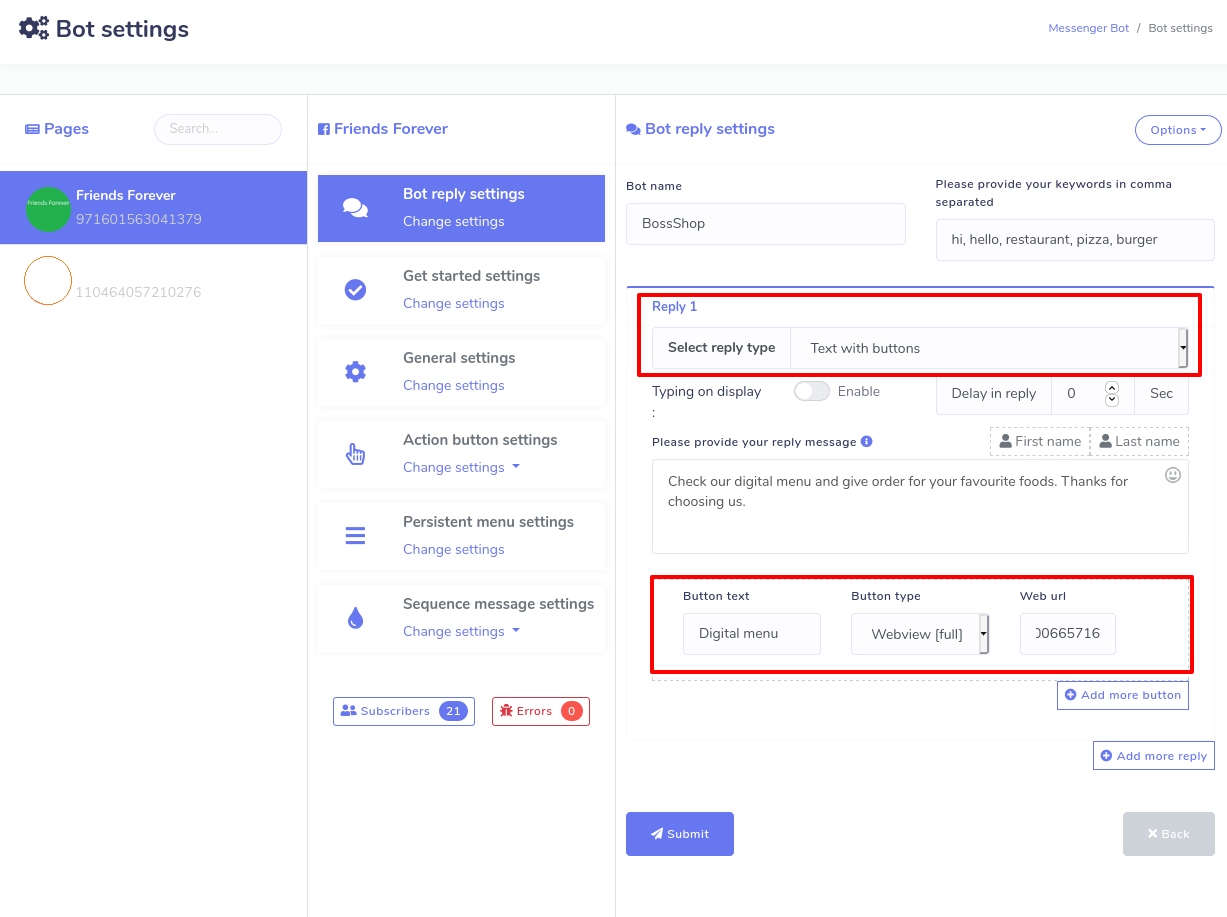
Moreover, you can provide products in categories by using the postback button. Eventually, click the Submit button to save the bot settings for your virtual restaurant. Now, the Messenger bot will handle your virtual restaurant inside the Messenger. That is, your clients can enter your virtual restaurant by sending messages.
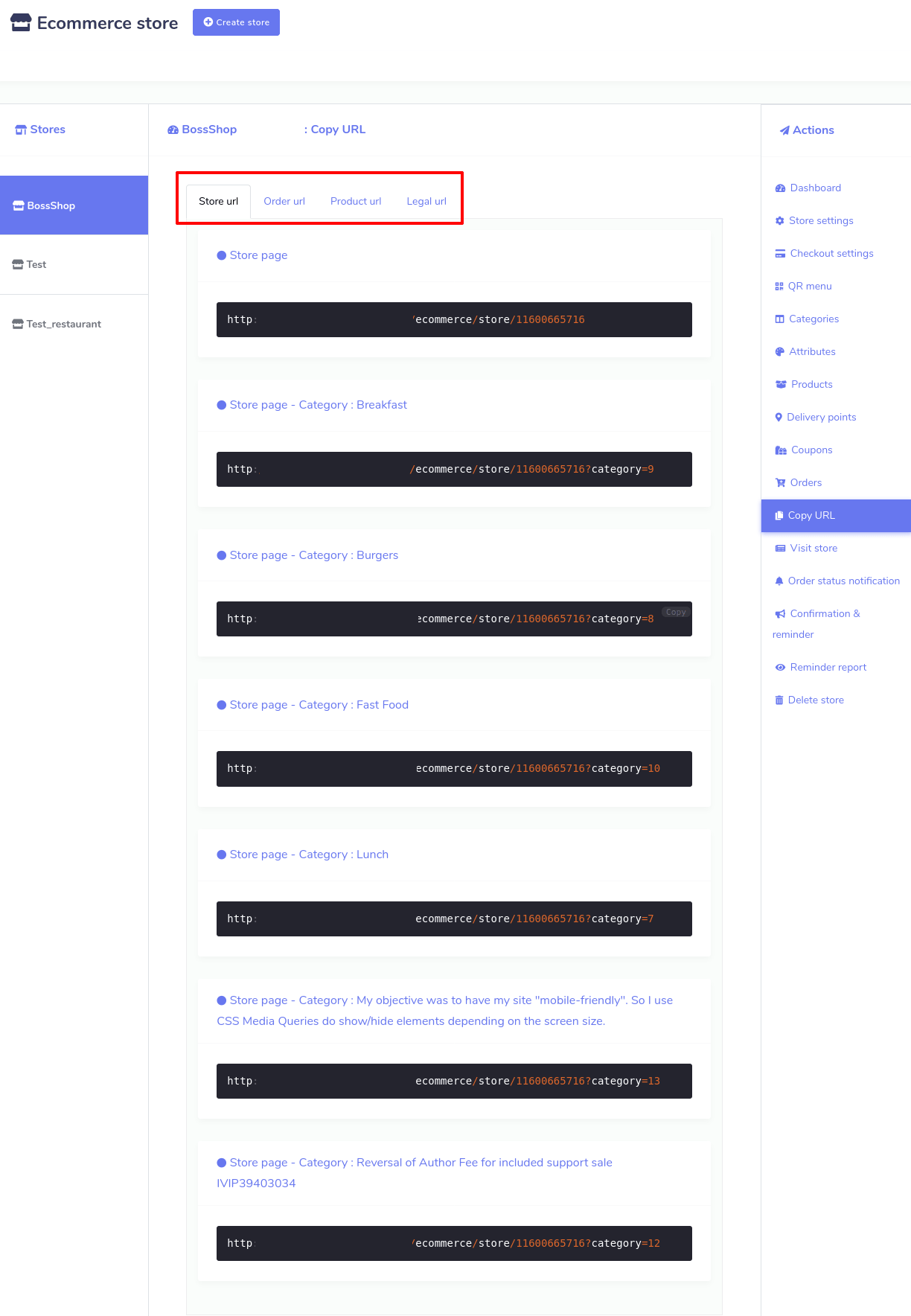
Now copy the store and product URLs and go to Dashrite Muilti-Marketing App’s messenger bot.
Click on the Messenger bot, go to bot settings, select action, add bot reply, and fill out the bot reply settings form.
You will see ‘bot settings ‘ at the top of the messenger bot feature. Click on the action button, and a page called ‘bot settings’ will instantly appear. Click on Add bot reply at the top-right of the page, and a form you must fill out to integrate your virtual restaurant with the Messenger bot.
First, you must provide a bot name and keywords in commas separately. Based on the keywords, the bot will reply. Now, you have to select the reply type. To integrate your shop with Messenger, you must provide URLs copied from your virtual restaurant. Therefore, you have to choose any of the reply types that come with button types that support URLs. Select text with the reply type and any web url and webview buttons. Select the web view full, and a box called web url will appear— past the url here. If you provide a store url, the entire shop will appear inside the Facebook messenger, whereas for the product url, the specific product will appear. Clicking the ‘Add more button’ and ‘Add more reply’ buttons, you can add more buttons and replies.