How To Add Products To Your Store
How To Add Products To Your Store
After adding categories and attributes, you add food items that could be included in categories and attached to the attributes.
Click on the Products > Add product > Fill up the form > click Save button.
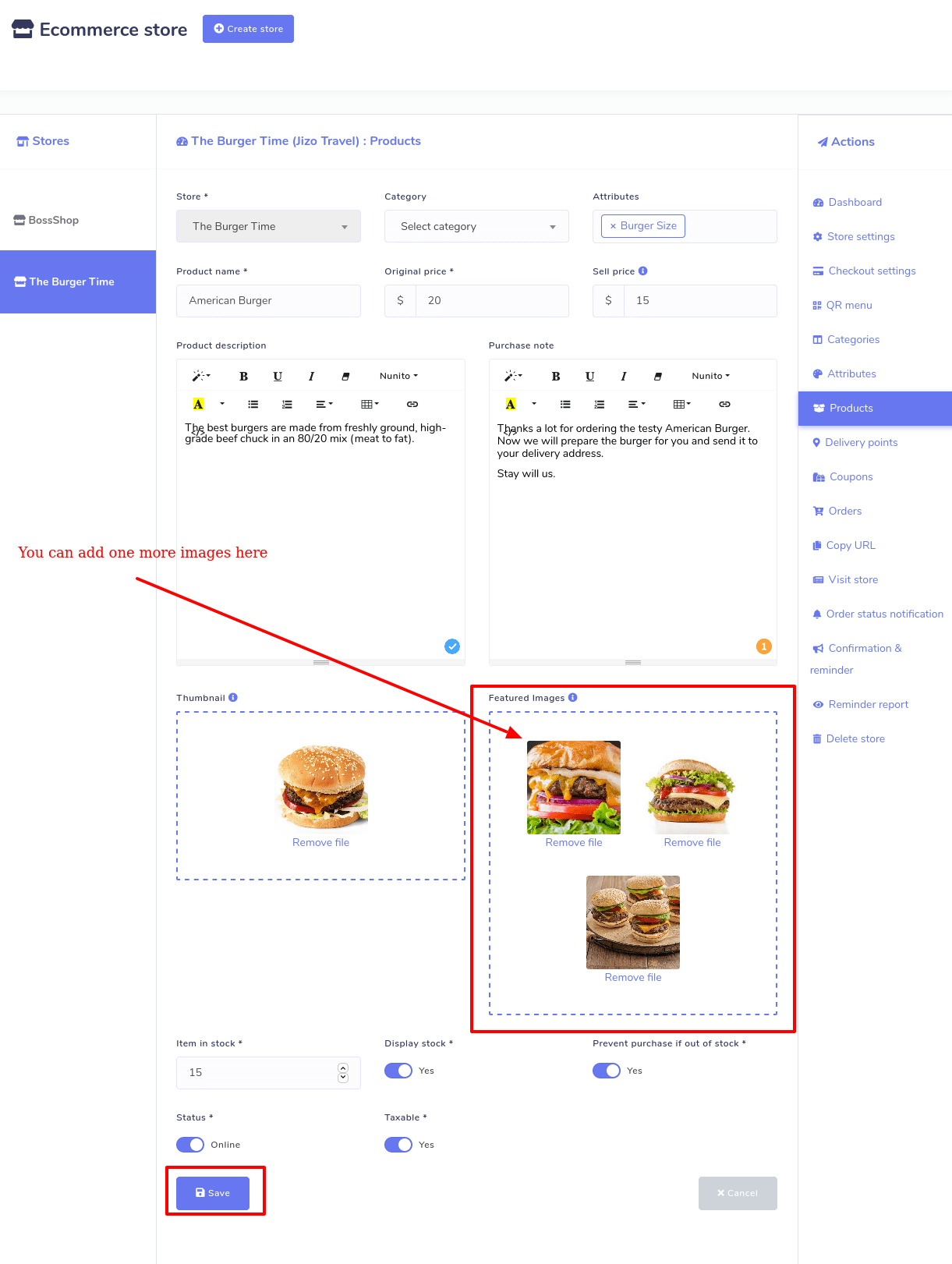
To add products, click on the ‘Products’ option in the ‘Action’ menu on the left side of the dashboard. Straightway, the Products page will appear with the Add product ‘Add product’ button at the top-right. Now click on the button, and a form will appear. You have to fill out the form to add the product, provide some initial information about the products, and select categories and attributes. Moreover, you have to upload thumbnails and featured images of the products. You can upload one more image of the products using the featured image option. To fill out the form, you have to click on the button. Instantly, your food item will be added to your virtual shop.
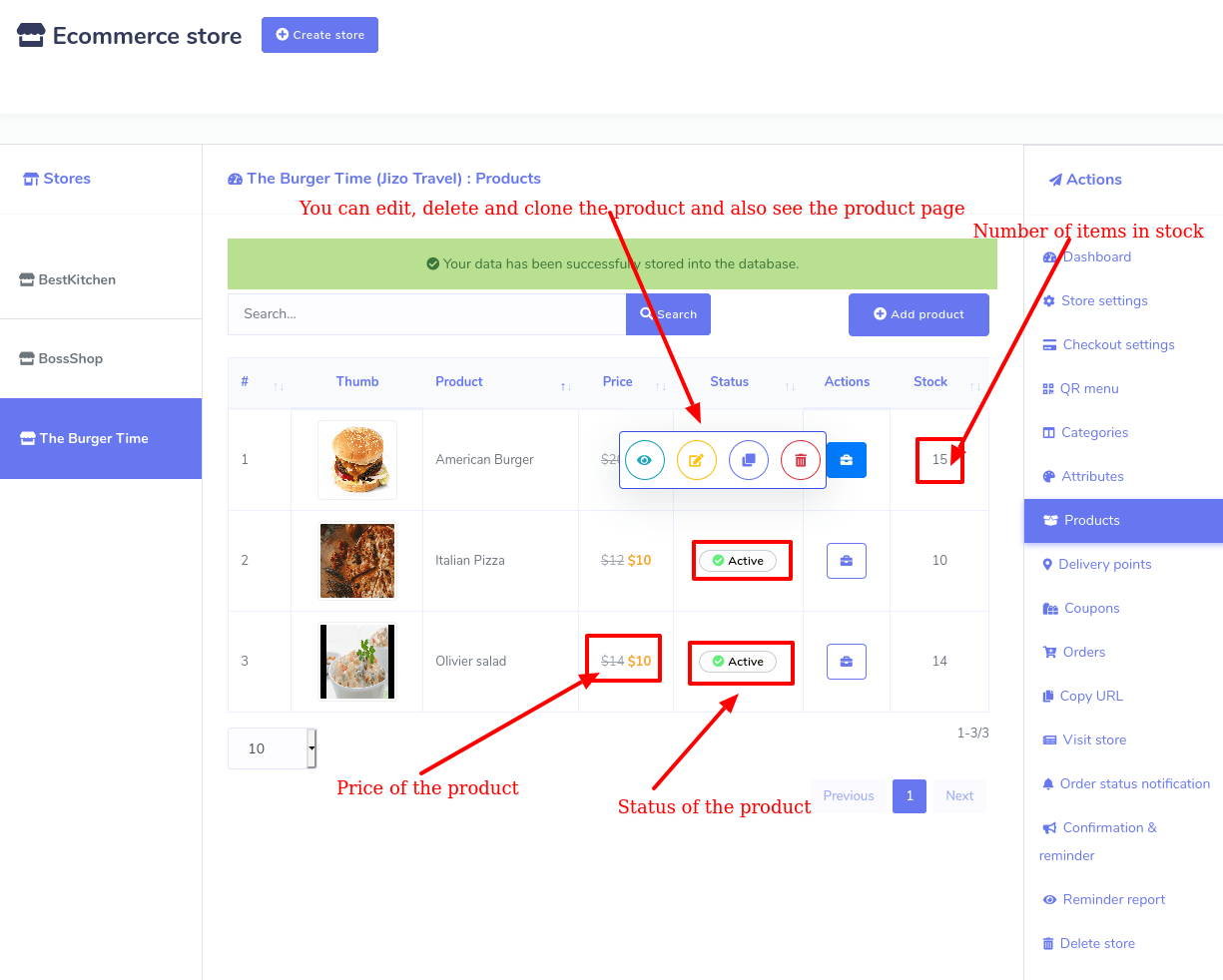
Likewise, you can add thousands of food items. All the food items will be shown on the page. You can edit, delete, and clone the food items and see the product page by clicking the action button. Also, you can see the price and status of whether the product is active or inactive.