Postback Quick Reply
Quick Reply
On the other hand, if you select quick reply, some fields—message, button text, and button type—will appear. Write a text message in the message field and a text for the button in the button text field. Select a button type in the button type field. Click on the button type field, and a drop-down menu of different button types—Post Back, User phone number, User email address—will appear. From the drop-down menu, select a button type.
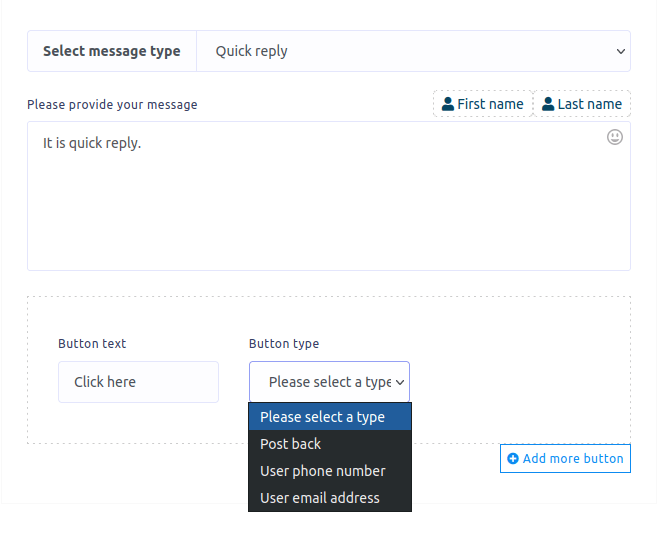
Postback quick reply
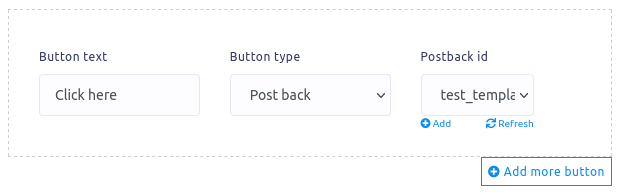
If you select postback, another field called postback id will appear. In the postback ID field, you must choose a pre-defined postback template. You can also create a postback ID by clicking on the add button.
You can also add more buttons by clicking on the add more button.
User phone number quick reply
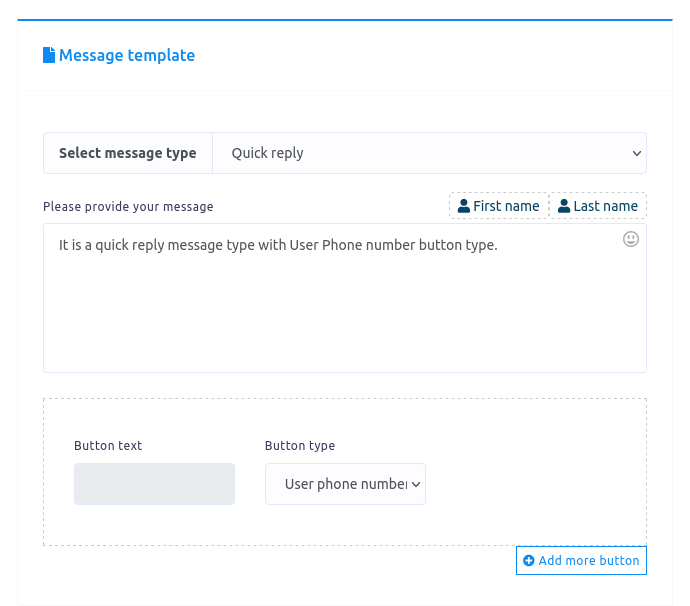
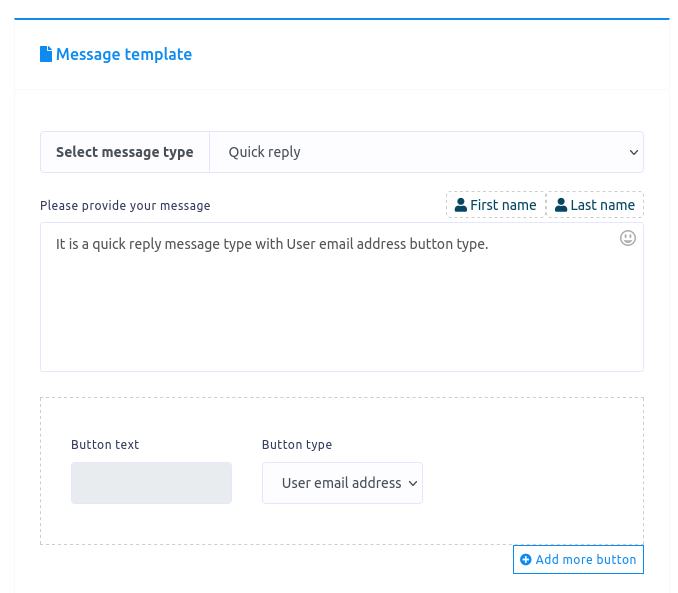
You can select the user’s phone number using the button type in the quick reply message type. When you choose the user’s phone number as the button type, the button text field will be disabled.
User email addresses quick reply.
The quick reply message type button allows you to select the user’s email address. When you do so, the Button text field will be disabled.
Text with button message type
On the other hand, if you select Text with buttons as a reply type, some fields—Message, Button text, and Button type—will appear. Write a message in the message field, write a text for a button in the Button text field, and select a button type from the button type field.
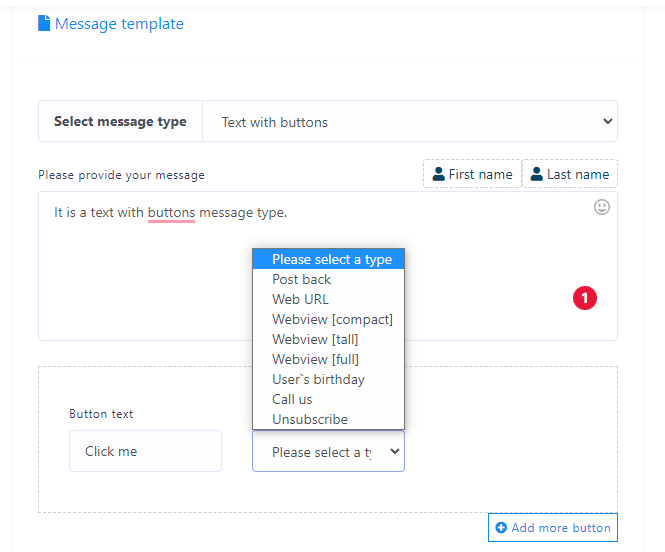
Click on the button type field, and a drop-down menu of different button types—postback, web URL, Webview(full), Webview(tall), Webview(compact), User’s birthday, Call us, and Unsubscribe—will appear.
Postback text with buttons
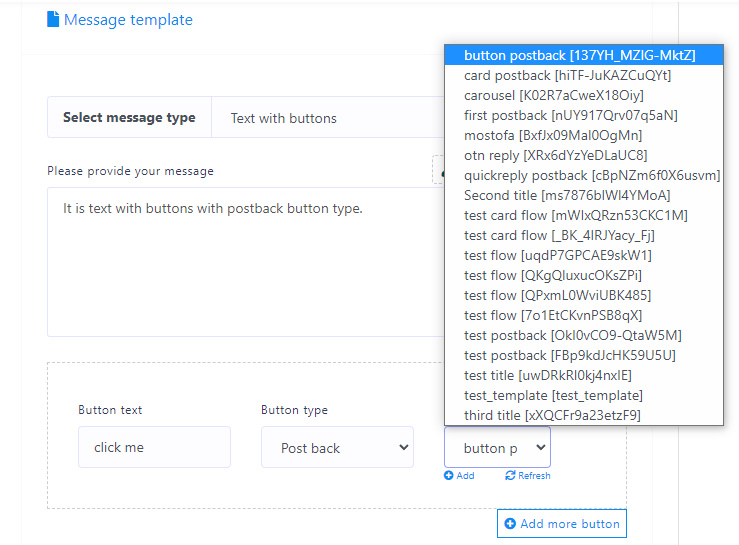
If you select postback, a new field called postback id will appear. In this field, you must choose a predefined postback template. You can create a postback template by clicking the add button under the postback ID field.
Web url text with buttons
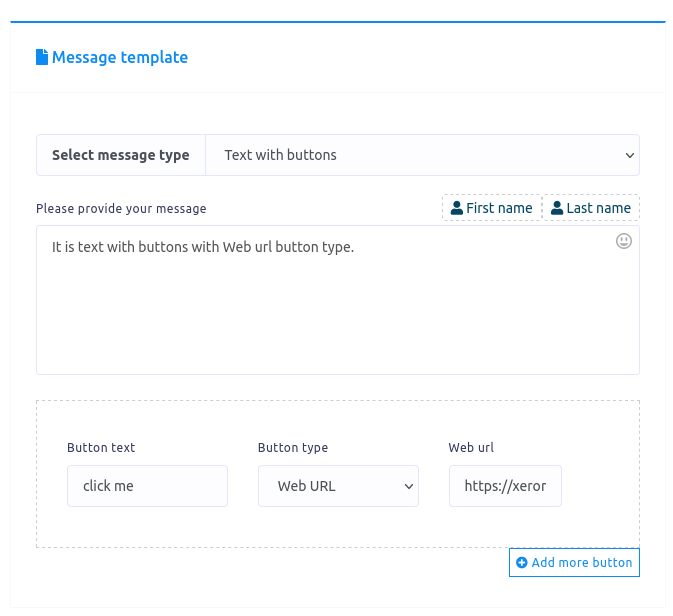
On the other hand, if you select Weburl, Webview(full), Webview(tall), or webview(compact), a new field called Web url will appear. In the Web url field, you have to paste a web url. When a user clicks the button, the user will be redirected to the Web url.
User’s birthday text with buttons
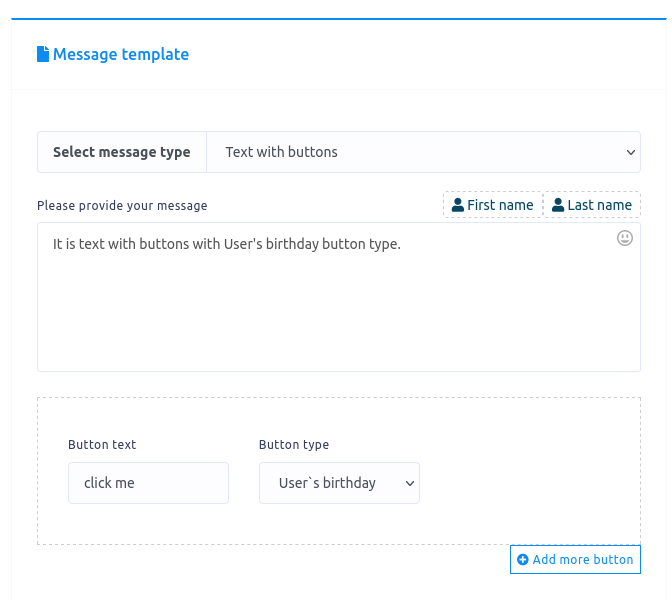
You can also select the User’s birthday button type from the drop-down menu of the Button type field.
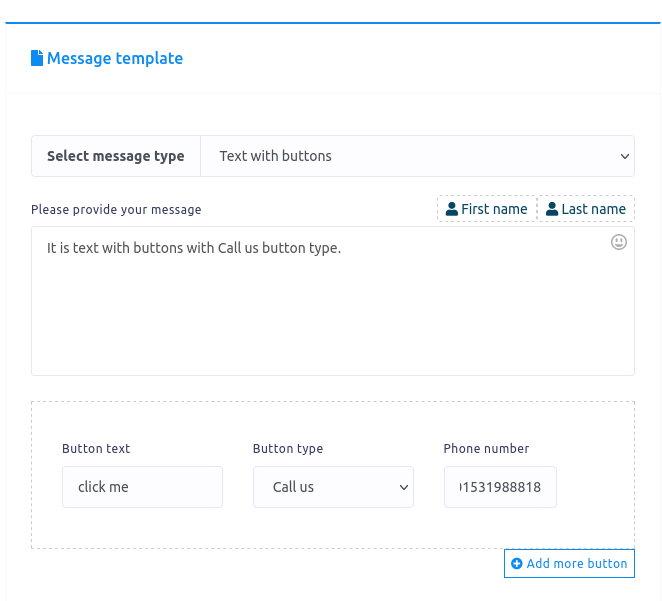
Call Us By Text With Buttons.
You can also select the Call Us button type from the drop-down menu of different button types. A phone number field will appear when you choose the Call Use button. You must provide a phone number in the phone number field. When the user clicks the Call Us button, a call to the phone number will be made automatically.
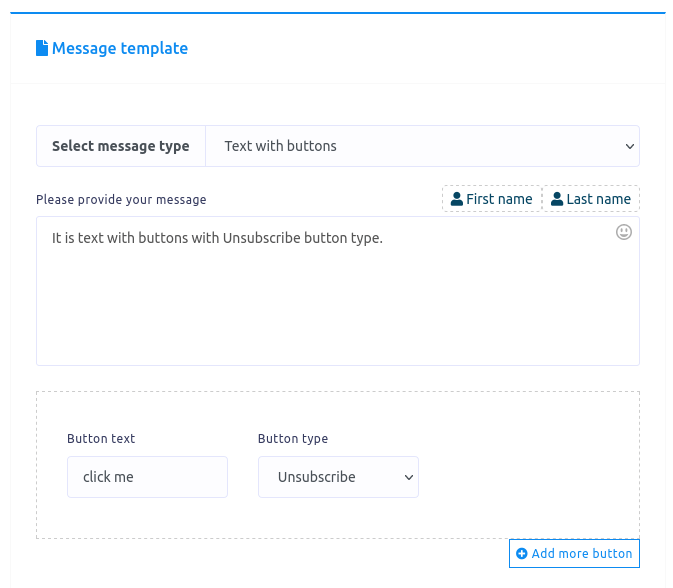
Unsubscribe text with buttons
You can also select the Unsubscribe button type from the drop-down menu of different button types. When a user clicks on the Unsubscribe button in the messenger, the user will be unsubscribed.