
Carousel
Carousel
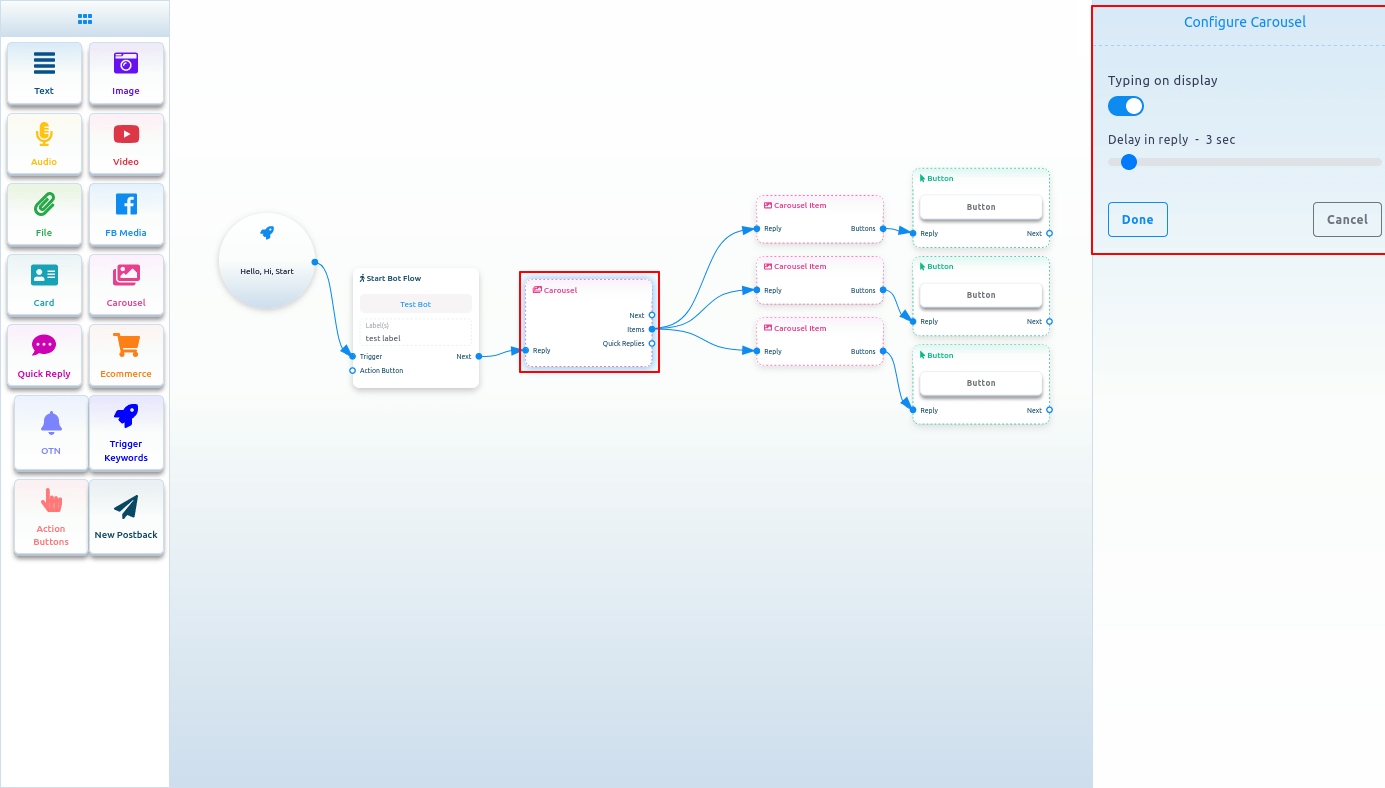
To add a Carousel component, drag it from the Doc menu and drop it on the editor. Instantly, the Carousel component will appear, with three carousel items connected to it and three button components attached to the three carousel items.
Now, double-click on the Carousel component, and the right sidebar called Configure Carousel will appear. In the sidebar, you can enable typing on display and select delay in reply time in seconds. Now click on the Done button.
Carousel Item
Now, come to the carousel Item component. Double-click on the carousel Item button, and the right sidebar called Configure Carousel Item will appear with some fields.
Now, upload an image. After uploading an image, paste a link in the image and click the destination link field. When a user clicks on the image, the user will be redirected to the URL. Write a title in the title field and a subtitle in the subtitle field. Enable the typing on display and select delay time in seconds.
Likewise, you have to configure the other two carousel items.
Now you have to configure buttons. You already know how to configure buttons.
You can add other components with the button components if you want.
Now click the save button or press ctrl + S, and your bot will be saved.