Button
Button Component
Read the following section to know how to add and configure the Button Component
To add a Button component, drag your cursor from the button output of an element like the Text or Card component and drop it. Instantly, the Button component will appear connected to the mother component.
The button component sometimes appears automatically, already connected with other elements such as the Card and Carousel components. This convenient feature saves you the trouble of manually connecting them.
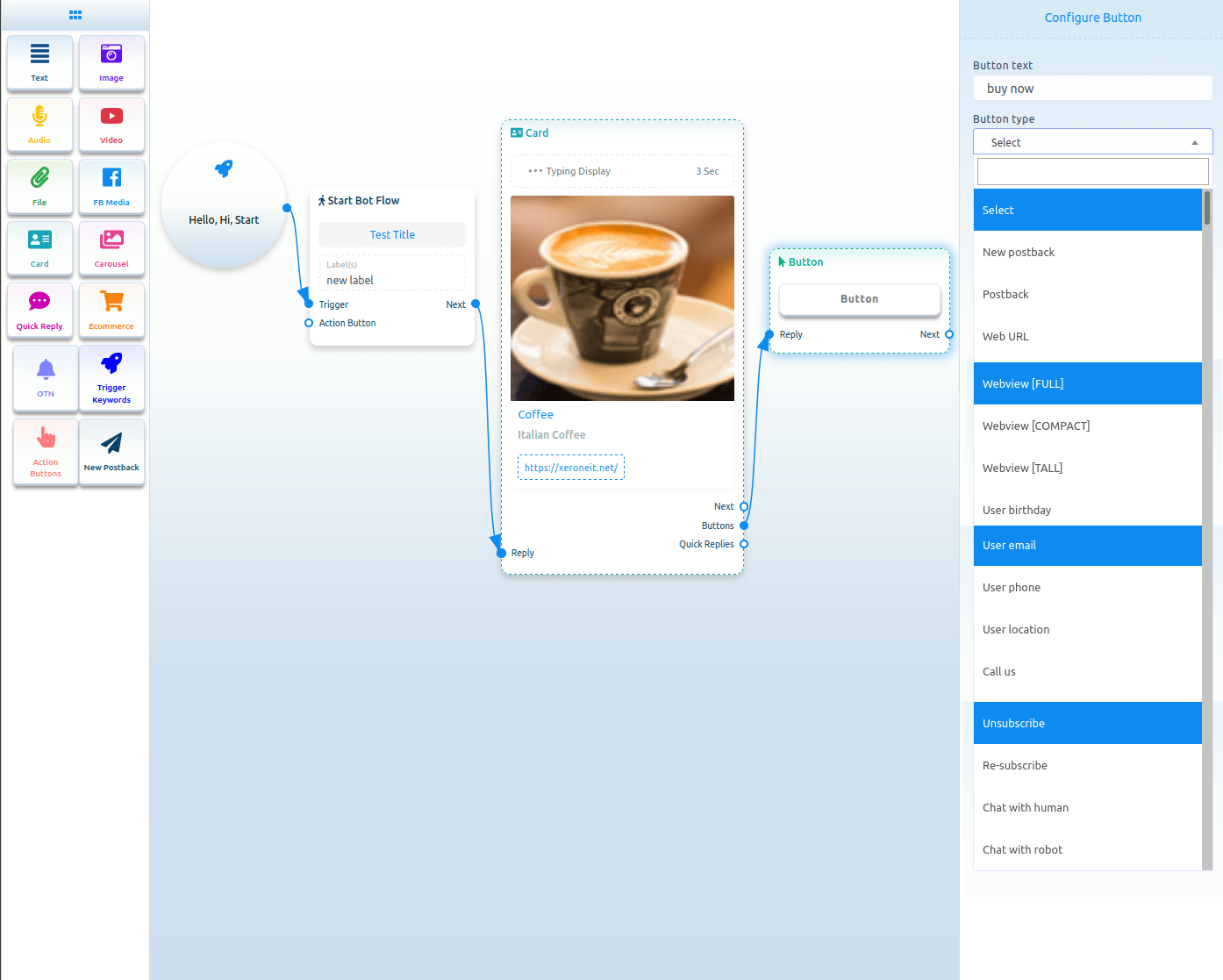
Now, double-click on the button component, and a right sidebar called configure button will appear. Write a text in the button text field – the text will appear on the button. Then, you must select a button type from the field. Click on the button type field and a drop-down menu of different button types – New postback, postback, Weburl, Webview [full], Webview[compact], Webview[tall], User birthday, User email, User phone, User location, Call us, Unsubscribe, Re-subscribe, Chat with human and Chat with robot will appear.
Button Types & New Postback
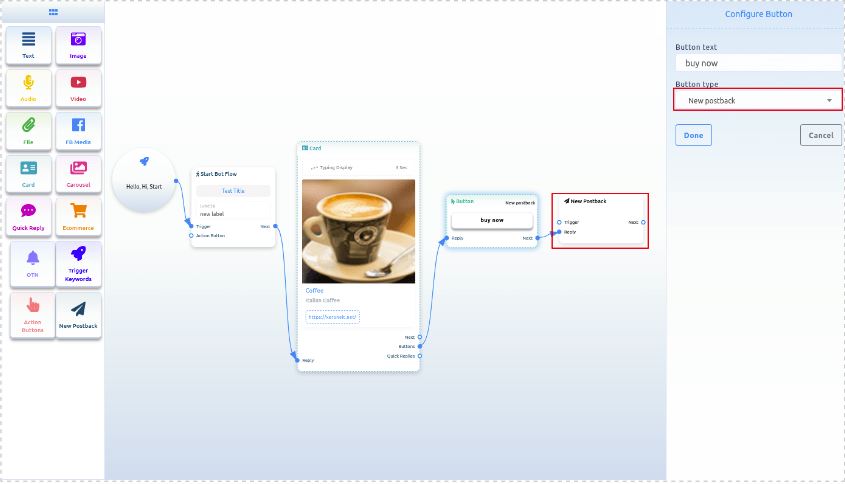
Select New Postback by typing the button and clicking on the Done button.