
Add Components Without Dragging From The Doc Menu
Adding Components Without Dragging From The Doc Menu
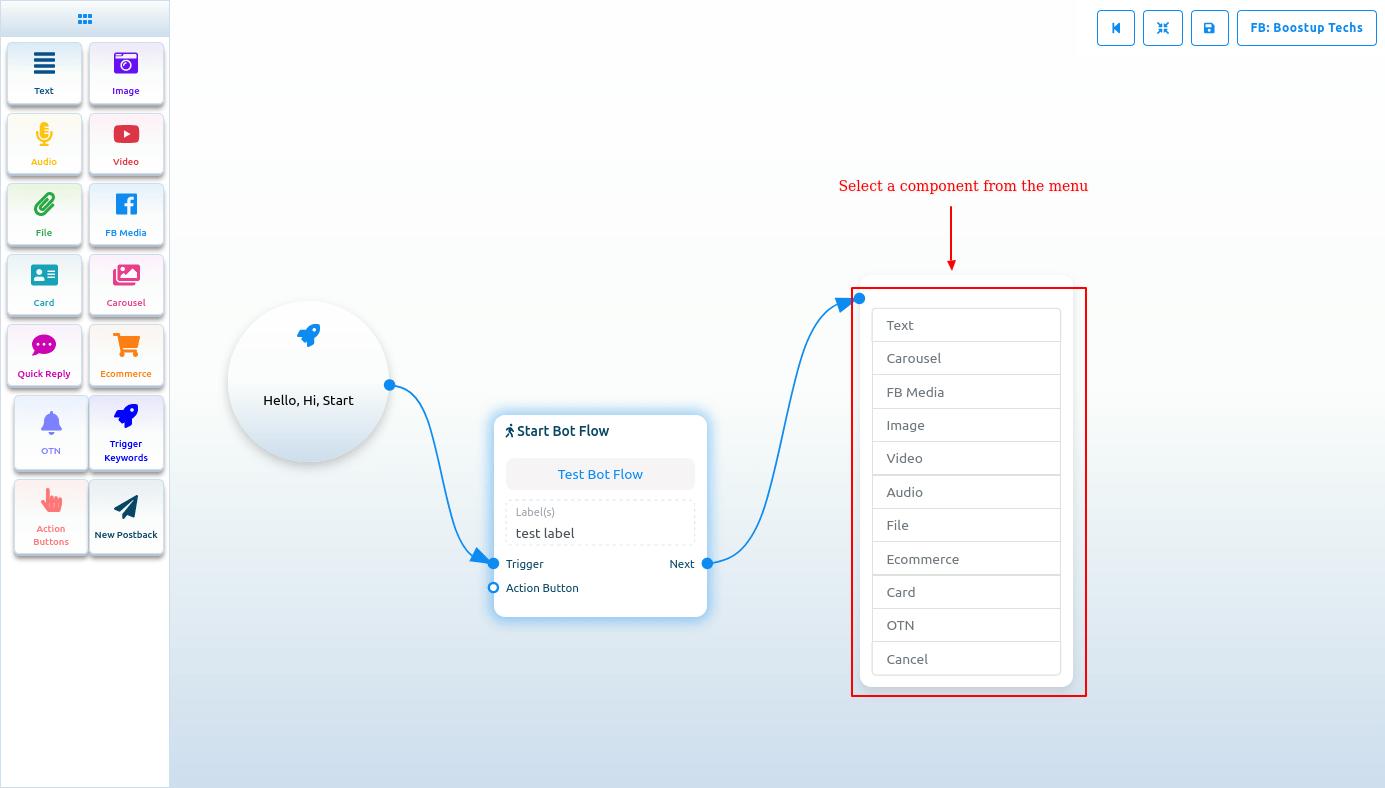
Adding components without dragging from the Doc menu is flexible and efficient. Simply drag the cursor from the output of any element, and a menu of different components will appear. Select a component from the menu, which will appear in the editor and is already connected with the mother component.
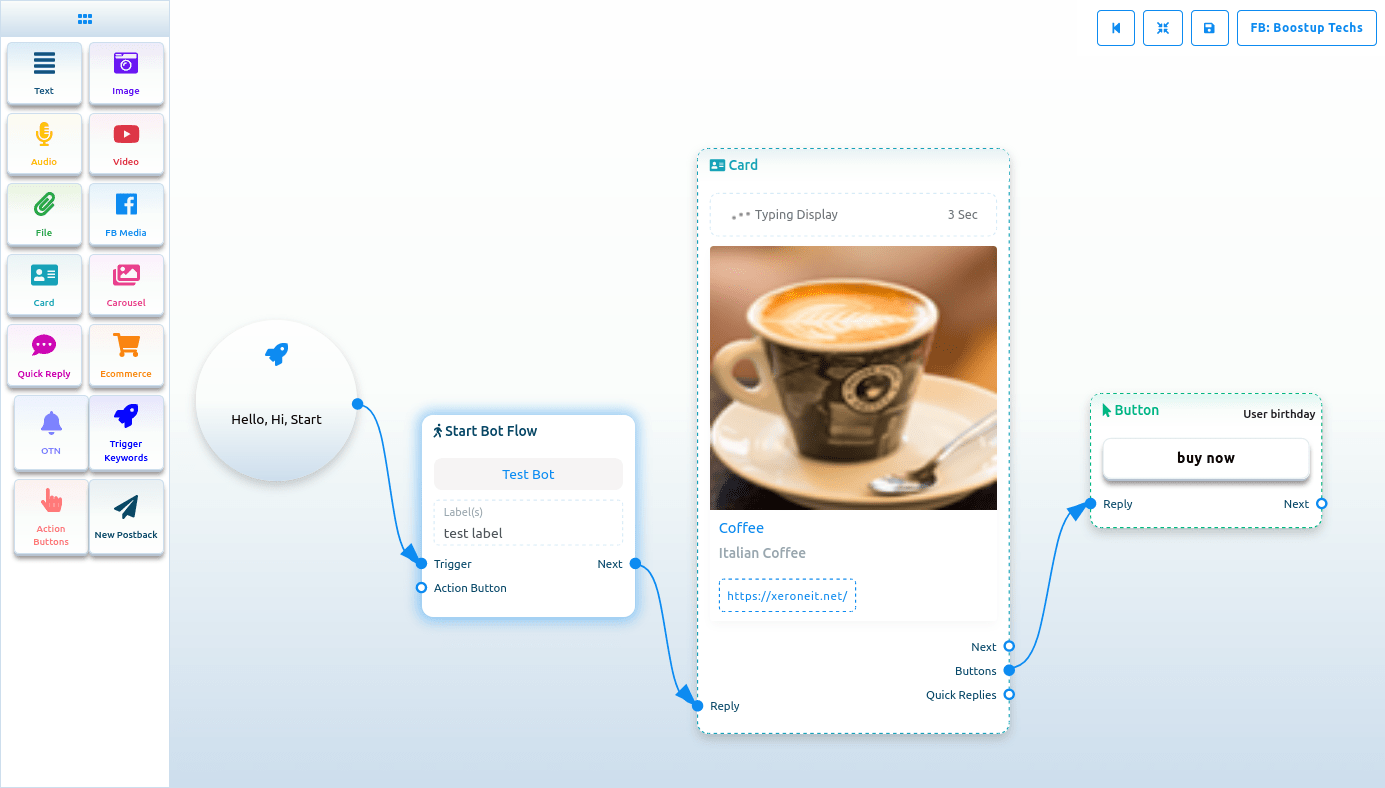
Suppose you drag your cursor from the button output of any component and drop it on the editor. In that case, the button component will appear in the editor and be connected with the mother component.
NB. The Button component is not present in the Doc menu.
Text
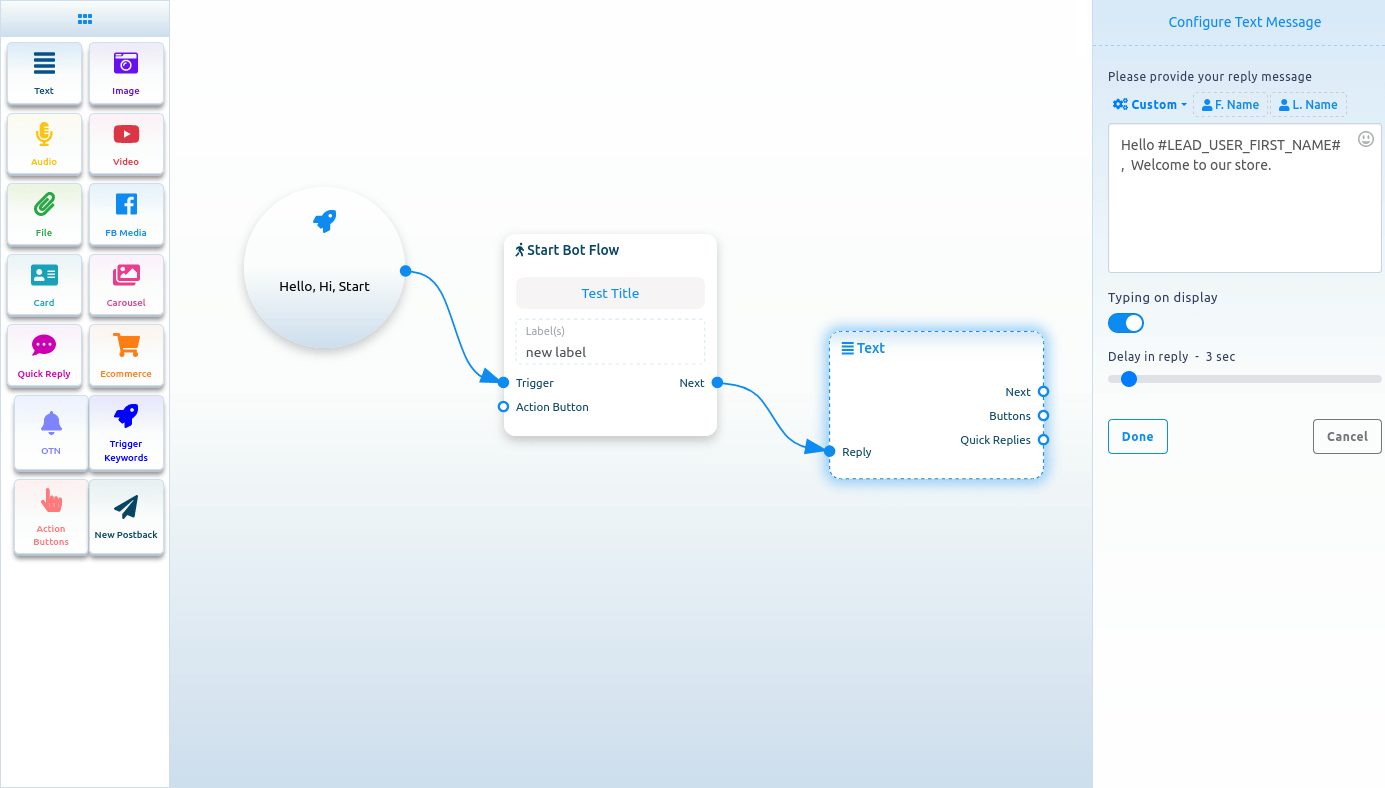
If you want to build a bot with a text element, drag the Text Component and drop it on the editor. Double-click on the component and a Configure Text Message sidebar will appear with a text field. In the text field, you must provide your reply message. You can include the user’s first or last name in the reply message.
You can also enable typing on display by turning on the radio button. Then, you can select the delay time in reply in seconds.
Now click the Done button, and the information will appear on the component. Then, connect the text component to the Start bot flow component.
Include Custom Variables In The Reply Message.
You can also include custom variables in the reply message. Click the custom button, and a drop-down menu with different variables will appear. From the drop-down menu, select a variable. The actual value will replace the custom variable before sending it.
