
Create Labels
Create Labels
You can create a new label from here. Click the Create label button, and a modal form with one field will appear. Write the new label’s name in the field, and click the new label button. The label will be created and selected in the field automatically.

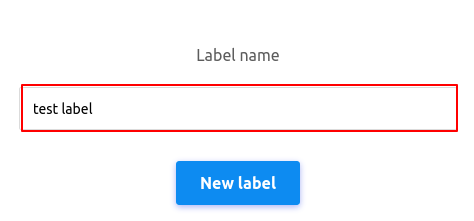
After you have selected labels in the Labels field, click the Save Changes button to save the changes.
Select Labels
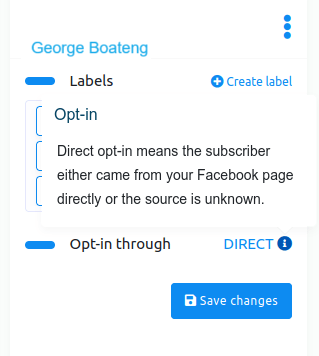
The above article helps us know how to create labels. You can assign the created label to a specific user from the label field. Click on the label form and instantly appear a drop-down menu of different labels you have made before. Then, you must select a label to assign the label to a subscriber list. The selected labels will appear on the label form. You can choose as many labels as you want for a specific user. You can remove labels one after another by clicking on the cross icon next to the label name. Of course, you can remove all the labels by clicking on the cross icon in the field.

Opt-in through
In the opt-in through option, you can see whether the subscriber has come directly through the Facebook page or the source is unknown. If you see the word Direct beside the opt-in through, you know the user has accessed the Facebook page or the Instagram account directly.
Status
Clicking the status button allows you to unsubscribe and resubscribe a user. You can also click the bot status button to pause and resume the bot reply.

Primary Information
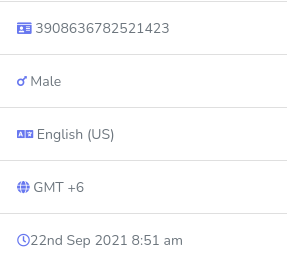
You can see the subscribers’ primary information: subscriber ID, gender, language, time, and date.
Conclusion
If a bot forwards a subscriber to a human agent, you can directly chat with the user from the Live Chat without opening the messenger. On the live chat, any employee can chat with the users without being moderated on the Facebook page or the owner of the Instagram account. Using Live Chat, you or your employees can easily see the latest conversations and chat with them directly without going to Facebook or Instagram Messenger.