
Howdy! How can we help you?
Variable Products
Variables
Variable Products
Variable products in Dashrite Marketplace let you offer a set of variations on a product, with control over prices, stock, images, and more for each variation. For example, you can use them for a product like a t-shirt, which you can offer in large, medium, and small sizes, all in different colors.
Adding a Variable Product.
Adding a variable product is similar to adding a simple product but with more details.
To add a new variable product:
- Navigate to “Products” in Vendorzone (the Vendor admin area).
- Click Add New Product at the left panel of the page.
- Enter the product title/name.
- Choose “Variable Product” from the “Product data” dropdown menu.
- Click on the “Attributes” tab on the left-hand side under the Product data dropdown.
- Add either a global/existing attribute or create a new one(specific to the product):
- Adding /selecting global attributes,
- If Dashrite has already created global attributes, select the one you want to use from the right dropdown menu at the top of the attribute settings.
- Select the variations/values you’d like to use from that attribute. You can add them by clicking the “Select All” button below the values box or selecting specific ones you want to use by clicking on the “Select Values” box and selecting them individually.
- Adding a new Attribute:
- Click the “Add New” button at the top of the attribute settings.
- Add a name for your attribute (examples: size)
- Add the values (variations) you need. Separate each variation/value with | (i.e.: Medium | Large | XL | XXL )
- Click “Save/submit Attributes.”
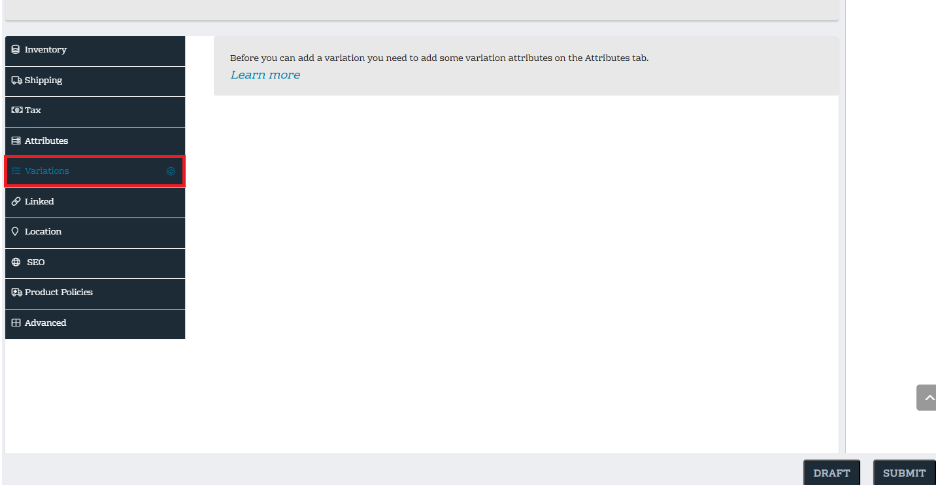
- Click on the Variations tab on the left.
- Click either:
- Generate variations to add all possible variations from all attribute values/variations.
- Add manually to specify which variables will be available for the product.
- Click on each variation to expand to its product menu.
- Enter product information: Price, stock status, weight, dimensions, shipping class, and description. Add Linked Products if needed. Repeat for all variations.
- Optional: Use the “Bulk Actions” dropdown at the top of the “Variations” menu to simultaneously set product information for all variations.
- Click Save Changes at the bottom of the variations menu.
- Click “Publish” in the top right of the screen to publish the product.