Tax Settings And Payment Accounts
Tax Rates, Tax Groups & Disabling Tax
Tax Rates
- To add new tax go to Settings -> Tax Rates -> Add
- Add a descriptive name (eg: “VAT@5%”) and specify the “Tax Rate%”
Tax Groups
- Sometimes, you will need to apply multiple taxes to an invoice or purchase. So, you should create tax groups by combining multiple taxes.
- To add a Tax Group – Click on the Add Button, Give a meaningful name, and select the tax you want to use in this tax group.
- The tax rate of the tax group will be the sum of tax rates of Sub-taxes added.
- If the sub-tax is edited the corresponding tax group’s tax rate will also get updated accordingly.
- You cannot delete a Tax if it is used in a Tax Group.
Disable Tax
- Don’t add Tax Rates in settings
- Go to Settings – Business Settings.
- Uncheck “Enable inline tax in the purchase and sell. “
- Uncheck “Enable Price & Tax info“
- Select “Default Sale Tax” as None.
NOTE: If you disable the inline tax in the purchase and sell, the Price Inc tax column will not be shown in the POS screen.
Setting Dash POS for users or other countries with GST support is important.
Displaying HSN Code for items (For some businesses)
- HSN code depends on the category of a product.
2. Go to Settings -> Categories, click on “Add”. Add category name and category code. The category code is the same as the HSN code.
3. To display the HSN code in the invoice – Go to Settings -> Invoice Settings -> Invoice layouts. Add/Edit invoice layout and click on ” Show category code or HSN code”. Save it. Assign that invoice layout to your business.
Setting up invoice format for GST
Check the details guide on invoice format & designs
- To display the summary of tax in the invoice – add the label “Tax Summary Label.”
- To see inline tax, try using the columnized tax design or detailed design or Elegant or classic as per your need.
Above is comprehensive documentation as per our knowledge on using Dash POS for Indian users, do check it out.
Payment Accounts
Enabling & using a Payment account or bank account
What are payment accounts in DashPOS?
Payment accounts are like for example, bank accounts. You can transfer money from one payment account to another, deposit cash in a payment account, pay to a supplier, or deposit the amount received from a customer here.
Enabling Payment account
- Go to Settings ->Business Settings -> Modules
- Enable payment ‘Account’ option
- Save it.
- After saving, you will see the “Payment accounts” option visible in the left navigation bar.
Payment account type & sub-type
- Go to Payment accounts -> List accounts -> Account Types
- Account type: to add an account type click on Add button and enter the name of the account type and submit. Keep the Parent account type unselected.
- Sub-Account type: To add a sub-account type click on Add button, enter the name of the sub-account type and select the Parent-account-type.
- When creating an account you can select the account type as per your need.
Creating Payment accounts
- To create a payment account, Go to Payment Accounts -> List Accounts, click on Add button
- Fill in all the details like name, account number, Account type, opening balance, Account details & notes.
- Account Details: Here, you can add any additional account details, like, for example, UPI ID, SWIFT code, BIN number, etc, which vary depending on the accounts.
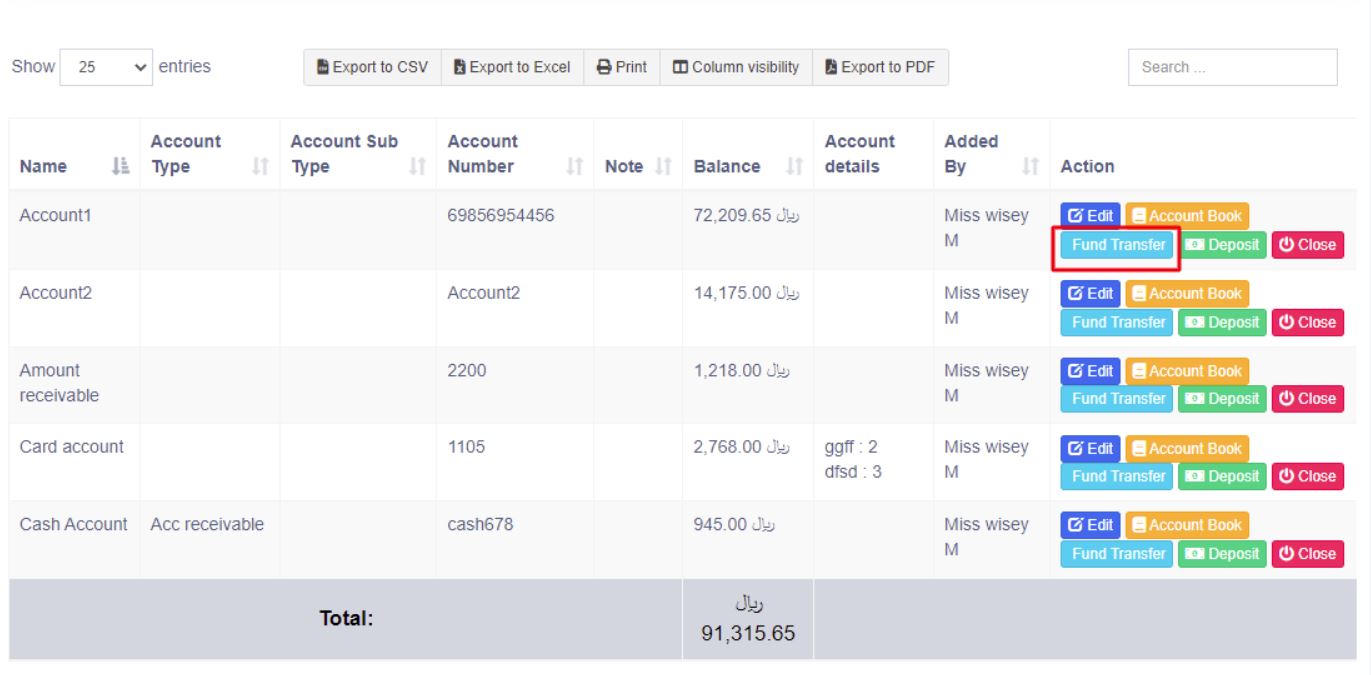
Transferring funds between Payment accounts:
You can transfer funds between the payment accounts.
In the Payment Accounts -> List Accounts, click on fund transfer.
Setting default payment accounts for payment methods
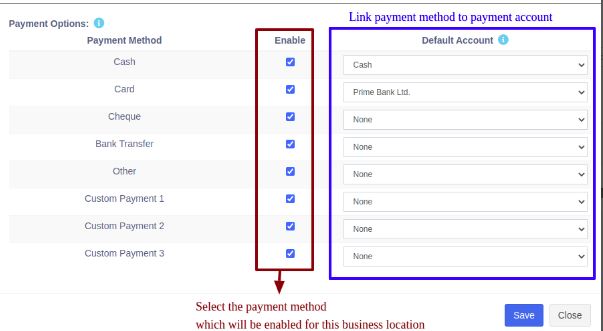
In Add/Edit business location you can select the default payment account for each payment method.
If the payment account is linked then when adding a payment for sales/purchase/expense, on selecting the payment method the payment account will be automatically selected.