Attendance Management
Attendance By Admin & Other Users
- Users can add their own attendance, admin can add the attendance of every user.
- Attendance fields for admin: Employee, Date, Ip address(auto get the user’s IP address), note, clock_in_time, clock_out_time.
- Attendance by non-admin users: Users can add their own attendance by clicking on the “Clock In” button in the top navigation bar and clock-in by adding a note. Click on the “Clock Out” button before leaving the workplace for checkout and add a clock-out note.
- Total work hours will be displayed when the admin selects a particular user and are always visible to non-admin users.
- If the admin wants to add attendance for users & doesn’t want the user to add their attendance, then it can be disabled by unchecking “Allow users to enter their own attendance.”
How can users add their own attendance:
Follow the steps below for users to add their own attendance
Step 1: Enable the “Allow users to enter their own attendance” in the User Management > Roles for that particular user.
Step 2: Log in with that particular user’s login details.
Step 3: In the attendance tab, the user can now clock in and clock out, thus marking their own attendance.
Grace Time:
- Grace time is useful for fixed shifts.
- Grace before check-in: This is additional time that is not counted as overtime. Meaning if Grace before check-in is defined as 30 Min & a shift starts at 11 AM, then even if someone check-in at 10.30 AM, it’ll not be considered an early check-in
- Grace after check-in: Similar to before, this is time that is not considered as late even after checking at late. If Grace after check-in is 30 Min, then doing a check-in at 11:30 AM will be allowed.
- Grace before checkout/Grace after checkout: Same as above 3 & 4, but this applies to check out timing.
Getting the user’s location in attendance:
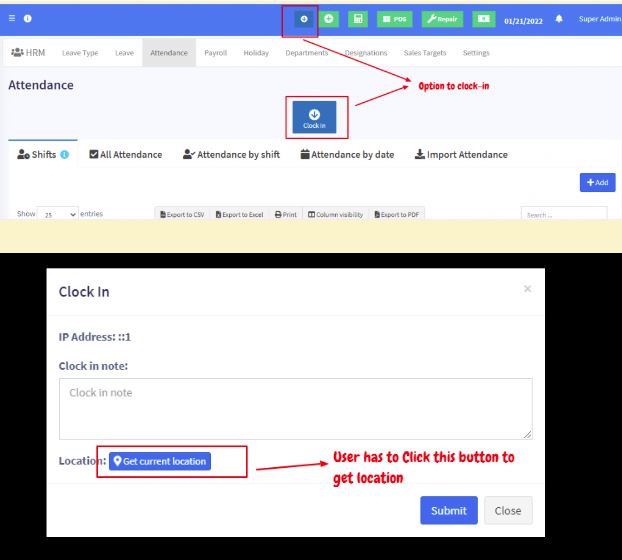
When a user/employee clock in, the system can save the user’s location from which he/she has put attendance.
NOTE: For the location to work, your website must be HTTPS
- Enabling Location:
- Go to HRM -> Settings -> Attendance Tab.
- Check the “Is Location Required?” checkbox & save it
- Check the below screenshot for locations when adding clock-in
How accurate is the location?
Accuracy of Location depends on the API & device(mobile or laptop) used and not on the application.
Mobile: mobile has GPS enabled, so the coordinates sent by them are more accurate
Laptop: Most laptops don’t have GPS enabled, so the location is based on the IP address, which is not very accurate
DashPOS comes with two-map API integration.
- Free Open street map: It’s completely free and not very accurate. It does not require any additional configuration since it is integrated by default.
- Google map: Paid API and is 100% accurate. This needs additional configuration steps for accessing the location.
To enable Google Map API, follow the below steps.
Open the .env file and update the GOOGLE_MAP_API_KEY=””.
Note: The updated Google Maps API key should have geocoding enabled.
Biometric Scanner Integration in Attendance:
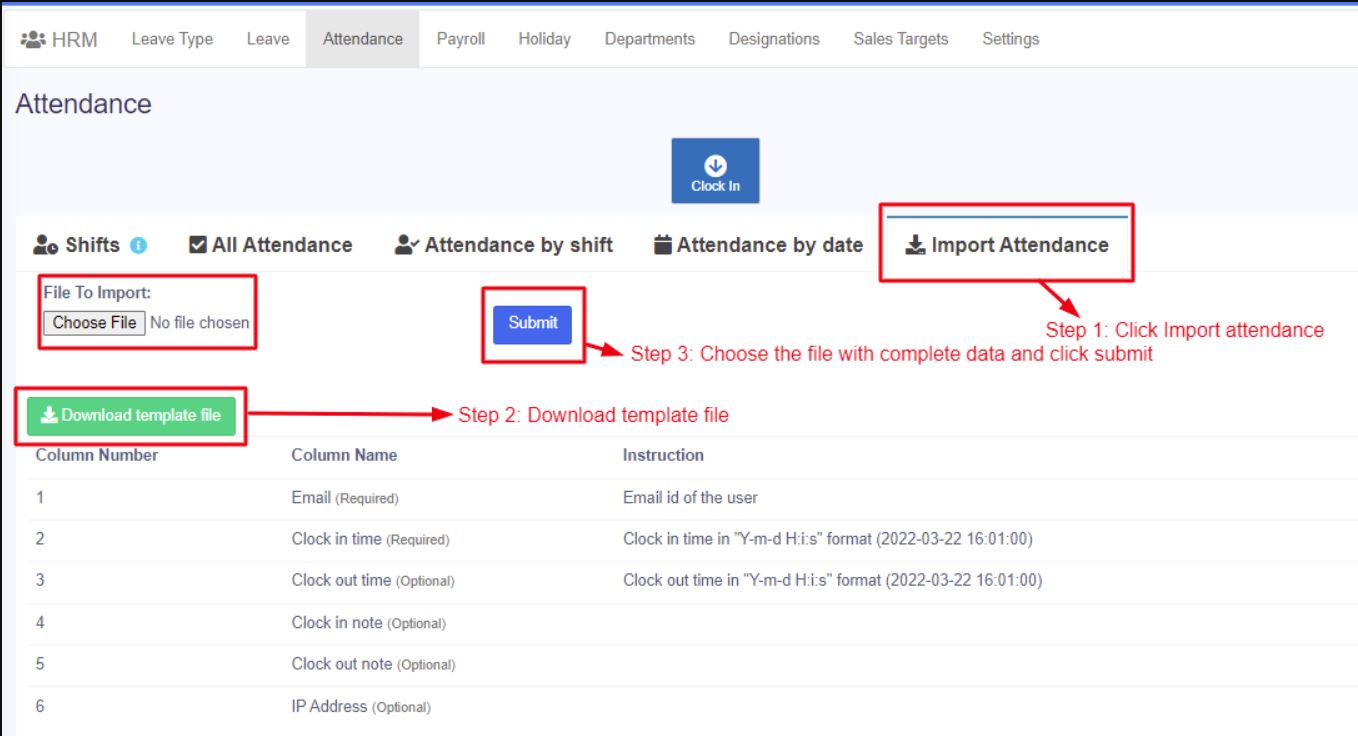
If a biometric system is used for attendance, then the data from the Excel file exported from the biometric system can be fed into the downloaded template file. The complete data can then be imported into the POS system.
Use the import attendance feature to achieve this.
Module Content settings. You can also style every aspect of this content in the module Design settings and even apply custom CSS to this text in the module Advanced settings.
Notes:
Sometimes, you may have an issue with import attendance due to an incorrect date format in the imported Excel sheet. Check the below conditions and ensure that the format is correct
- The clock-in & clock-out should be in the format “Y-m-d H:i:s” ex: (2023-06-04 21:13:55).
- The format type of clock-in & clock-out should be in text format in the Excel sheet.
Shift management:
There are two types of shifts that you can create for users.
Fixed shift:
- With the fixed shift, you can create shifts with a specific starting and ending time.
- Therefore, users can clock in only at a specific time.
- If users try to clock in or clock out at a time later or earlier than the specified time, it will show an error message.
Flexible Shift:
- With the flexible shift, you can create shifts without specific timing
- Therefore, users can clock in and clock out at any time.
Assigning shifts to users:
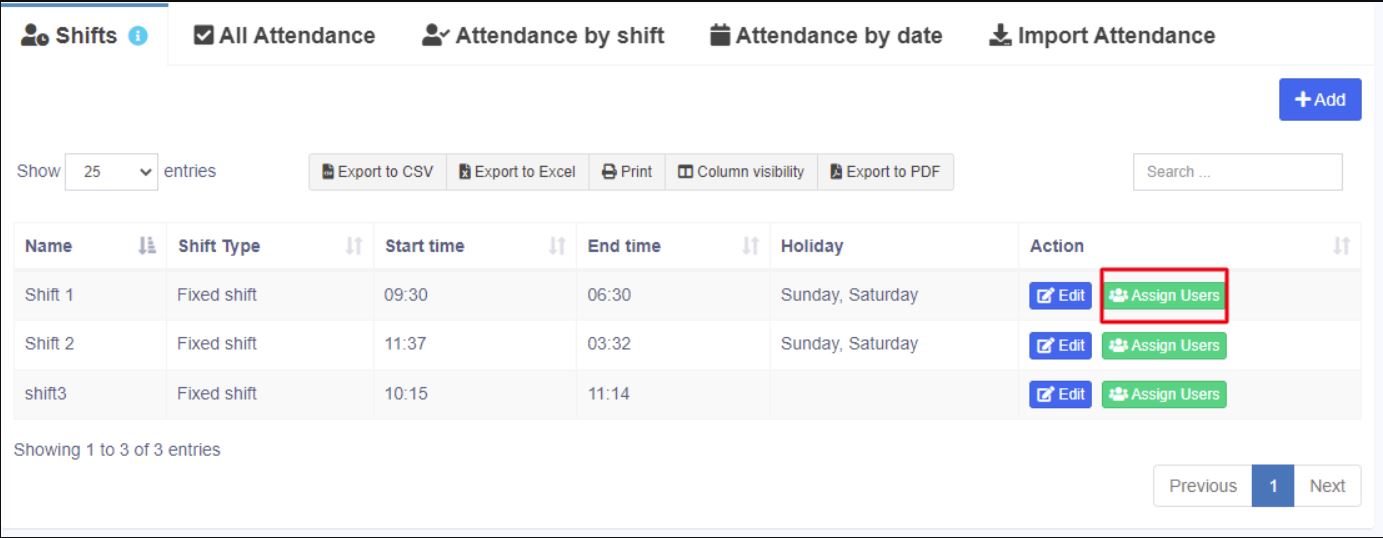
The created shifts can be assigned to specific users, so when users log in, they can clock in for the shifts assigned to them.
Click the assign users button for a particular shift and assign shifts for users on particular dates.
ERROR: No active shift at this time
Sometimes, while users try to clock in, it may show this error.
This is because there are no fixed shifts available for when they log in.
In such conditions you can either manually add the attendance for such users in the attendance tab.
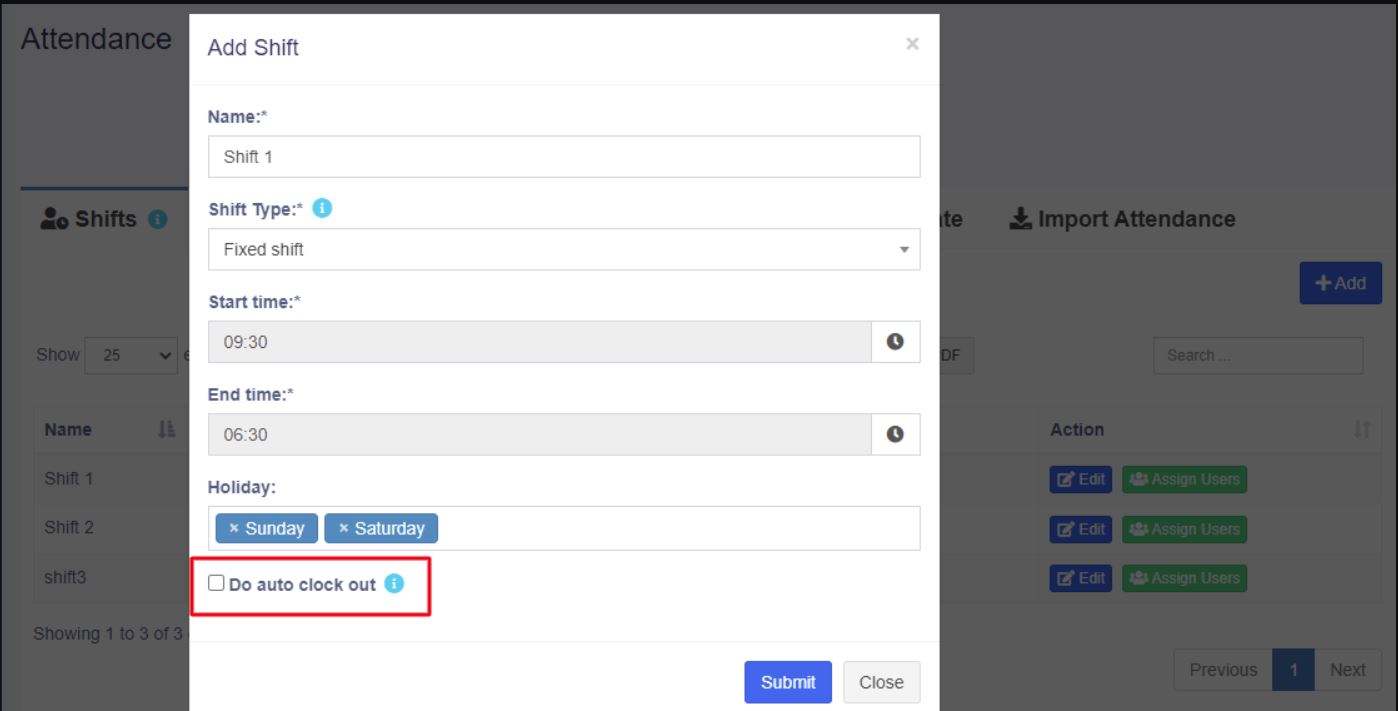
Auto clock-out option:
By enabling this option, the system will automatically end the shift for users, and they can clock out automatically.