
Invoice Layout
Invoice Layout
Invoice Layout helps you to create different invoice formats.
To add a new invoice layout:
- Go to Settings->Invoice Settings->Invoice Layout->Add
- Give a unique, distinguishable Layout name
- Add the text to be shown in the top/header of the invoice. Generally, it can be your shop name, aligned center with Heading 1 format.
- Add other relevant details.
- You can show/hide address fields.
- You can mark a layout as default. The default layout is used when no layout is found for a location.
- Click on Save.
To use an invoice layout in a location, go to” Business Locations -> Edit” and assign the invoice layout.
Invoice Design:
- In invoice layout, you will find options for invoice designs.
- Used for browser-based printing only & NOT for server-based printing.
- Slim design is used for thermal line printer-based printers.
Tax Summary:
To see the tax summary in the invoice, go to add/edit invoice layout, and enter the “Tax Summary Label” option and it will show the tax summary in the invoice.
Total in words:
To display the total in words in the invoice Enable:
- Show total in words
- Choose “Word Format”
Discounted Price:
To display the discounted unit price and discount amount in the invoice, enable the following field in the invoice layout
- Discounted unit price label
- Discount label
Display unit breakdown:
To display the reduction summary of quantity from multiple units, enable the checkbox ‘show base unit details (If applicable).’
Adding sale custom fields in the invoice:
Custom sales fields can be added to the printed invoice.
Step 1: To achieve it, Go to Settings > Invoice Settings > Invoice Layout.
Step 2: Select the invoice layout in which you need the sale custom fields to be printed.
Step 3: Enable the checkboxes for the sell custom fields, “sell 1”, “sell2,” etc., and save it.
Now, when you use this chosen invoice layout, the custom fields you set up for sales will automatically appear on the printed invoice.
Letterhead:
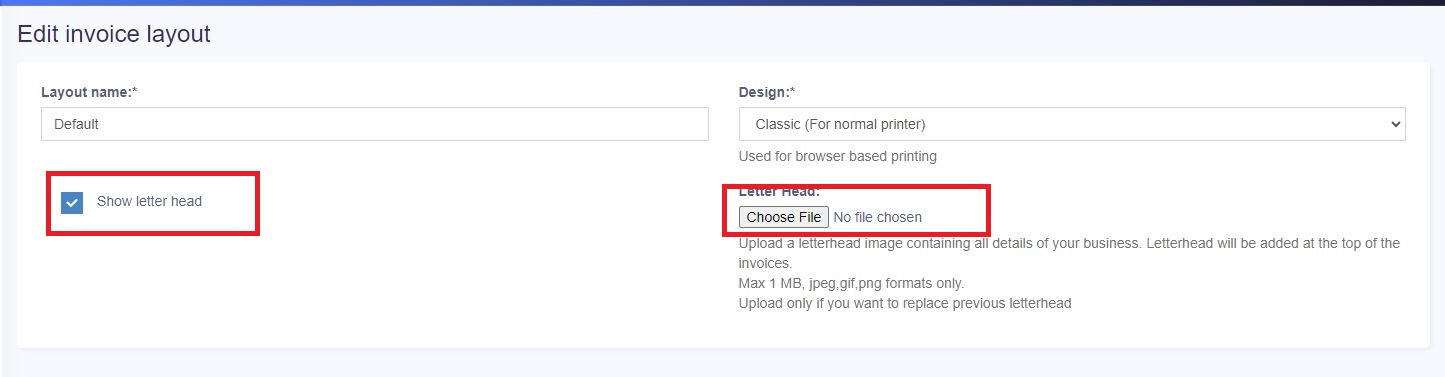
A letterhead image containing all details of your business(organization name, address, business registration & other details) can be added to invoices.
The letterhead will be displayed at the top portion of the invoices.
- Go to Settings > Invoice Settings > Invoice Layout.
- Enable the “show letterhead” checkbox.
- Upload the letterhead file (Max 1 MB)
Displaying QR code in invoice
Displaying QR code in Invoice:
Steps:
- Edit an invoice layout
- Scroll down to the QR code section at the bottom
- Click Show QR Code
- Enable all the fields required in the QR code, like Business Name, Business Locations, Invoice URL, and others
- Save the invoice layout. Print an invoice and you’ll see the QR code in the invoice
- Show Labels: Enable this option to show the labels(key-value pair) in QR code
- ZATCA (Fatoora) QR code: This is mostly required in Saudi Arabia country. Enabling this will generate a QR code in LTV-base64 format.
Gift receipt:
A gift receipt shows proof of purchase but leaves out the amount spent. To print a gift receipt follow the below steps:
- Add a new invoice layout with the name “Gift Receipt”
- In invoice layout select the Invoice Design as Slim and Check the Hide all prices checkbox
- In Business Settings -> POS, check the Show invoice layout dropdown and save it.
- Now in the POS screen whenever you want to issue a gift receipt, simply select the invoice layout as Gift Receipt and print the invoice.
Invoice External URL
- With an invoice external URL, you can share the invoice with a customer via a link.
- With this link, they can see & print the invoice without having to log into the system.
- The link can also be sent in Email & SMS notification. To send url in an Email/SMS notification add it to the notification template using the URL tag.
Configuring keyboard shortcuts for POS screen
DashPOS supports keyboard shortcuts, by default, we have configured shortcuts for different actions in the POS screen.
But you can configure it yourself at your convenience.
To configure keyboard shortcuts, go to Settings -> System Settings. Here in the POS section, you will find a list of Operations and the shortcuts for them.
You can use the Available Key Names with any combination of letters or numbers to create shortcuts.
– Make sure the shortcuts do not conflict (are not the same) with the shortcut of the browser. Making a shortcut the same as the browser will have different effects in different browsers.