Products Management
Products
Adding Products
Go to – Products > Add Products.
-
- Provide a Product Name,
Brand,
Units,
Category
Sub-category
SKU: Add a unique SKU which will be used to identify the product & Print barcode in labels. Leave it empty to auto-generate it.
- Provide a Product Name,
Steps to change the default SKU length:
In order to change the default SKU length, make the following simple changes in the code.
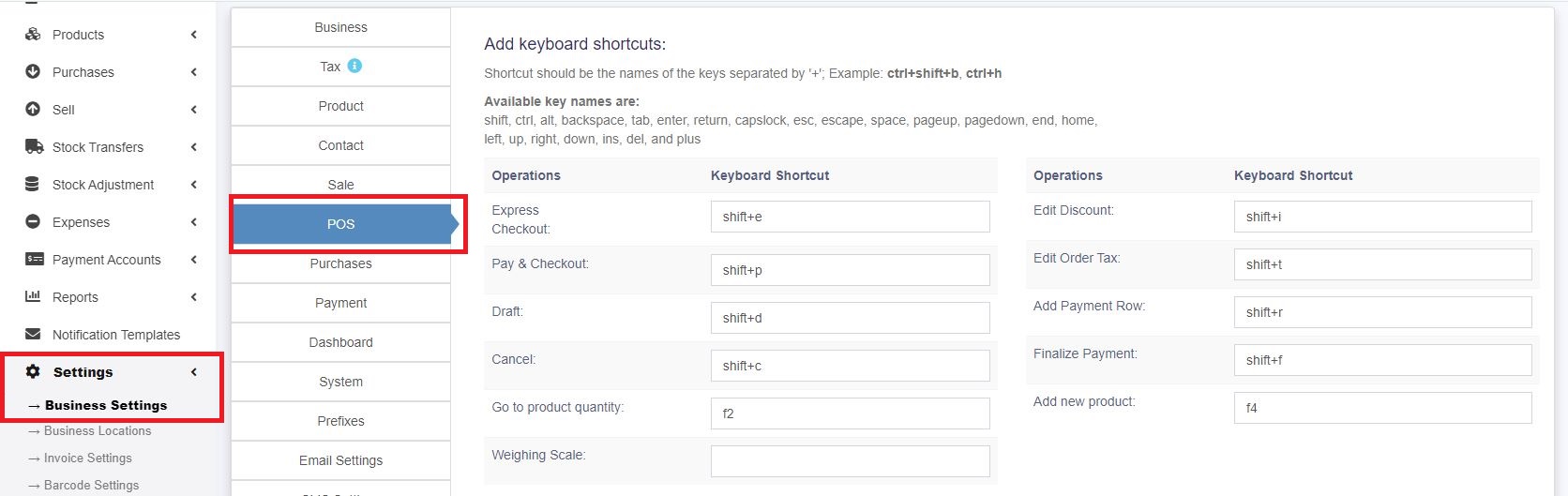
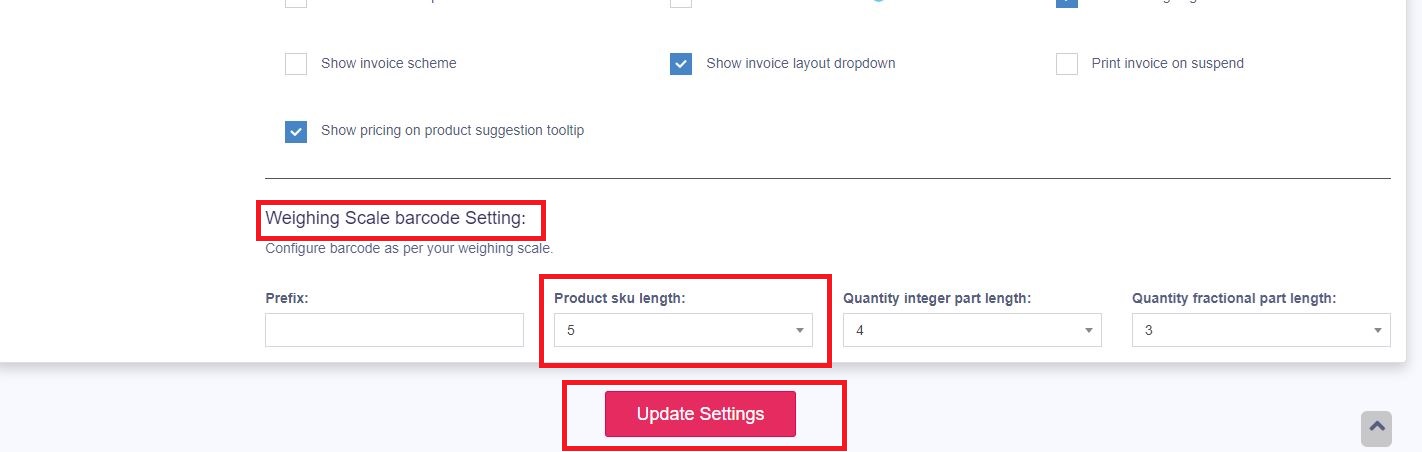
1. Go to Business Settings -> POS -> Weighing Scale barcode Setting -> Product sku length
2. Change the default value 4 to any required length click on update settings below.
- Barcode Type: From The Add Product section, select a barcode type. The default/recommended option is the C128 option. We recommend changing it if only the product added already has an SKU number.
- Not For Selling: If a product is marked not for selling, it will not be displayed in the POS or sales screen. This can be useful when using the manufacturing module to make the ingredients not for selling or if you want to temporarily disable selling for some products. This can be seen and checked in the Add Products section.
- Alert Quantity: Alert quantity is used to alert when remaining stocks reach this level or below it.
- Manage stock: Enable/Disable stock management at a product level. Product stock management is not required for services like Repairing, Hair Cutting, Web Development, and Printing. You can sell items with Manage Stock Unchecked (disabled) in unlimited quantities.
- Business Location: Select the business location(s) where this product can sold or purchased.
- Select the Applicable tax for that product.
Product Types
Single Product:
3. Applicable for products with no variation with them, then select a single
2. When selecting a Single product – You will need to enter the Default product price, including/excluding tax, and Profit Margin % (you can set the default profit margin from settings -> Business Settings; this will help to type % every time). Based on the profit margin, it will auto-calculate the selling price, excluding Tax. You can also enter the selling price manually, and it will auto-adjust the profit margin for you.
Variable Product:
- Applicable to a product having variations (like size or color or design or flavors etc) You can define variation templates from Products -> Variations. The advantage of creating variation is that it saves time to add same variations multiple time.
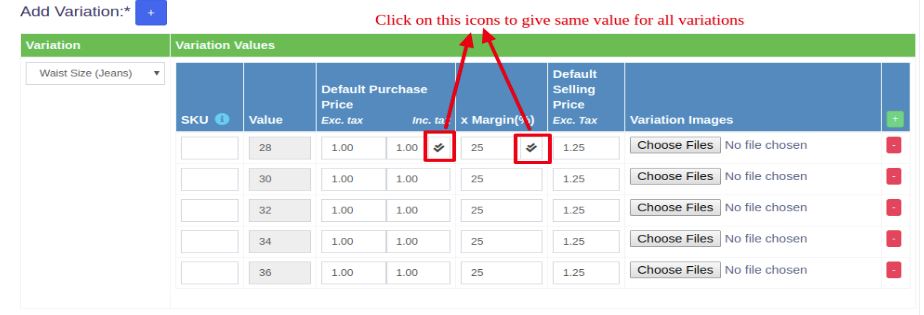
- When selecting a Variable product – It will display different fields to add all variations and their related Purchase price and selling Price. You have to select the variations from the dropdown and it will auto-populate the variations for that template. You can change the variable name and variation values.
- To give the same purchase price or selling price or profit for all variations of a product, click on the double tick present in the first variation.
Combo or Bundle Product
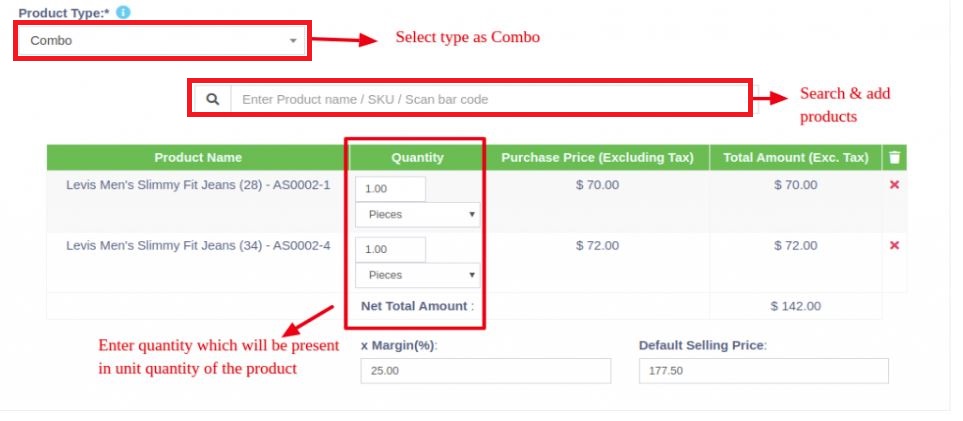
Adding a bundle product
- Combo products are also called bundle products.
- It offers several products in one combined product.
For example, a product called a “Computer Set” can include 1 PC Monitor, 1 PC CPU, 1 PC keyboard, and 1 PC mouse.
So when someone buys a Computer set, she gets all the products. - The stock of bundled products depends on the stock of individual products present in that bundle.
For example, if you have 5 PC Monitors, 4 PC CPUs, 10 PC Keyboards, and 50 PC mice, your Computer set will consist of 4 PCs. - When the bundle product is sold, the stock of all the products inside it is automatically deducted.
- Individual products present in bundle products can also be sold separately.
- Bundle products cannot be purchased; only individual products present in it can be purchased.
Click on Save.
You can edit a product. You can also copy / export files to CSV, PDF, or Excel.
Adding Products with multiple variations:
If you have products that involve multiple variations, for example, a Shirt can have Color & Size variations, then we have multiple ways to work with it:
Solution 1, Create combined variation: You can create a variation with the name “Color-Size” and add values like Red-Small, Red-Medium, Red-Large, etc. This can be used while adding the Shirt.
Solution 2, Create multiple Products: Create multiple different products like Shirt-Red, Shirt-Green, and Shirt-Blue with size variations. When you create multiple products, you will NOT have to enter the same details multiple times. First, add the Shirt-Red with all size variations of it and then use the Duplicate Product action to copy the data.
Select Required variations:
While adding variable products, you can select only the required variation values.
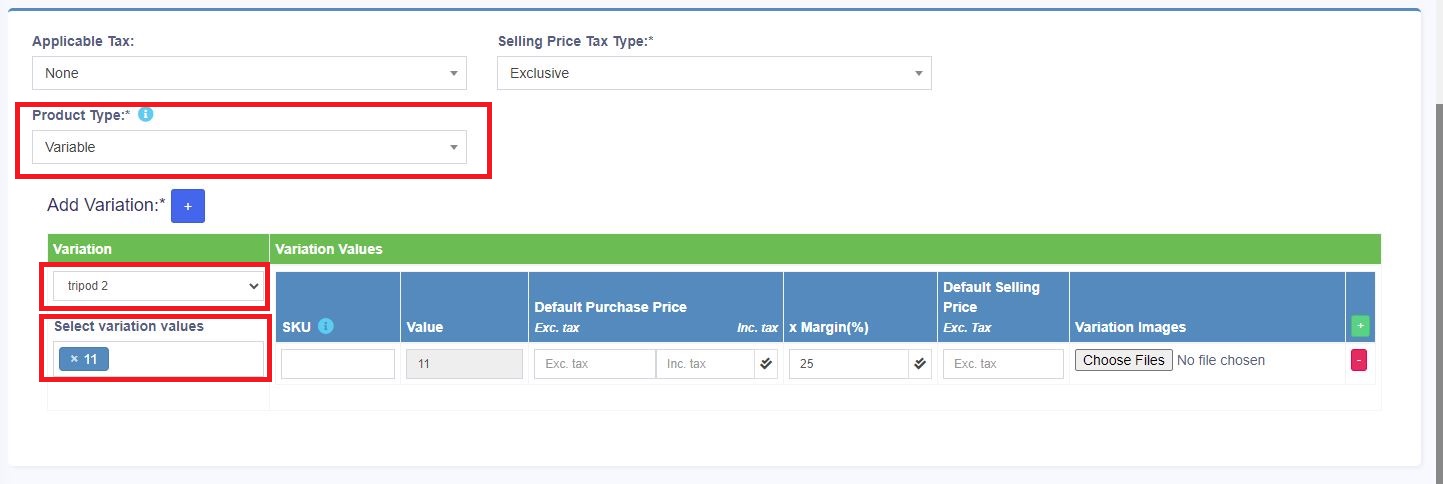
In your add/edit product screen, select the product type as ‘variation’ and select the variation name (e.g., color).
A dropdown will be displayed, in which you can select the required variation values.