
Setting Business Locations
Setting Business Multiple Locations or WareHouse or Storefronts
- DashPOS comes with the option to handle multiple business locations or WareHouse or Storefronts for your business.
A default location is added to the newly created business.
Invoice Scheme: Before creating a new location or storefront, you can define a new Invoice scheme or use existing invoice schemes. However, having different invoice schemes for locations can help you identify them.
The invoice Scheme is in invoice number format.To configure, go to Settings -> Invoice settings
- Click on Add and select a scheme format.
The format can be XXXX or <year>-XXXX. - You can also provide a custom prefix, invoice start number, and number of digits in the invoice number.
- The preview box will display the preview according to the chosen option.
- You must set a default invoice scheme for a business to use.
Invoice Layout: If you wish to have a different invoice layout for the location, then you should create an invoice layout before creating a new location.
Invoice Layout helps you to create different invoice formats.
To add a new invoice layout:
- Go to Settings->Invoice Settings->Invoice Layout->Add
- Give a unique, distinguishable Layout name
- Add the text to be shown in the top/header of the invoice. Generally, it can be your shop name, aligned center with Heading 1 format.
- Add other relevant details.
- You can show/hide address fields.
- You can mark a layout as default. The default layout is used when no layout is found for a location.
- Click on Save.
To use an invoice layout in a location, go to” Business Locations -> Edit” and assign the invoice layout.
Invoice Design:
- In the invoice layout, you will find options for invoice designs.
- They are used for browser-based printing only & NOT for server-based printing.
- Slim design is used for thermal line printer-based printers.
Default Selling Price Group: Select the selling price group that will be used in this location.
Adding Selling Price Groups:
- Go to products -> Selling Price Group
- Click on the “Add” button to add a new price group. For example, you can add Retail price, Wholesale price, Bulk Purchase price, Location 1 price, etc., as you wish.
- You can view a list of selling prices in the “Selling Price Group” screen.
Adding Selling Price as either Fixed or Percentage:
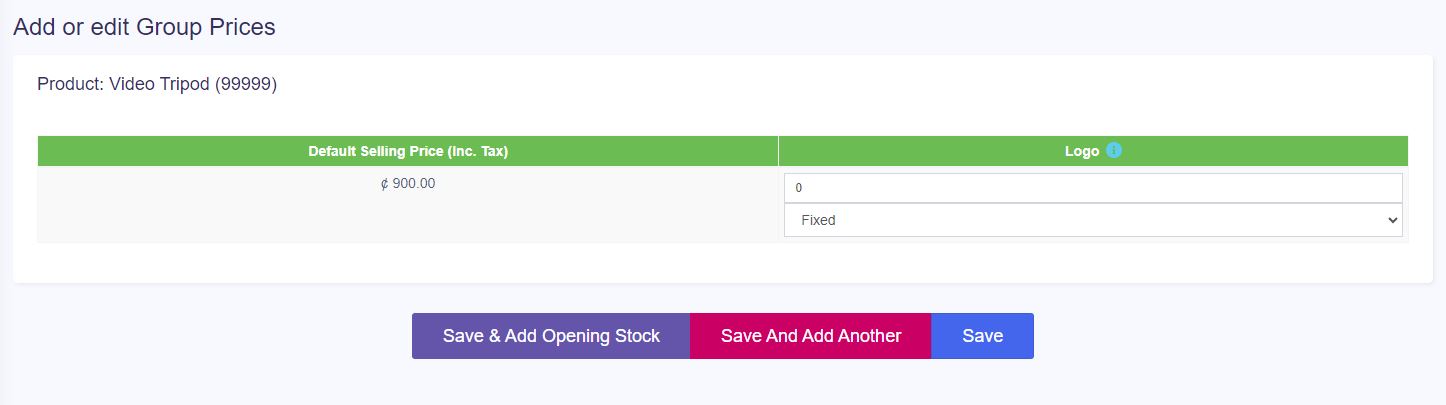
- Go to Products -> List Products -> All Products -> Specific Product Action Section -> Add or edit Group Prices
The selling price can be a whole number (fixed) or in percentage.
Fixed: The value given will be the selling price for that group.
Percentage: The value given will be taken as a percentage, and that percentage of the actual selling price will be taken as the selling price for that group.
- Click on Add and select a scheme format.
Exporting & Importing selling price group:
- Go to Products -> Update Price.
- First, download the Excel file by clicking the “Export Product Prices” button. There will be a separate column for group prices.
- In the downloaded file, change the price for the product’s selling price group.
- Only selling price group prices of the product will be updated, not the SKU or name.
- Any blank price will be skipped.
- Then, import the file.
Assigning a user to a particular price group:
- Sometimes, you may want to assign a user a particular or a few selected price groups. In that case, create a role with the desired permissions and price groups assigned.
- You must assign at least one price group for a role if that role has permission to sell.
Assigning a customer to a particular price group:
- Customers can’t be directly assigned to the selling price group.
- You must assign the price group to the customer group that has the customer.
Assigning a price group to a Business Location
- Helps sell the same product at a different price in different business locations.
- Go to Add/Edit Business Location and select the Default Selling Price Group. If not selected, the product’s default price will be used.
FAQ?
1. How to hide the Selling Price Group in the POS window to all cashiers
In add/edit roles, you can set which selling price groups will be visible to that role. So, in the cashier role, you can uncheck/remove permission for all other selling price groups except the one you want to show or use for the cashier.
Payment Options: You can always change the invoice scheme & Invoice Layout for a Business location anytime.
- To create a new Business Location / Storefront or warehouse, go to “settings -> Business Locations.”
- Fill in the business details.
- Choose an Invoice scheme & Invoice Layout for the location.
– When having multiple locations, you will have to select the location while adding purchases or on the POS screen.
- Inventory and transactions are managed separately for each location you create so that you can easily track and analyze them for each location.
Disabling Business Location:
To disable a business location, click on the Disable button in List Business Location.
NOTE 1: After a business location is disabled, any users assigned to that business location must be assigned to another non-disabled business location.
NOTE 2: You must keep at least one business location non-disabled. If all business locations are disabled, then the application will throw errors.