
Setting Notification
Setting Notification Email
Go to Settings -> Business Settings -> Email settings
Add all the Email SMTP configuration details & it will work.
Business-level mail setup
For sending mail notifications, the business-level mail setup should be done.
For this, provide the required details in Settings -> Business Settings -> Email settings
Enabling auto-sending of SMS & Email to customers on New Sales:
- First, set up the Email SMTP and/or SMS details in Business settings.
- Go to the Notification Template
- Under Customer Notification, you will see a New Sales notification.
- There, you will find the option to enable Auto Send Email & Auto Send SMS, enable it, and save.
- Now, whenever you make a sale, an Email or SMS notification will be sent to the customer.
Important NOTE:
- If there is any error in Email or SMS configuration then sales will not get submitted, so test it properly.
- Email notification will only get sent in case the customer has a valid email present
- Similarly, SMS will only be sent if the mobile number is present.
Enabling auto-sending of WhatsApp Notification on New Sales:
To enable automatic WhatsApp notifications, enable the ‘Auto send Whatsapp Notification‘ check box under Customer Notification > New Sale.
Settings
How to Search in Settings?
Settings are overwhelming. There are a lot of options here. So in DashPOS, we implemented an easy way to search for any option. Follow the screenshot below.
Business Settings
Business Settings allows you to set some of the common business-related information.
Here you can change:
- Business name
- Start Date
- Set Default Profit margin
- Currency
- Timezone
- Logo
- Financial year: For some countries, the financial year starts in January, and for some, it starts in April. Here, you can set the appropriate option for your country.
- Tax information
- Product SKU prefix: Enable this feature to generate a prefix for Product SKU. Once enabled, while adding a new product, the SKU field will add this prefix along with the input given, or if left empty, will auto generate a value along with this prefix.
- Default Sales discount
- Default Sales tax
- Business Setting > Contact > Default credit limit: The credit limit provided here will be used as the default value when creating a customer or supplier
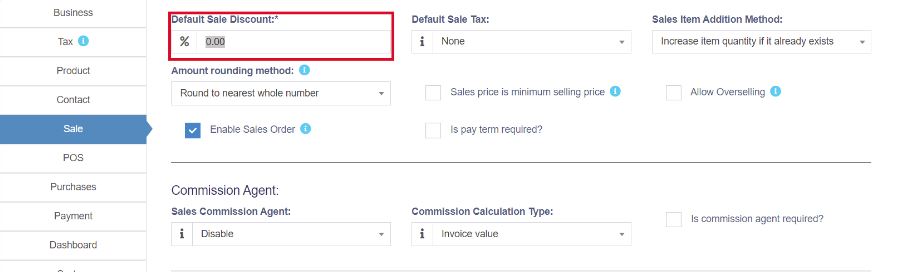
- Business Setting > Sale > Default Sale Discount: The default discount will be used for all sales in the POS & Add sales screen.
Sales:
Sales Item Addition Method:
- It has 2 options: “Add item in new row” & “Increase item quantity if it already exists”
- This option is related to the POS & Sales screen when a new product is added.
- Add item in new row: It will always add a product in new row
- Increase item quantity if it already exists: If the product already exists in the cart it will increase its quantity else it will add it in a new row.
Amount rounding method:
The price of the products can be taken as a whole number or as a rounded decimal value by selecting the particular roundoff method. If none is selected the value is taken as a whole number.
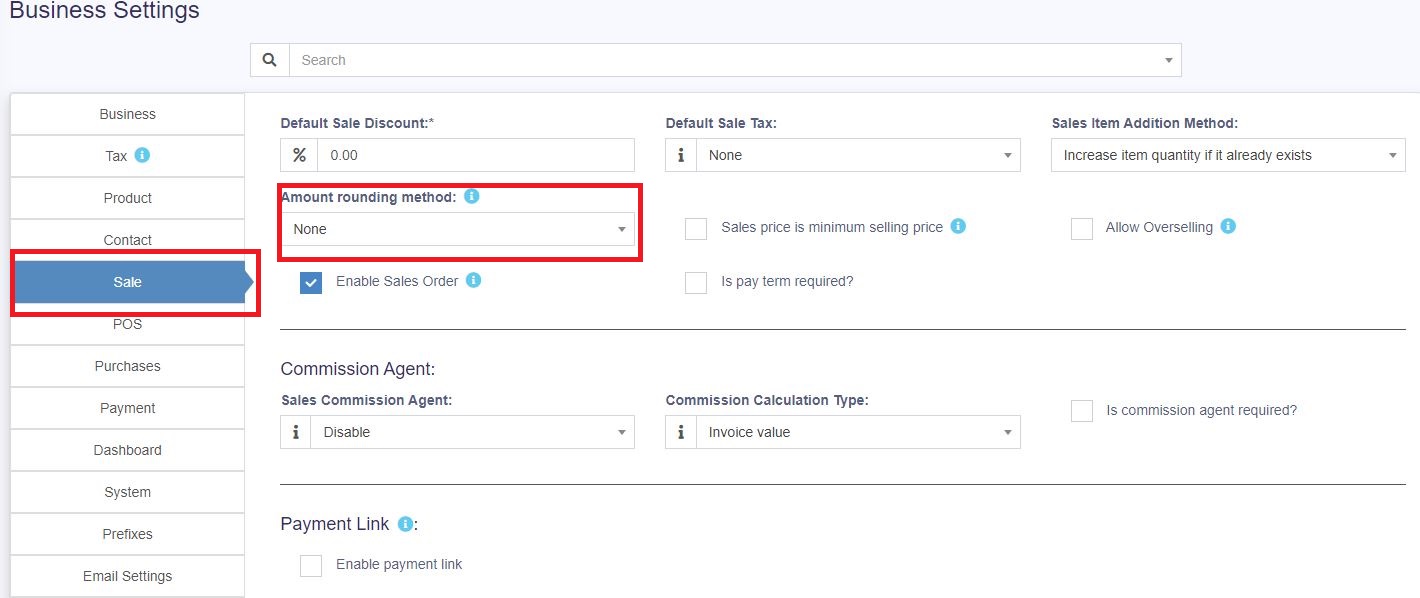
The sales price is the minimum selling price:
If this option is enabled, then the product cannot be sold at a price lower than the selling price set for the product.
It can be sold at a higher price but not at a lower price.
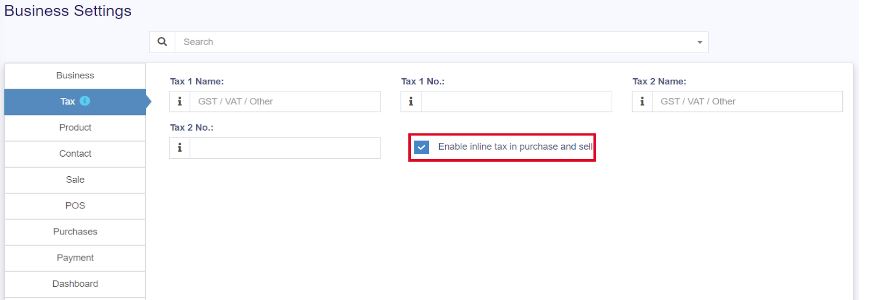
Enable inline Tax:
To display the price inc. tax on the POS screen, kindly enable the check box in the Business Settings->Tax.
Enable Sales Order:
This will enable the sales order feature.
Default Sale Discount:
The default sale discount can be added to products in Business Settings -> Sale.
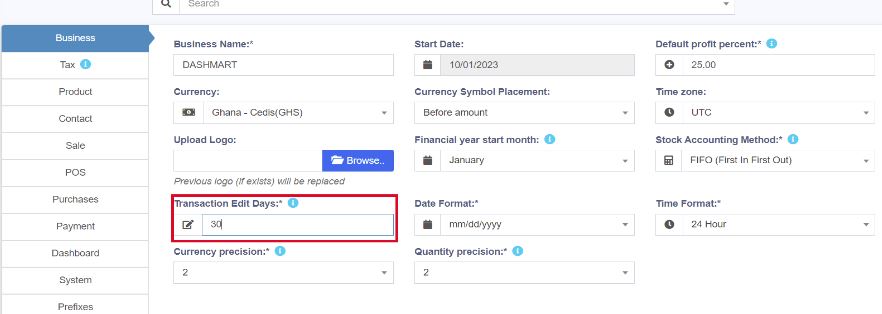
Limit for Transaction Edit:
How do you edit transactions for more than 30 days?
In order to increase the limit for editing the transaction, set the number of days in the business settings.
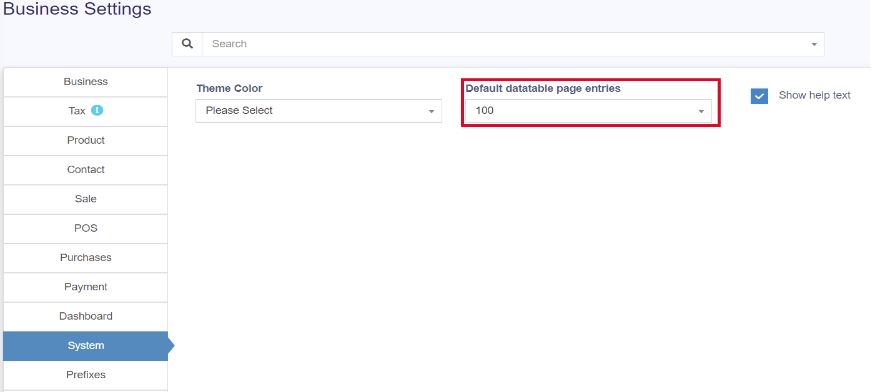
Data table Entry Selection:
The default number of entries in the data tables can be selected in Business Settings -> System.
Allow Overselling of Products:
In some cases, the products need to be sold even when they are out of stock. In such cases, you can enable the “Allow Overselling” Option from the Business Settings > Sale.
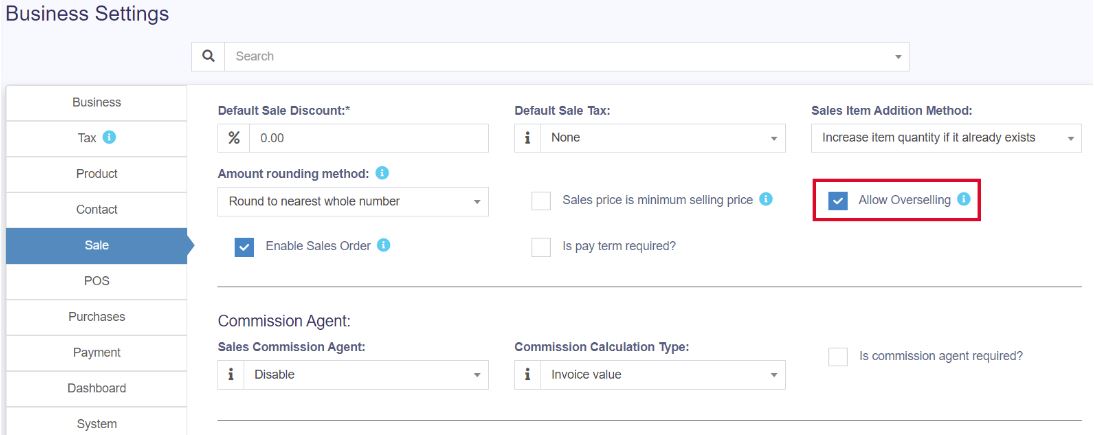
This will allow you to add sales for non-stock products.
NOTE: If the sale is added for out-of-stock products using the Allow Overselling Option, the profit will be calculated as unfavorable for those products.