
Opening Stock
To Add Opening Stock:
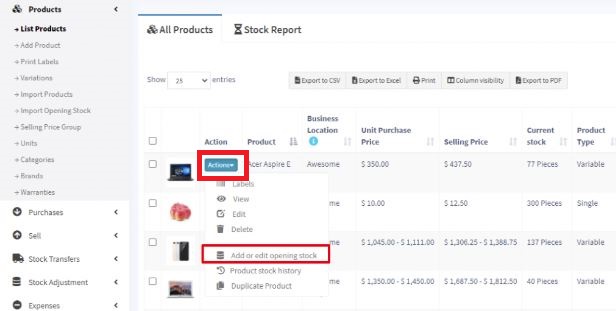
- Go to List Products
- Actions > Add or Edit Opening Stock
Editing opening stock (or) Making opening stock 0:
NOTE: If you have already added an opening stock and have to edit it, follow the steps below.
- Click the ‘+’ symbol.
- A new row will be created.
- Add the new amount there
To make the opening stock ‘0’, add a negative value in step 3
E.g.) If the existing opening stock is 10, add -10 to make the stock quantity 0 or if you add a negative amount (-4), then the amount will be 6.
Custom Labels for Products
- 2 Field Type for labels:
Custom Labels for Products:
20 custom fields can be added for the product, these custom fields can be used while adding a new product.
Custom fields can be anything related to the product, like brand code, product code, etc.
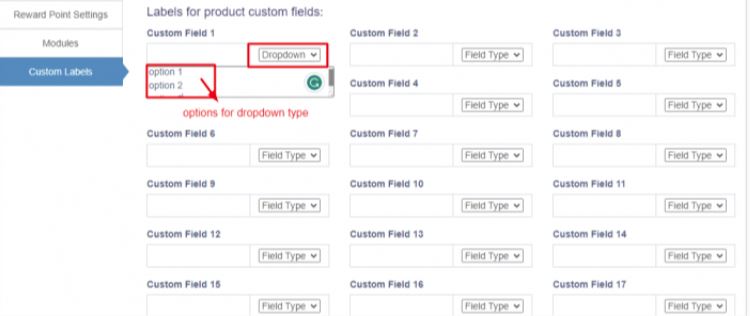
To add this, Go to Settings > Business Settings > Custom labels
Provide the custom label name here.
Field Type for labels:
The data type can be specified for each custom field. Select text, date picker, or dropdown types.
For dropdown, add a line break after each option.
Bulk Price Update
Prices of products can be edited in bulk using this feature.
Go to Products > Update Price, and download the Excel file.
The Excel file contains the list of product names, SKUs, existing prices of products and selling group prices (if available).
Update the prices of required products upload the file and click submit.
NOTE: Make sure not to change any product name, SKU & headers