
Howdy! How can we help you?
Sales Return
Sales Return
There are 2 ways of adding sales returns
First way:
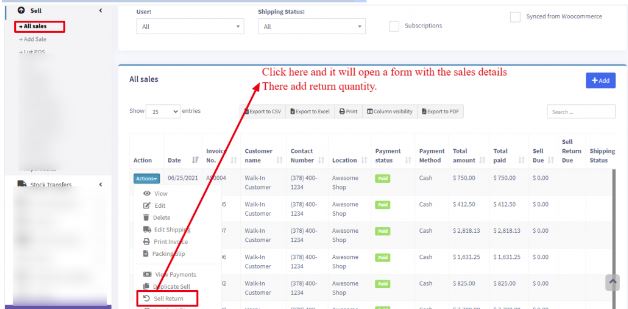
Edit the existing invoice for sales by removing or reducing the product’s quantity and saving it. The system will automatically add the returned quantity back to stock. This is a simple and recommended way of doing it.
Second Way:
Follow the screenshot below:
Question: Why does the sell return value not decrease the payment value from the parent invoice?
- DashPOS will adjust these values in the Profit & Loss report.
- Regarding payment, users have to add a transaction to receive payment from the customer and then pay them back. This way, all the transactions are recorded.
Sales Subscriptions
Enabling Subscriptions:
To enable a subscription, go to Modules -> Check the “Enable Subscriptions” and save it.
Using Subscriptions:
- Subscriptions can be added from both POS sales or normal Sales screens.
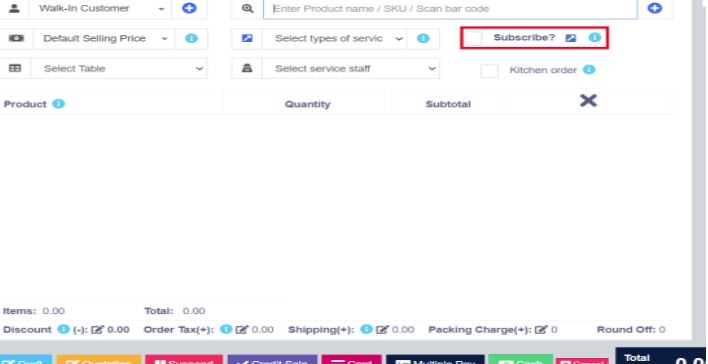
- In the POS or sales screen, to add a subscription click on “Subscribe?” Checkbox
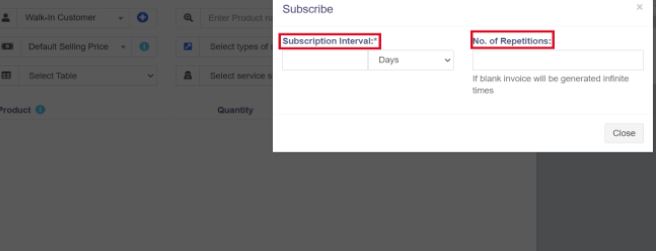
3. When clicking subscribe, a popup modal appears. In this modal, enter the subscription frequency, such as every 1 day, every 5 days, every 1 month, etc. Also, if a user wants to subscribe only 5 times, enter 5; for unlimited subscriptions, leave it blank.
- All subscriptions appear in the Sell -> Subscriptions screen. From here, you can also start/stop a subscription.
- When a subscription invoice is auto-generated, then a notification is sent to the admin & salesperson.
Subscriptions Indicators:
While adding subscription sales, the sales will be marked with an indication in the “All Sales” screen.
This indicator will be in either of two colors: blue or red.
The indicators represent
- The blue color indicates that this is an automatically created subscription invoice.
- The red color indicates that it is a recurring invoice that repeats for a specified number of times and turns to the blue color invoice when the number of times specified is reached.