
Hardware Support
Barcode Scanner
How to add a Barcode Scanner
Adding a barcode scanner is easy & simple.
- Simply plug the barcode scanner into your computer.
- If there is some driver provided with the scanner then install it.
- Point the cursor to any field in POS where you want to insert the barcode and scan the barcode. The scanner will automatically scan and input the barcode value to the input field.
Label weighing scale
Label weighing scale integration
A Label weighing scale generates a barcode based on the configuration of Prefix, Product SKU length, Quantity integer part length, & Quantity fractional part length.
Enabling & setting it
To enable weighing scale integration in DashPOS, do the below settings:
- Go to Settings -> Business Settings -> POS -> Check Enable Weighing scale and save it.
- Below, it provides the setting for the weighing scale.
- Prefix
- Product SKU length
- Quantity integer part length
- Quantity fractional part length
And save it. - Go to the POS screen, click on the weighing scale button next to the product SKU search field, and it will open a modal window where you can scan/enter the barcode generated by the weighing scale. If the settings and barcode match successfully, the product will be added according to the specified quantity in the barcode.
- You can add a shortcut key for weighing scale by going to Settings -> Business Settings -> POS
Example:
Suppose you give the below values in weighing scale settings
Prefix: 25
Product SKU length: 4
Quantity integer part length: 2
Quantity fractional part length: 2
If the barcode read from the scale will be: 25 1234 35 50 (without spaces)
It will read the product with SKU 1234 & add quantity 35.50
The price will be automatically calculated by multiplying quantity & unit price.
How to set up a printer to open the cash drawer automatically?
Your cash drawer can be configured to open when you print a receipt for each transaction automatically. Here are the steps you can take to configure your cash drawer.
- Plug in the RJ12 connector cable (which looks similar to a phone line) from the cash drawer into your receipt printer.
- Next, go to the Settings menu in Windows 10, select Devices, and select Printers & Scanners on the left-hand menu.
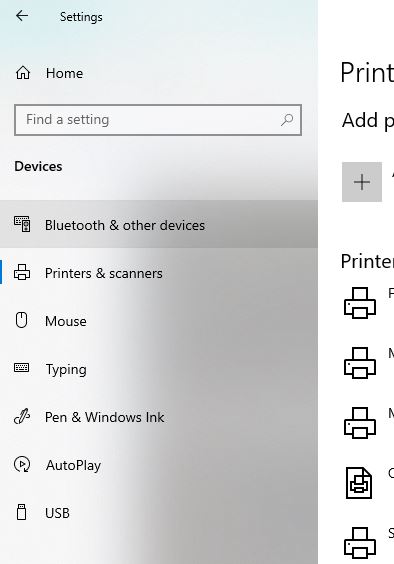
3. Select the printer you’d like to configure and click on the Manage button
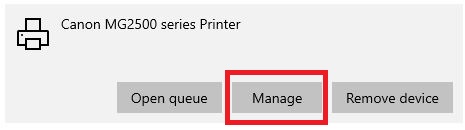
4. Next, click on the Printer Properties link, and a window will open. From here, select the Device Settings tab.
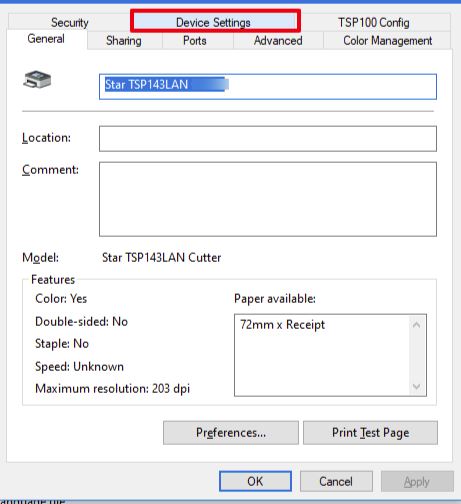
5. Under Installable Options, find the Peripheral Unit Type and change it to ‘Cash Drawer.’
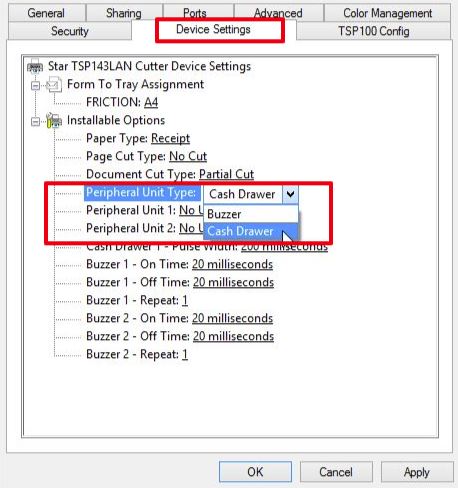
6. Change the Peripheral Unit 1 and Peripheral Unit 2 fields to ‘Document Bottom’ to have the drawer open after the receipt starts printing.
If you want the cash drawer to trigger before the receipt prints, select ‘Document Top’ in Peripheral Units 1 and 2
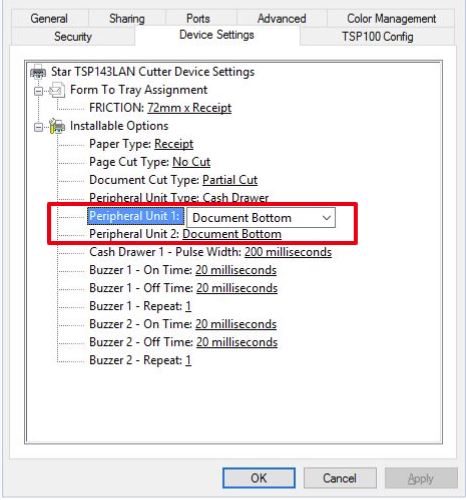
7. Click OK to save these settings and perform a test sale to see if it’s been configured properly.
Barcode Printer
Point Of Sales: DashPOS barcode printer support
A barcode printer is used to print barcode labels or tags that are used to print labels for physical products or to label retail items or label cartons.
DashPOS supports any barcode printer having Direct Thermal print technology
Setting up a Thermal Printer for Receipt Printing
Thermal Printers:
Two types of thermal printers are available in the market:
- Thermal Line Printers. (Supported by DashPOS): Easy to Install & Use.
- Thermal ESC/POS printers: Complicated to install & use also some languages & currency symbols may not be supported.
WE RECOMMEND USING A THERMAL LINE PRINTER FOR THE EASE OF SETUP AND GOOD PRINT QUALITY.
Browser-based printing or Thermal Line Printers or Direct Thermal: (Recommended)
Thermal line printers, also called Direct Thermal, are easy to install & use. Also they support browser based printing. For better results use paper with a width 79mm.
To use a thermal line printer, follow these steps:
- Setup the printer on your computer with the appropriate driver that comes with the printer.
- Go to Settings -> Business Locations -> Settings (green color button for each location). Here, change the Receipt Printer Type to Browser-based printing and save it.
- In the invoice layout, select the Design as Slim
- To disable print dialogue preview, follow the steps mentioned here
You’re now ready to use the printer; no more steps are required.
This printer is supportable with Android and other handheld devices like tablets.
Thermal ESC/POS printers:
Setting an ESC/POS thermal printer involves 2 steps:
- Adding a Printer
- Configuring business location to use the added printer.
Step1: Adding a Printer
- Add a new printer from Settings -> Receipt Printer
- Select the appropriate Connection Type:
- Select the capability profile and add a character per line supported in the printer.
- Save the Printer configuration.
Step2: Configuring Business Location to use printer:
- Go to Settings -> Business Settings.
- For a particular business location, go to “Settings” in the actions column.
- Change “Receipt Printer Type” to “Use Configured Receipt Printer“
- Select the “Receipt Printers” from the list of Receipt Printers
- Click on Update.
Great, now we’re ready to print on a thermal printer.
Give it a test drive.
Devices like mobile phones and tablets can’t be used for printing if a thermal ESC/POS printer is used.
Many thermal receipt printers support ESC/POS to some degree. This driver has been known to work with:
AURES ODP-333
AURES ODP-5
Bixolon SRP-35
Citizen CBM1
Citizen CT-S31
Daruma DR8
EPOS TEP 22
Epson TM-T88II
Epson TM-T88III
Epson TM-T88IV
Epson TM-T88V
Epson TM-T7
Epson TM-T82II
Epson TM-T2
Epson TM-T2
Epson TM-T7
Epson TM-T81
Epson TM-U22
Epson TM-U295 (requires release() to release slip).
Epson TM-U59 and TM-U59
Epson FX-89
Equal (EQ-IT-1) POS-58
Excelvan HOP-E58
Excelvan HOP-E2
Excelvan HOP-E8
Excelvan ZJ-822
Gainscha GP-589
Gainscha GP-U8
Metapace T-1
Metapace T-25
Nexa PX7
Plus III
Orient BTP-R58
P-822D
P85A-4
Rongta RP326US
Rongta RP58-U
SEYPOS PRP-3 (Also marketed as TYSSO PRP-3
Silicon SP-2
ECO
Star TSP1
III FuturePRNT
Star TSP-65
Star TUP-592
SPRT SP-POS88V
Xprinter F-9
XPrinter XP-Q2C
Venus V248T
Zjiang NT-58H
Zjiang ZJ-587
Zjiang ZJ-589T (Marketed as POS 589T)
Zjiang ZJ-589K
Printing via Phone/Tablet Bluetooth using Thermal Printer
In DashPOS there is no special setup required for printing via mobile Bluetooth using thermal printers. You can print receipts like any other document from your computer/mobile with these printers.
Tips & Tricks for using DashPOS effectively.
Improving Browser-based Print (Receipts or other)
- In chrome/firefox before printing, it shows a preview dialogue. The preview dialogue on the left side has some setting.
- Enable Background style
- Try setting the margin as default.
- Set the correct page size (mostly A4)
- Enable/Disable the header & footer to show/hide the page URL.
Create Shortcuts for web applications.
- Are you tired of opening your browser and opening your website? If yes, we have a solution.
- Open DashPOS in Chrome.
- Click the wrench icon (3 dots) in the right corner of the screen.
- Scroll down to Tools and select “Create Application Shortcuts” or “Add To Desktop”
- From the dialogue box, choose whether you want the shortcut to appear on your Desktop, in your Start menu or pinned to your Taskbar.
- Click Create, and your shortcut will appear on the desktop.
Browser Full-Screen mode or distraction-free mode
- Whenever you’re in “Full Screen” mode and use a browser-based printing option it gets exits from Full Screen. This also happens if you navigate to another page in full screen.
- But if you have enabled “Full Screen” by pressing “F11” it will not exit during navigation and also during browser-based printing.
- Using DashPOS, the POS sales screen in “Full screen” by pressing “F11” gives a Dash experience.
Barcode Scanner Trick
- Many barcode scanners send an “End of Line” or “CR/LF” ( the ‘Carriage Return’ and the ‘Line Feed’) characters after each scan. This will result in some issues with DashPOS. Well, it’s not an issue with Dash POS or the scanner. This feature is useful in some cases. But you should disable it while using DashPOS.
- Some noted behaviors are, in POS screen invoice gets automatically submitted after scanning, automatically page gets redirected after scanning.
- To disable it simply follow the instructions provided by your manufacturer. ALL branded manufacturers have instructions available to “Disable Carriage return & Line Feed”. Google it.
- For example: In this link, you will find simple instructions for Honeywell scanners (“RESOLUTION” present at bottom of page) (https://honeywellaidc.force.com/supportppr/s/article/How-to-remove-the-Enter-after-each-scan)