
Tender Change
Tender Change or Change Return
Suppose during POS the total payment amount by a customer is $250, but the customer pays $300 cash.
In this case, the cashier needs to return $50 cash to the customer.
So, enter all these details in the system, and follow the below steps:
- Click on the “Multiple Pay” button. It will open a popup
- Enter the paid amount by the customer ($300 here)
- On the right side, it will show a “Change Return” Amount. This amount needs to be returned to the customer
- Click on the finalize button to save the sales.
The change amount is shown in the invoice. To create a custom label for change return, Go to Settings -> Invoice layout, change the ‘change return label’ to a required label, and save the changes.
Featured Products for POS screen
Adding featured products helps you quickly access some products that are frequently or most commonly sold.
To add featured products, follow these steps:
- Go to Settings -> Business Locations.
- Add/Edit any business locations
- In the add/edit screen, you can select multiple products that can be featured in pos for this location.
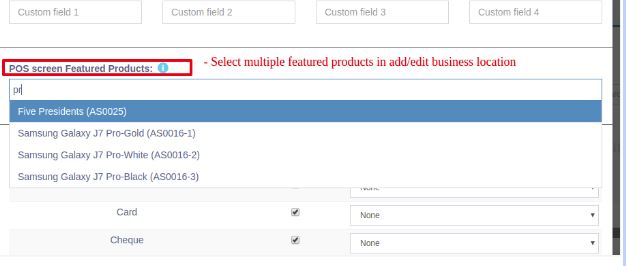
Select feature products in add/edit business locations
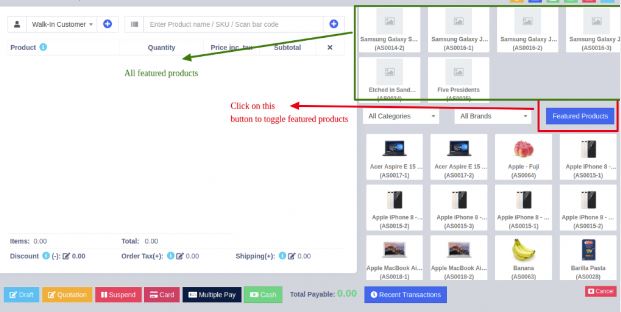
Featured products in POS Screen
Using Dash POS for Selling of Services
Dash POS can be used:
- Exclusively for Services or
- Exclusively for Product Selling (trading) Or
- Combination of Services & selling of Products.
Selling Services
Services are Intangible products.
Examples: Repairing, Salon & Spa services, Web Development, Accounting, banking, cleaning, consultancy, education, insurance, expertise, medical treatment, transportation, and a lot more.
- To add service Go to Add New Products.
- Add the name of your Service, such as computer Repair, Accounting, E-Commerce Development, Consulting, Plumber, Saving, Hair Cutting, etc.
- While adding service-based products uncheck the “Manage Stock?“ option. When Manage stock is unchecked or disabled the stock for such products is not managed, because such a product doesn’t have a stock count with it.
- If you want to add a description for such a service for example in computer repair you want to describe the problem for such service then check the “Enable Product description, IMEI or Serial Number” checkbox.
Now to create invoice or receipt for such service
- Go to Add Sales or POS screen.
- Enter the name of the service.
- If you have enabled “Enable Product description, IMEI or Serial Number”, then it will show you a popup to add a description. If you haven’t enabled the description you can click on the button as shown in the image below.
4. To print the description in the invoice, go to Settings -> Invoice Settings -> Invoice Layout. And click on the layout you’re using. Enable “Show sale description“. Click on “Update” to update the invoice layout.
Now it will display the Description you entered on the invoice or receipt.