
Duplicate And Bulk Edit Of Product
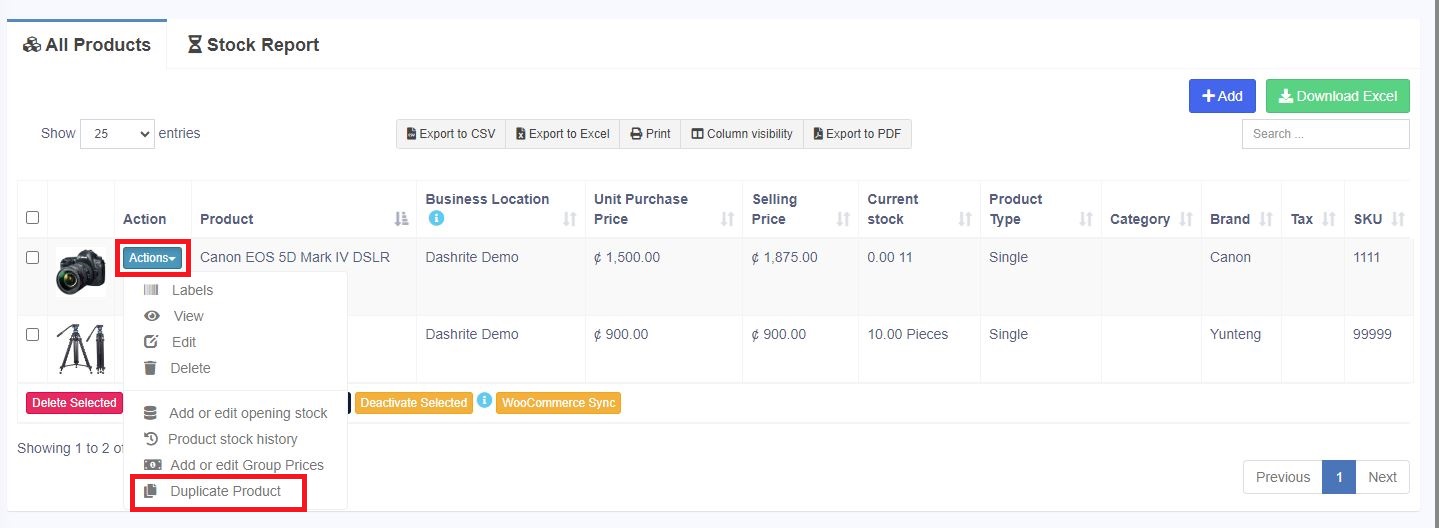
Duplicate Product
Duplicate Products helps you to easily create a new product with the same data as another product, this helps you save repetitive entering of data, and Dashly saves time by making the product entry process faster.
Correcting product stock mismatch or incorrect stock in different reports
Error 1: Mismatch between sold and purchased quantity
Error 2: Mismatch in stock shows in Stock-Report and sales screen. The sales screen accepts products greater or less than as in stock reports.
This rarely happens because of some unknown reasons or if you try to manually update the stock in the database.
Solution:
NOTE: You must have the role of admin for this to work.
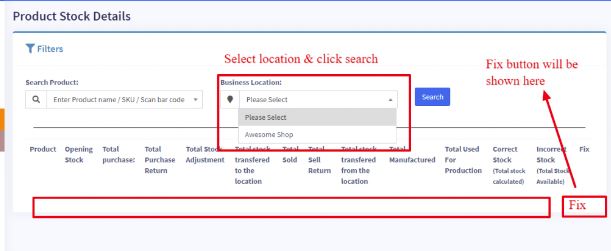
Step 1: Go to this URL www.your-pos-website.com/reports/product-stock-details
Step 2: IMPORTANT: Select the business location and press search button. It will show the list of products for which there is a mismatch.
Step 3: IMPORTANT: Click on the Fix button for each product.
Refer to the screenshot below
Bulk Edit Products
Bulk editing helps you to edit multiple products at once and saves you time.
To edit multiple products, follow the steps:
- Go to Products -> List Products
- Select the products you want to edit by clicking on the checkbox present in each product row.
- Scroll down you will find the Bulk Edit option, click on it and you can edit the selected products.
- Also, on the bulk edit screen, you can add any other products to edit them.