
Assigning/Removing Locations Of Multiple Products
Assigning/Removing Locations Of Multiple Products at once:
Go to List Products and refer to this screenshot.

Deactivating & Activating Product:
Refer to the screenshot.

Using Product barcode:
Question:
How can we use the product’s barcode instead of creating and printing a new one for every product?
How can we use the brand’s barcode for the product instead of creating and printing new ones for every product?
Answer:
When creating a product, enter the barcode number of the product in the SKU field. This barcode will be used to identify the product on all screens, such as POS, sales, purchases, reports, and others.
How to add a product that already has a Barcode?
Adding products that already have a barcode follows the same steps as adding any other products.
- Go to add products
- Fill in all the product details
- IMPORTANT: in the SKU field scan or enter the barcode of the product.
Adding product quantity or adding product stock
For systematically managing your business, product quantities can be added in 3 ways:
- Adding Opening stock
- Adding purchases
- Manufacturing product: Useful for manufacturers, required manufacturing module.
Import/Export Products
Import Products:
Steps:
- Go to Products -> Import Products
- Download the template file.
- Fill in all the information as per the displayed columns name & instructions. Don’t remove the heading from the template file.
- Import the file
Common Errors:
- Error: UNIT not found
Solution: Make sure the unit you provided in the Excel file is already present in the system. Go to Products -> Units, add the unit & import the file again.
Error: The separation symbol could not be found; the separation symbol could
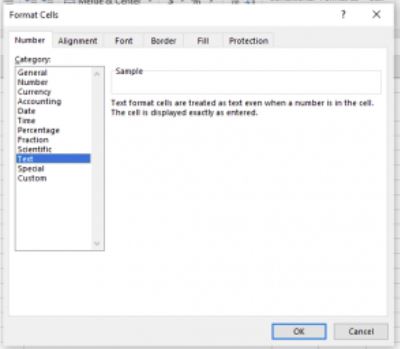
Solution: Format your cells in Excel as text in your Excel for the expiry date field and give the date as specified(11-25-2018).
Not well-defined error:
Many times, it can show some not well-defined errors like “non-numeric value encounter” or others
In this case, the best way is to split your import into multiple files.
For example, if you’re importing a file with 500 products, divide it into two files of 250 each and import it.
Export Products:
The products can be exported in Excel/PDF formats from the list products screen.
In version 4.7.8, a new export feature is added to export the product in the same template as the import product template.
In the list products screen, click the download Excel button.

Delete Product (Bulk delete)
Deleting Products
Deleting a product will remove the product from the database.
NOTE: This delete will not work if the product has some transactions related to it. The transaction can be an opening stock, purchase, sale, or stock transfer of the product. It will show some errors like:
- Product can’t be deleted because purchases related to this product exist
- Some products couldn’t be deleted because it has transaction related to it.
Deleting individual product
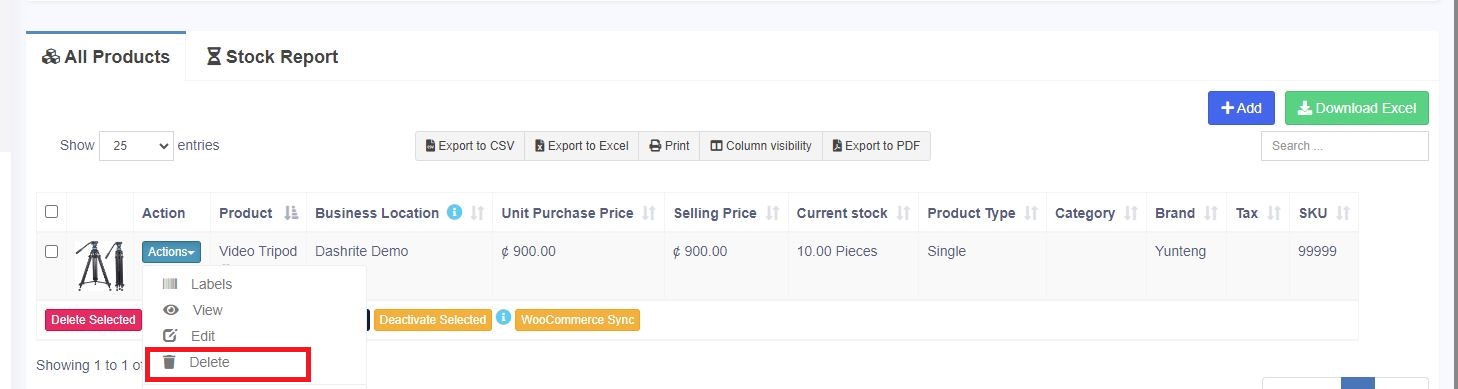
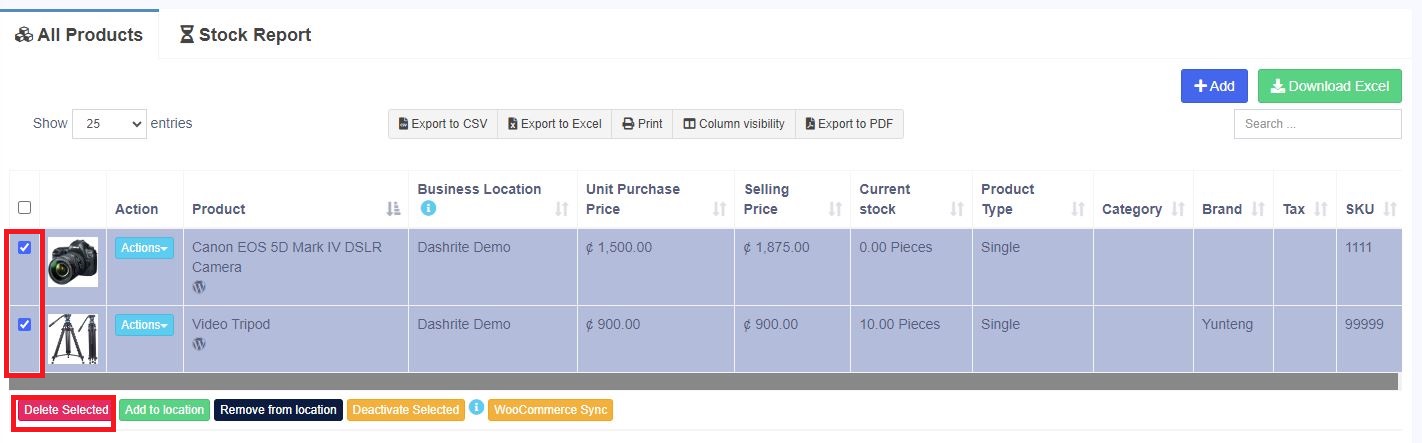
Bulk Delete multiple products.
Delete product Errors:
Some products couldn’t be deleted because it has transaction related to it:
When a product has any transactions, it cannot be deleted.
Transactions can be either Sales, Purchase, or Adding opening stock.
The best way to avoid such products is by deactivating them.