
Howdy! How can we help you?
Loyalty Cards
Loyalty Cards
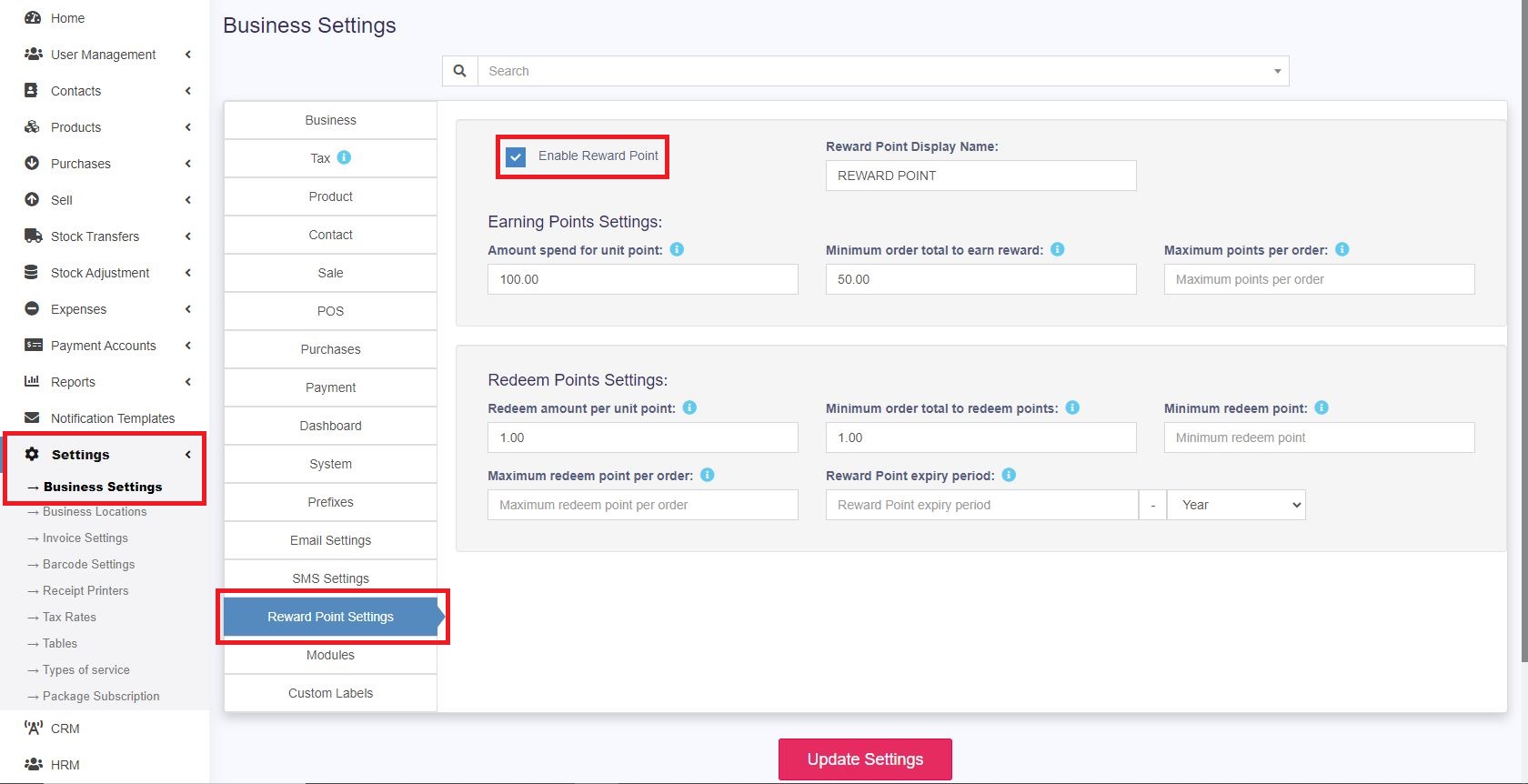
Enabling Reward Points:
Before diving into Loyalty Cards, make sure you’ve enabled the reward points feature. You can find detailed instructions in our documentation here.
Enabling reward points:
- Go to Settings -> Business Settings -> Reward Points Settings.
- Click on Enable Reward Point and it will get enabled.
Creating Loyalty Cards for Customers:
Once your reward points are active, follow these straightforward steps to set up Loyalty Cards for your customers:
- Assign a Customer ID: When adding a new customer, make sure to provide them with a unique Customer ID. This ID will serve as their key to unlocking exclusive benefits.
- Printing the Loyalty Card: Using the assigned Customer ID, print the Loyalty Card. This card is your customer’s ticket to accumulating and redeeming reward points. You need to design & print the card externally (maybe use Canva or other designing software to design the card for printing or reach out to Dashrite for support.)
- Using Loyalty Cards at the Point of Sale (POS):
- Select Customer: Begin by selecting the customer who is making the purchase. You can scan the QR/barcode code on their Loyalty Card enter the customer’s mobile number, or enter the customer’s name to associate the sale with their account.
- Complete the Sale: The system will automatically link the sale to the customer’s Loyalty Card, ensuring they receive the deserved reward points.
That’s it! You’ve successfully integrated Loyalty Cards into yourDashPOS system. Your customers can now enjoy a personalised and rewarding shopping experience.