Howdy! How can we help you?
Contacts Management (Supplier And Customers)
Adding Suppliers & Customers
Any contact can be supplier, Customer, or Both (Supplier & Customers)
-
- Goto Contacts -> Suppliers or Customer
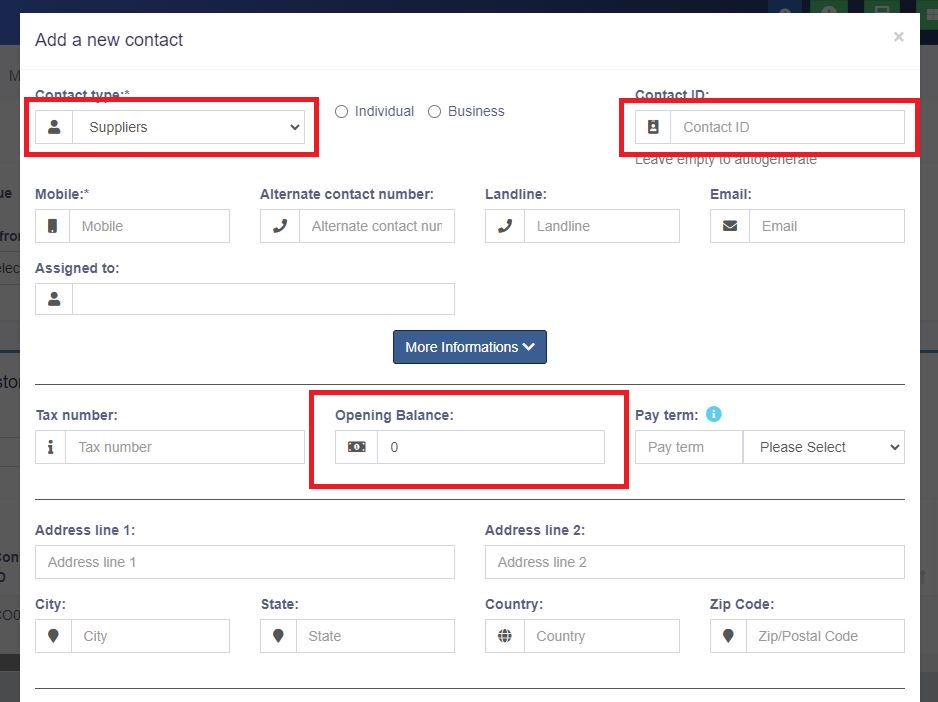
- Click on add a new contact. Select contact type – Supplier/Customer/Both
- The relevant fields will be shown based on the contact type selected. Fill in the relevant details.
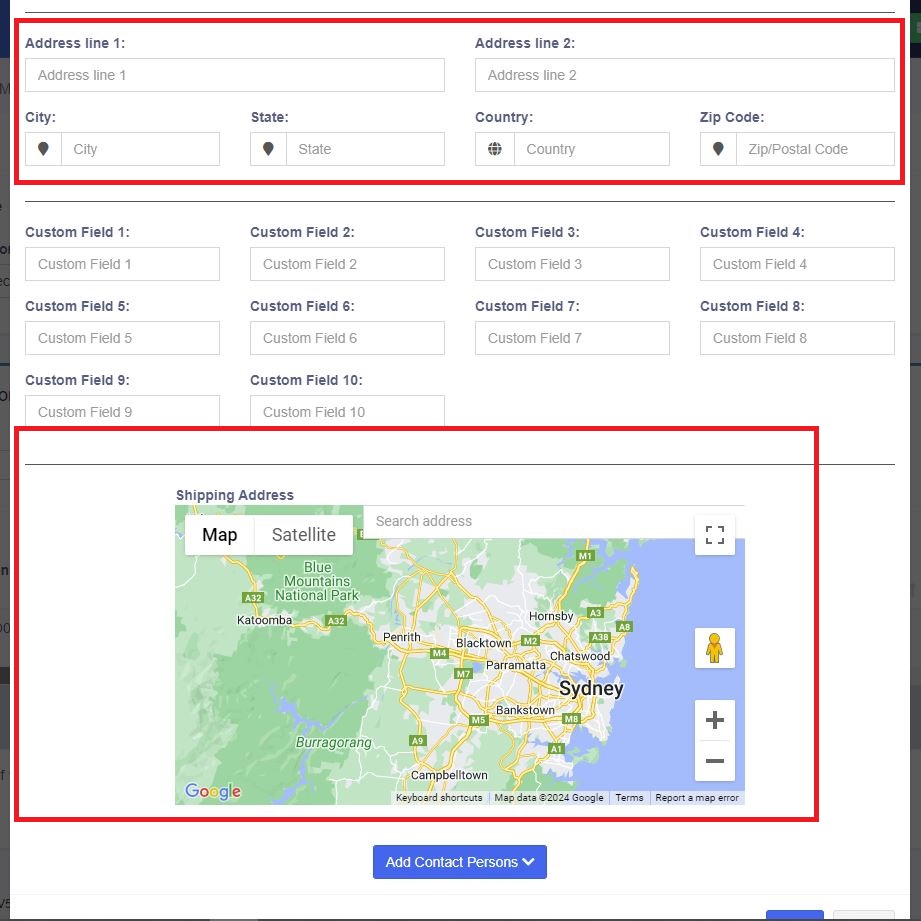
- Click on the More Information button to see more fields.
- Pay Terms: This will help the system notify you of any pending payments for suppliers & customers. You can specify the pay term as either days or months.
- Credit Limit: This is the maximum amount of credit that can be given to the customer. If, in any sales, the credit exceeds this amount, then it won’t allow selling on credit.
- Opening Balance: Opening balance of a customer or supplier before you start using DashPOS. So if there is any previous balance you can add here.
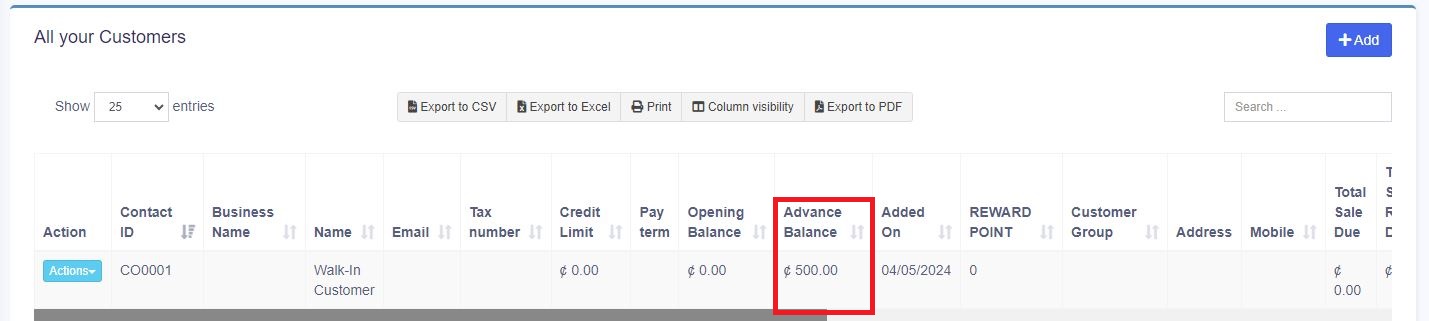
- Advance balance: Sometimes, customer/supplier pay/takes money in advance. This will show the amount of advance balance paid or taken by the customer/supplier respectively.
Viewing Suppliers & Customers
- To view details about a Supplier or Customer, click on the View button. It will show the complete details along with the relevant transactions (Purchases & Sales) for that contact.
- Pay Due amount: You can use this button to pay the due amount for a customer or supplier. This will pay the overall due amount for all invoices.
Advanced balance
Advanced balance(to customers) is the sum of the amount that the business should pay to the customers.
Advanced balance(to suppliers) is the sum of the amount that the suppliers should pay for the business.
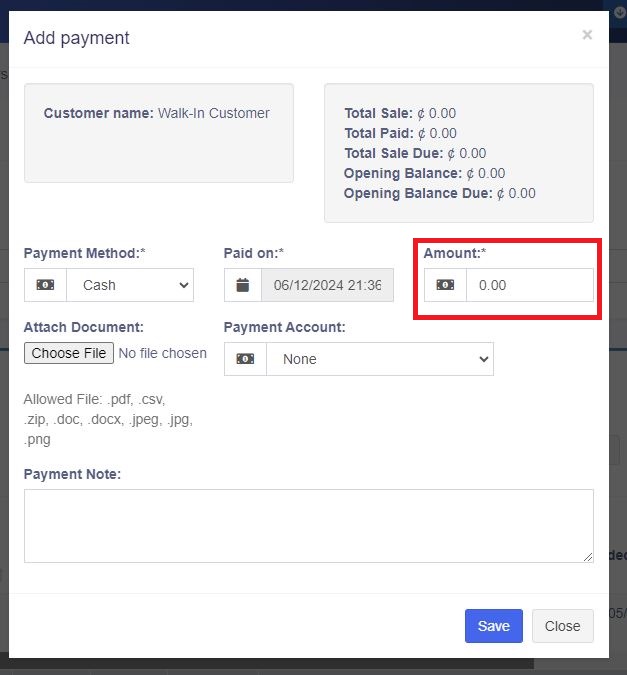
To add an advanced balance, Go to Customers -> customers/suppliers and click on the action button. Here you will find a pay option and click on it. Add payment pop up will be shown and add the required amount value and click on save button.

Making sales/ purchase using advanced balance:
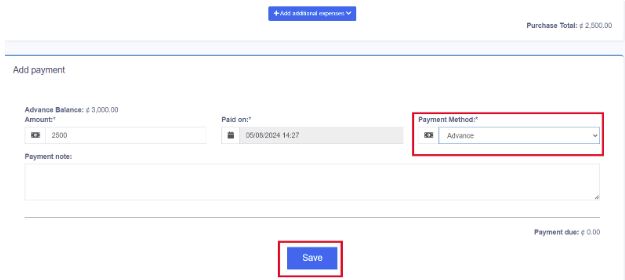
To make a purchase or sale using this advanced balance, add a sale or purchase. Select the customer/supplier that you have added advanced balance. While making the payment select the advance option and save it.