
Howdy! How can we help you?
Contact Management
Customer & Supplier Ledger
To view the customer or supplier ledger
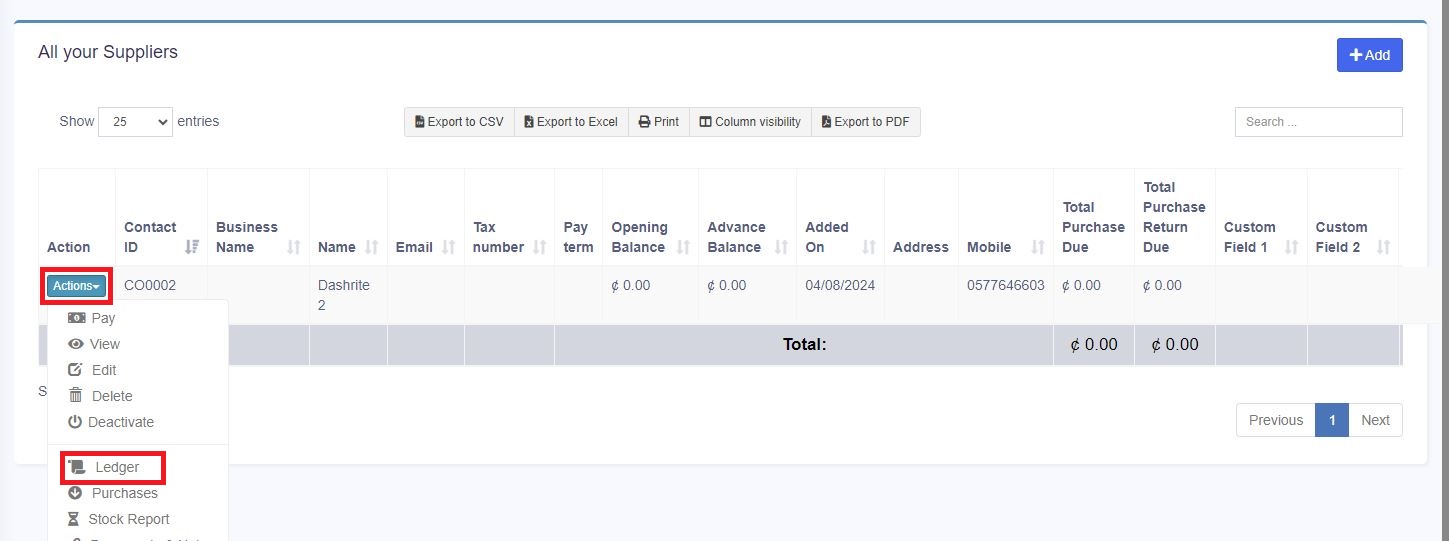
- Go to Contacts -> Supplier/Customer and click on the actions button
- In that, you will be able to see the Ledger for the customer or supplier.
- You can select a date range and use the checkbox filters to show/hide certain transaction types.
Adding Discount for Customer/Supplier on Balance Due:
Discount for balance due amount can be added for customer/supplier.
Click the add discount button on the customer/supplier ledger screen.
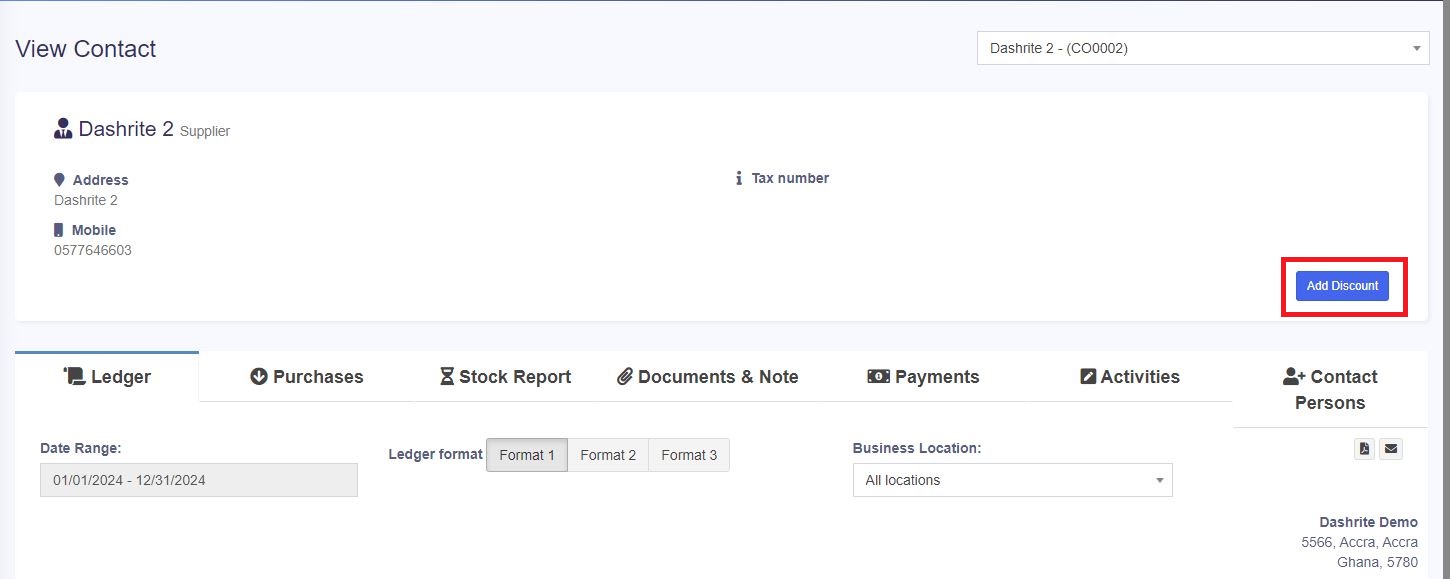
When clicking the button, it shows a popup. Enter the details and click save.
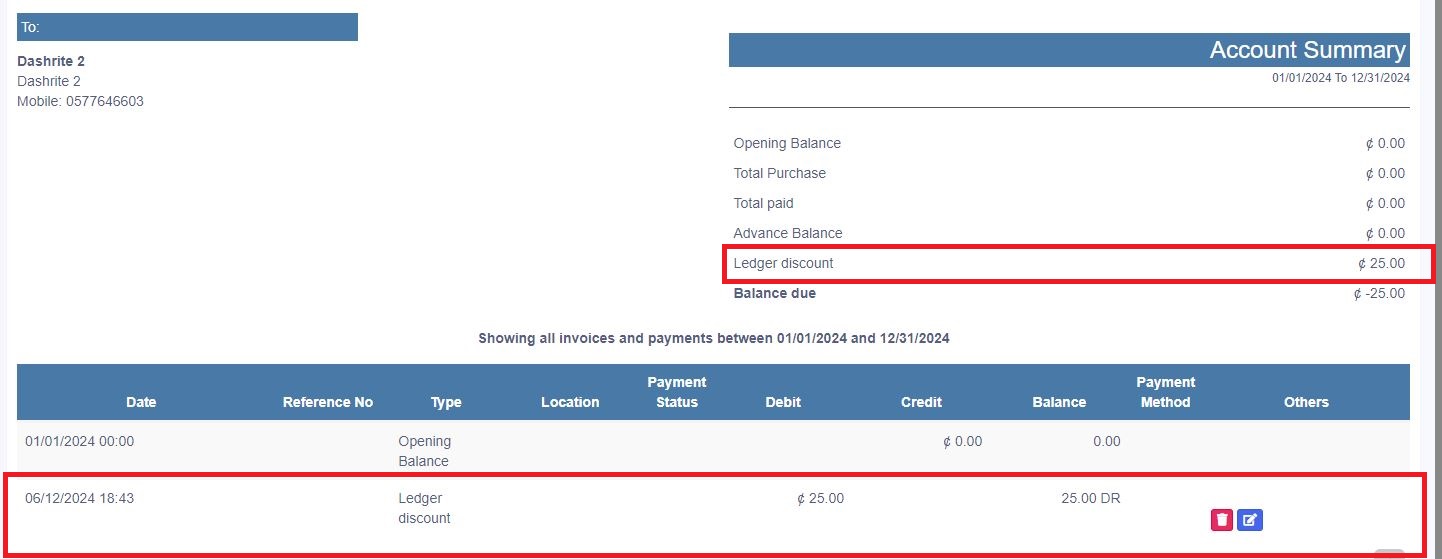
The discounted amount will be accounted for in their ledger.
NOTES
NOTE 1: This discount can only be added by the admin and not by other users.
NOTE 2: Also, the Ledger Discount is different from the Sale Discount.
When adding a ledger discount, it will not be reflected in the sale discount because the invoice details are not added for the ledger discount. And it is not possible to find which invoice has the discount added.