
Get Started With Live-Streaming
How To Get Started With Live-Streaming
Live streaming lets you interact with your audience in real-time with a video feed, chat, and more.
Subscribe to the DashTube Pro for the latest news, updates, and tips.
1. Enable live streaming
To live stream, you need to have no live streaming restrictions in the past 90 days, and you need to verify your channel.
Mobile
It is suitable for vlogging and quick updates from your phone or tablet.
To create a mobile live stream, you need to meet the requirements.
Learn how to mobile stream.
Webcam
Quickly live stream from your computer using a webcam.
You’ll need a computer with a webcam.
Learn how to stream with a webcam.
Vertical live streams
When your live stream is vertical (more tall than wide), viewers on mobile will now enter a full-screen viewing experience when watching it. Viewers (not limited to existing channel subscribers) can also find these live streams when browsing DashTube Shorts.
Create a live stream via webcam Or Phone Camera.
Webcams are an easy way to go live using your computer without the need for live-streaming encoding software or a camera on a mobile phone.
Subscribe to the DashTube Pro for the latest news, updates, and tips.
- Make sure that you’ve enabled your channel for live streaming. Webcam streaming is compatible with Chrome, OR your phone camera is good.
- Sign in to DashTube.
- At the upper right, click Create and Live.
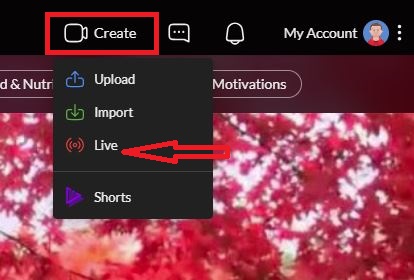
4. The website will detect its own camera.
5. Enter a title and description, and select a privacy setting. You can also schedule your live-stream for a later date.
-
- DashTube’s default privacy setting is private for users aged 13–17. If you’re 18 or over, your default privacy setting is public. All users can change this setting to make their live stream public, private, or unlisted.
6. Click More options for Advanced settings for more settings.
7. Click LIVE. Your camera will then take a thumbnail.
8. Make sure that you’ve chosen the correct webcam and microphone.
9. Click Edit to manage your stream, add tags, and change monetisation and chat settings. You can change these settings anytime, whether your stream is live.
10. When you’ve finished streaming, click the bottom. The Live tab allows you to access previous, current, and upcoming streams.
Share the screen in the Live Control Room using a webcam.
You can now share your screen while live streaming using Live Control Room through a webcam. After you have gone live using a webcam:
Note: You can only screen share in a Live Control Room if a webcam and microphone are connected.