
Manage Your DashTube Channel’s Basic Info.
How Manage Your DashTube Channel’s Basic Info.
You can manage basic info about your DashTube channel, such as channel name and description, translations, and links.
Name Change
You can change your DashTube channel name; ensure it follows our Guidelines. After changing your name may take a few minutes for the new name to update and display across DashTube. If you change your DashTube channel name and picture, it will only be visible on DashTube.
Note: You can change your channel name anytime you want.
- Sign in to DashTube
- From the top right menu, select My Account and click on Edit from the dropdown menu.
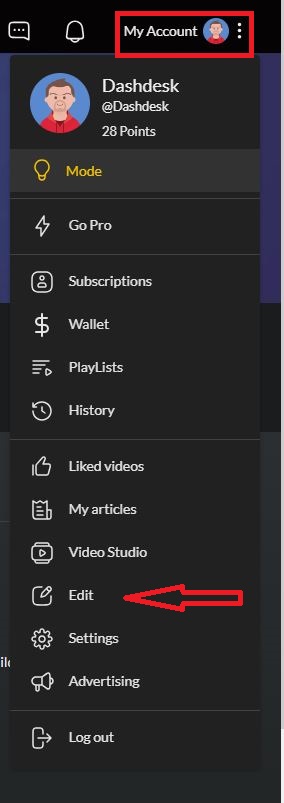
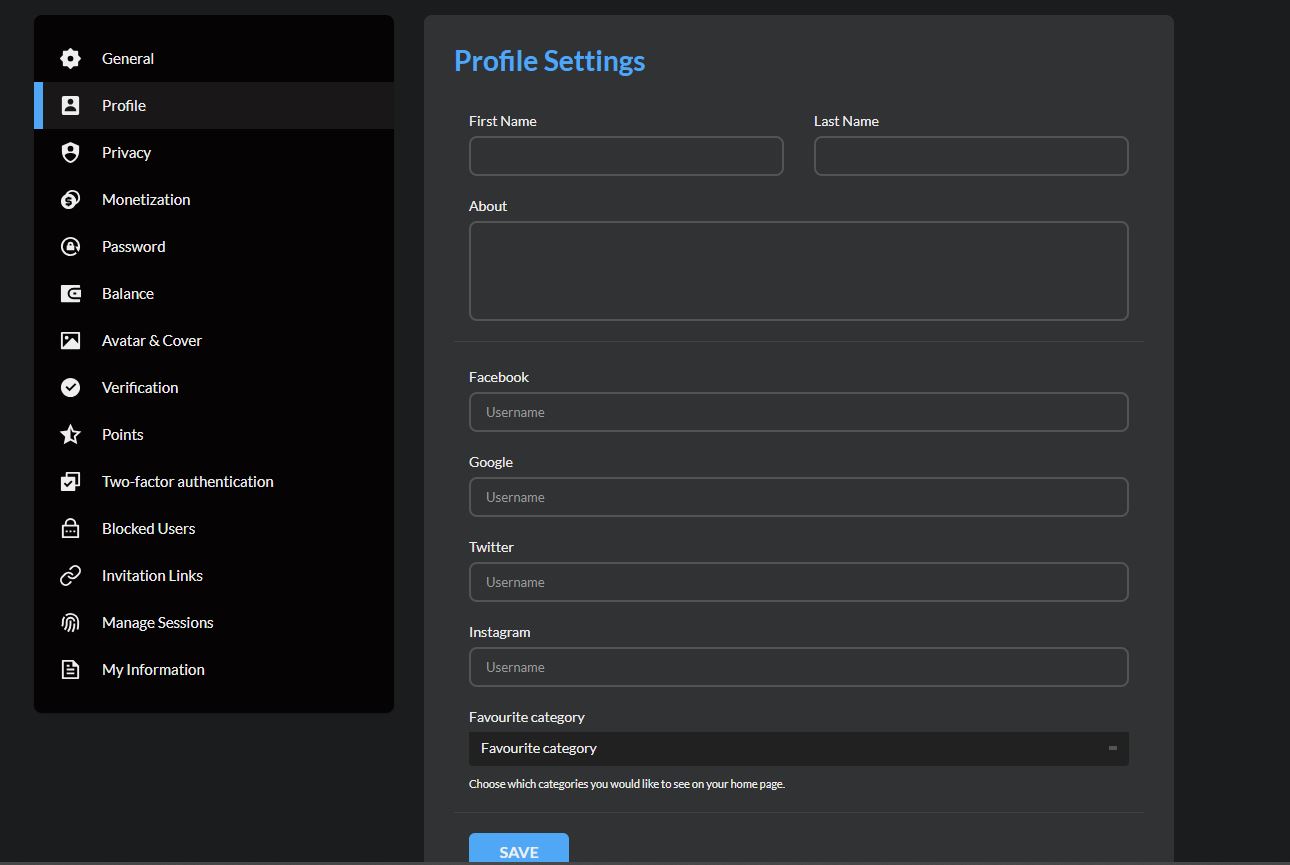
3. Enter your new channel name and other social media handles can be added.
4. Click SAVE.
Profile Change
DashTube allows you to manage other basic information or settings about your DashTube channel, such as channel name and description, translations, subscriptions, and upgrades under the “My Account Button.”
- MODE: A Mode is an option that helps you turn your website system theme into a dark or light theme. It can be found in the dropdown menu when you click on My Account.
- GO PRO: GO PRO is an option that helps you upgrade your membership plan to a higher level. It offers more features, like a verified badge, than the Free Membership plan. It can be found in the dropdown menu when you click on My Account.
- SUBSCRIPTIONS: A Subscription is an option that keeps a record of all your subscribed videos or channels in one place so you can retrieve them. It can be found in the dropdown menu when you click on My Account.
- WALLET: A Wallet is an option that shows you the amount of money left in your account after we have paid you or your videos that a user has purchased. It can be found in the dropdown menu when you click on My Account.
- PLAYLISTS: A Playlist is an option that records the videos you save so that you can watch them later. It can be found in the dropdown menu when you click on My Account.
- HISTORY: The History option records all the videos you have watched. It is in the dropdown menu when you click on My Account.
- MODE: A mode is an option that helps you turn your website system theme into a dark or light theme. It can be found in the dropdown menu when you click on My Account.
- LIKED VIDEOS: A Liked video option keeps all the videos you have liked on the website. It can be found in the dropdown menu when you click on My Account.
- MY ARTICLE: An Article is an option that allows you to write a description or note about an image to be published for users to see and read. It can be found in the dropdown menu when you click on My Account.
- VIDEO STUDIO: A Video studio is an option that keeps all the videos you have published on this website. It also keeps all your comments in your published video and analyzes how your channel is growing and how you earn on the site. It can be found in the dropdown menu when you click on My Account.
- EDIT: The Edit option helps you edit your profile settings. It is in the dropdown menu when you click on My Account.
- SETTINGS: This option allows you to set a general setting for your name, county, age, and gender that helps us to sort better videos for you. It can be found in the dropdown menu when you click on My Account.