
Upload Videos On DashTube.
How To Upload Videos On DashTube.
You can upload videos on DashTube in a few easy steps. Use the instructions below to upload your videos from a computer or a mobile device. Uploading may not be available with supervised experiences on DashTube. Learn more here.
Upload videos in DashTube Studio.
- Sign in to DashTube.
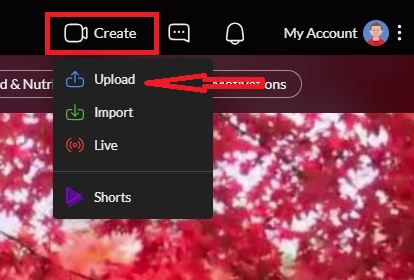
- In the top-right corner, click CREATE 📷 , and you will see a couple of ways to add the video you want by uploading, importing, or adding a short video. But for now, we will use the Upload videos and click on it.
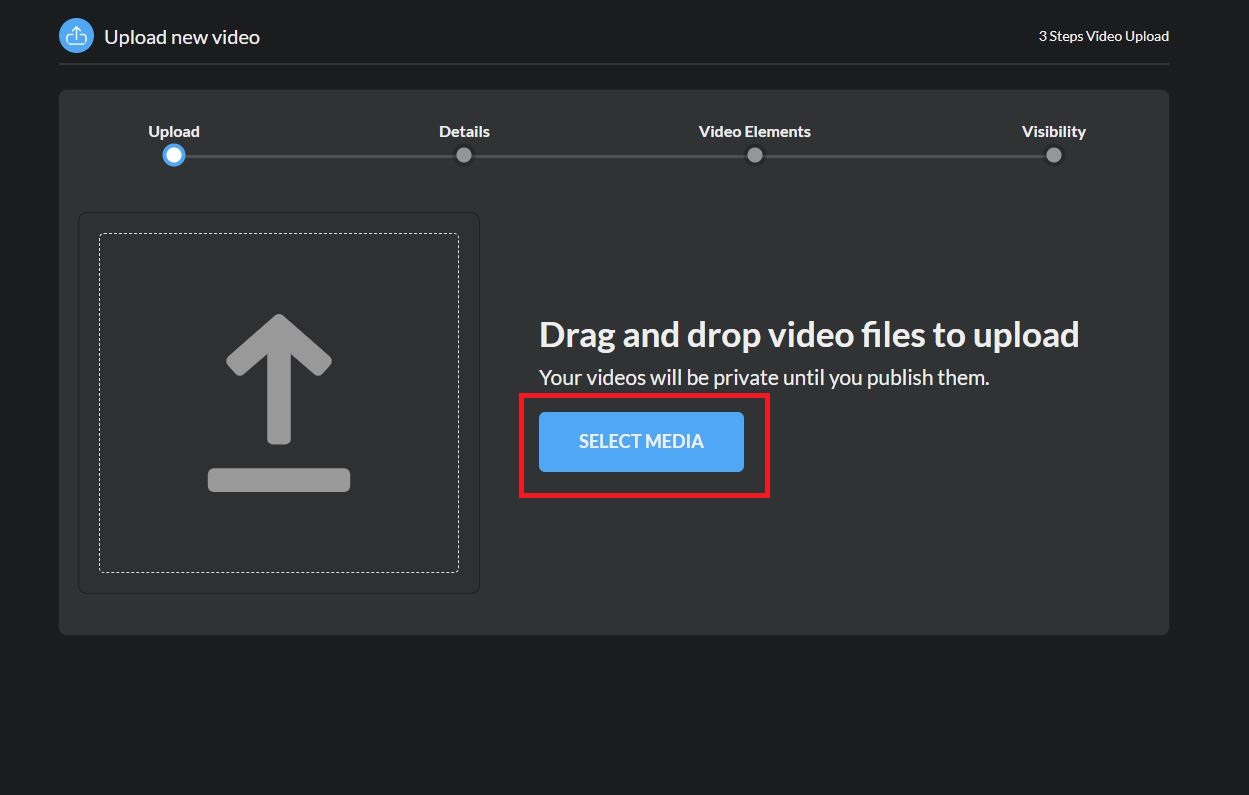
3. Click Select Media for the file you’d like to upload. You can upload 1 video at a time.
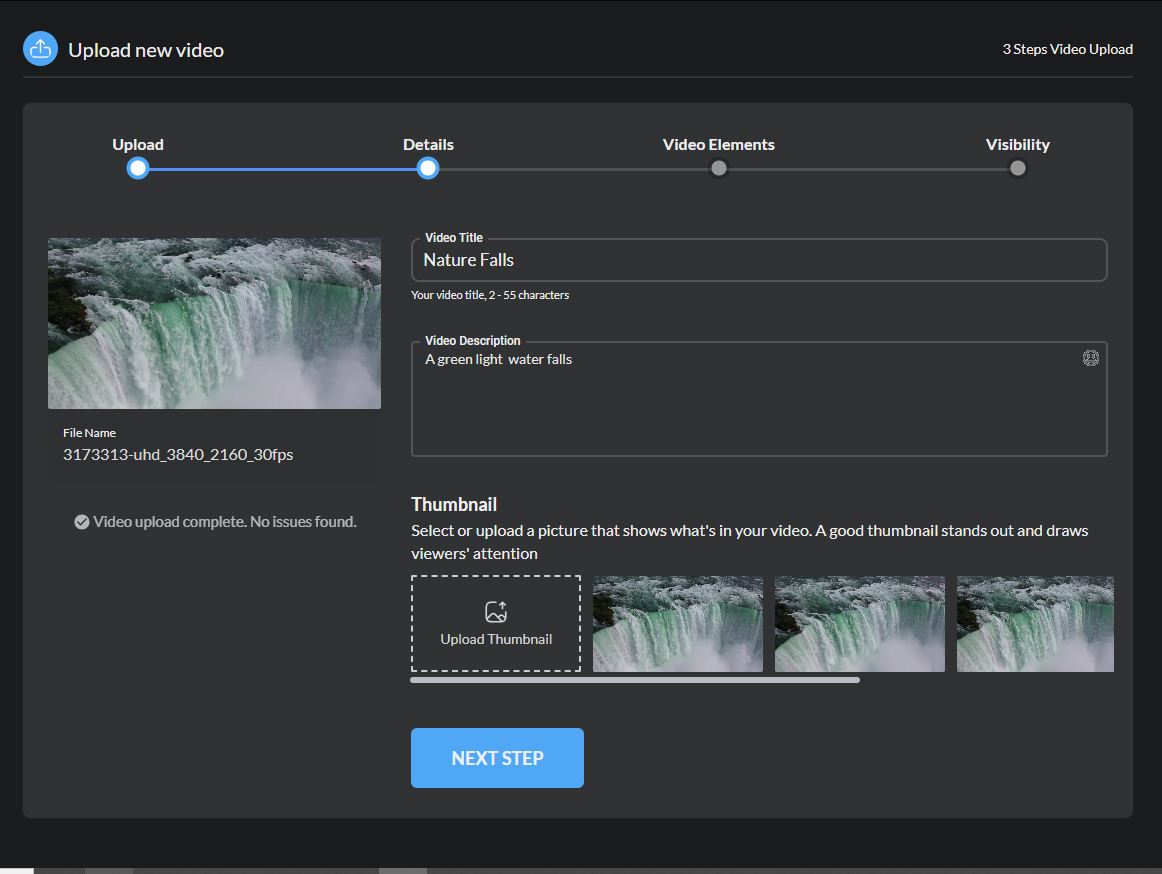
4. After selecting the video you want to upload, you must give a title to it, a description of it, and a thumbnail of what you want it to be and click Next Step.
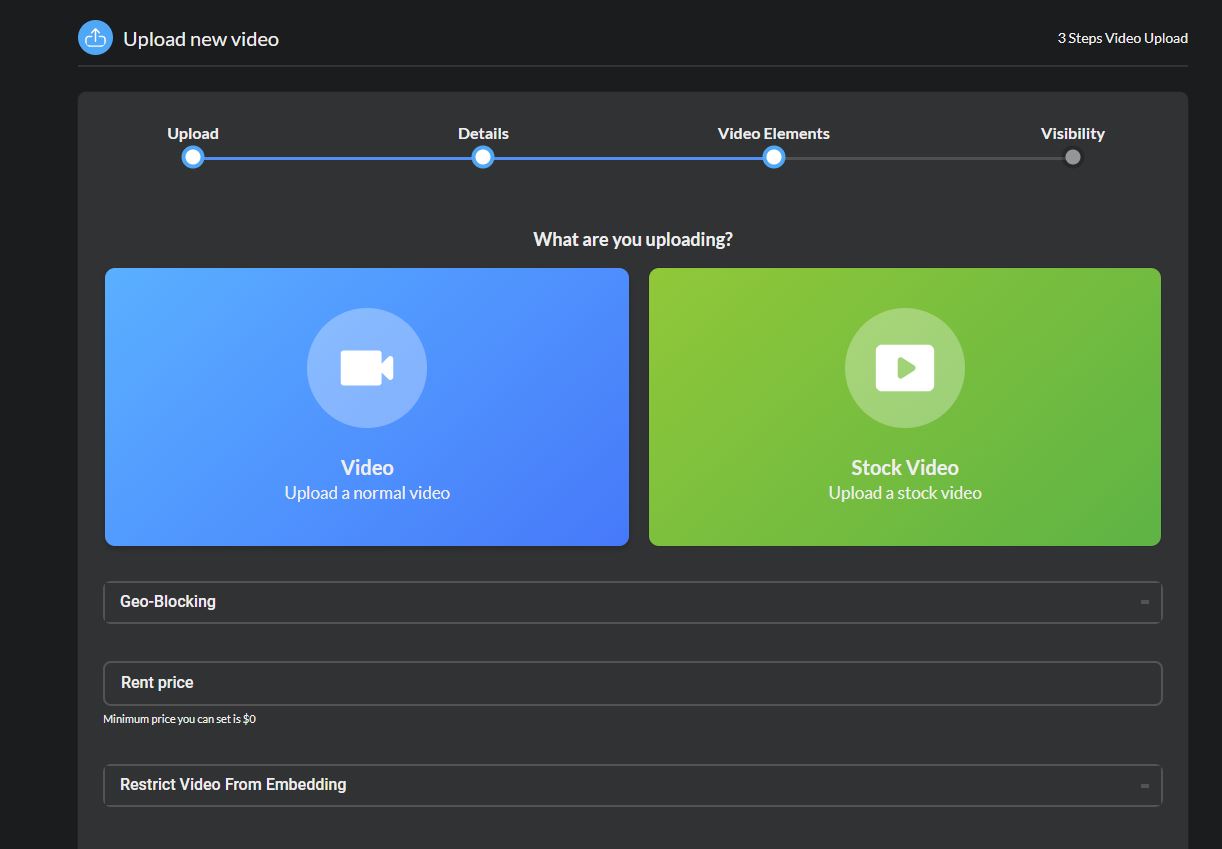
5. You can choose whether the video is standard or stock (to be purchased), whether users can embed it, and which country it should be shown in and click Next.
6. The type of video, the range of ages to see, and to be public or private and Publish it.
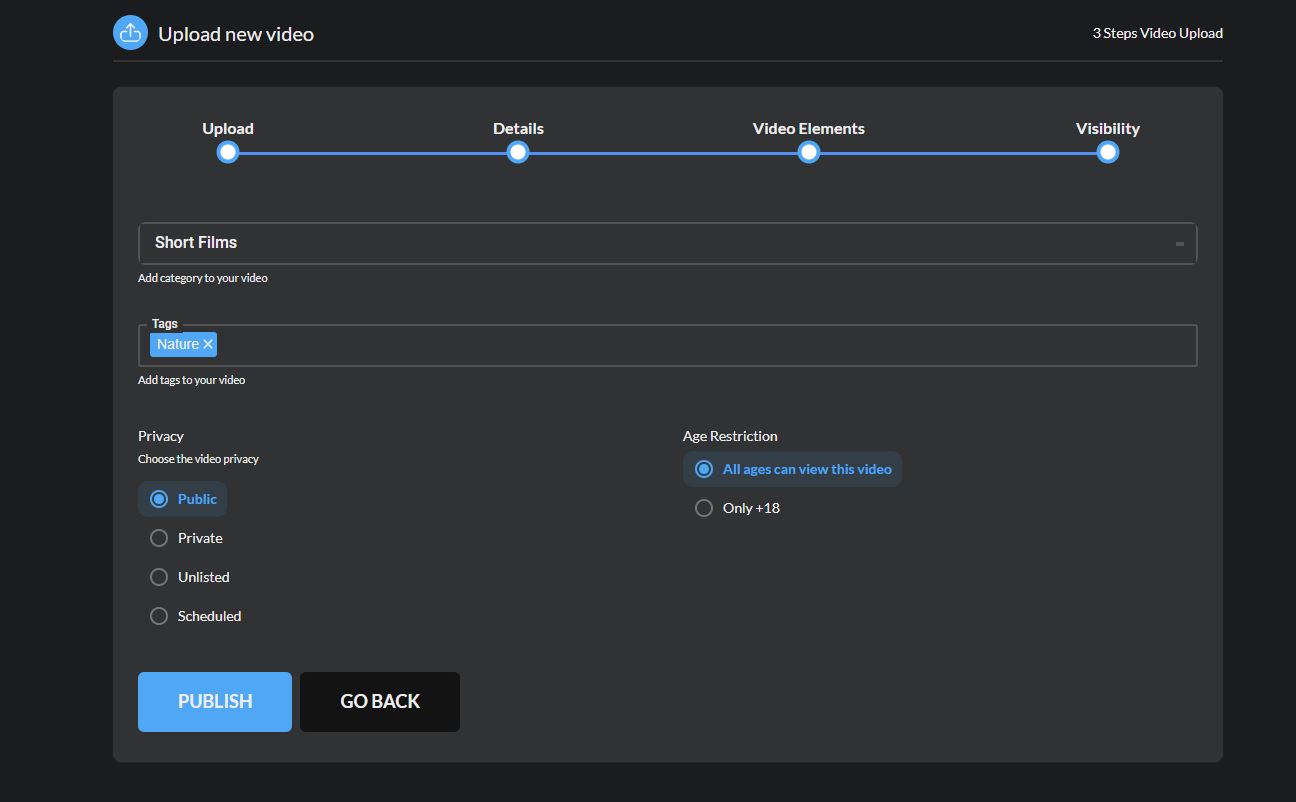
Note: Your video will be converted to the highest resolution available to ensure successful playback on different devices and networks. You can view the estimated processing time for SD, HD, and 4K videos. Higher qualities such as 4K or HD may take more time to process. Learn more about video quality after upload and video resolution & aspect ratios. If you’re having issues, check out our common uploading errors guide.
If you close the upload experience before choosing your settings, your video will be saved as private on your Video Content page.
Details Of Video
Add important details to your video. Note: You can click EDIT VIDEO to copy or select details from a previously uploaded video.
| Title |
The title of your video. Note: Video titles have a character limit of 55 characters and cannot include invalid characters. |
| Description |
Info that shows below your video. For video attributions, use the following format: [Channel Name] [Video Title] [Video ID] For corrections in your video, add “Correction:” or “Corrections:” Correction or Corrections must be in English regardless of the language of the video or the rest of the description. You can add the timestamp and explanation of your correction on a separate line. For example: Correction: 0:06 Nature Waterfalls |
| Thumbnail | The image viewers will view before clicking your video. |
| Playlist | Add your video to your existing playlists, or create a playlist. |
| Audience | You must tell us whether your videos are made for kids to comply with the Children’s Online Privacy Protection Act (COPPA). |
| Age restriction | Age-restrict videos that may not be appropriate for specific audiences. |
| Related Video |
A video from your channel that is a clickable link in the Shorts player to help direct viewers from your Shorts to your other DashTube content. With advanced feature access, you can edit Shorts to include a link to a video from your channel. Videos, Shorts, and Live content can be linked. Note: The video you select must be public or unlisted and follow our Community Guidelines. |
| Stock Video | Let viewers and DashTube know that your video has a paid promotion. |
| Tags |
Add descriptive keywords to help correct search mistakes. Tags can be helpful if your video’s content is commonly misspelled. Otherwise, tags play a minimal role in your video’s discovery. |
| Language and caption certification | Choose the original video language and caption certification |
| License and distribution | Select if your video can be embedded on a different website. Indicate if you’d like to send notifications to your subscribers for your new video. |
|
Category
|
Select a category so viewers can find your video more easily. For Education, you can choose the following options:
|
| Comments and ratings | Choose whether viewers can leave comments on the video. Choose whether viewers can find how many likes your video has. |