
Howdy! How can we help you?
Integrating Form Into The Website
Integrating Form to Website
There are two ways to integrate a form into a website:
- Using the downloaded code
- Using iframe/wizard
Using iframe
- No technical knowledge is required.
- The form data will be saved in the form generator database.
Steps:
- Go to All Forms
- For any form, click on the widget button, and it will open a popup with two different ways to integrate
- iFrame Code
- Copy the iframe and script code and paste it into your website where you want the form to appear or be integrated.
- New window
- The integration will show a button on the website. Clicking the button will open the form in a new window.
- Copy the HTML code and paste it into your website where you want to display the button.
Using downloaded code
- It requires junior-level technical knowledge.
- Submitted form data will not be saved in the form generator database.
In this method, you download the form’s PHP/HTML/CSS/Javascript code and then integrate the downloaded code into your website.
- Download the code for the form by going to List Forms -> Download.
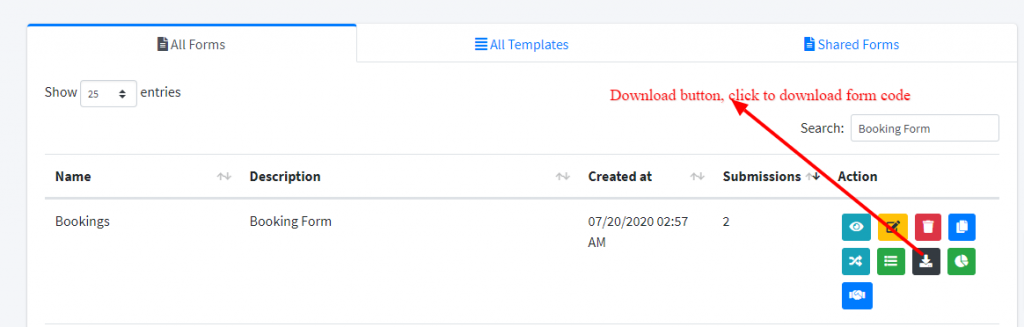
2. Unzip the zip file; inside, you’ll find HTML, PHP, and library folders.
-
- For example, bookings.html, bookings.php & library
3. Make any changes to bookings.html or copy the content of bookings.html to any other HTML file.
4. Place the bookings.php & library file/folder in the same directory where the bookings.html file is present.
Try opening the form; it is not ready to use.