
Form Style
Form Styling
Changing colors:
- Go to Add or Edit form.
- Click on the Settings tab, where you will find all the settings.
- Settings present in the Design Settings section are related to form styling.
- Set the Label Color, Error Message Color, Required asterisk’s color
- Change the background of the form by adding a
- Background color
- Background image.
Designing by adding classes:
- Click any form elements, and the Element-Configuration box will open on the right side.
- In the Element-Configuration, scroll to the bottom to find the “Add Custom Class.”
- Add custom CSS classes from Bootstrap. You can add multiple classes simply by space-separating them. Like class1 class2 class3
Conditional Fields In Forms
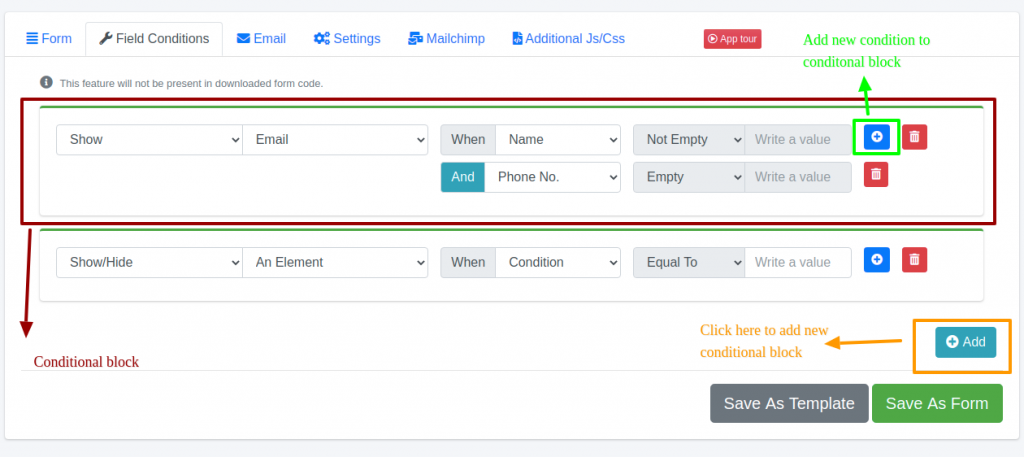
Conditional fields allow you to show or hide any field based on the conditions of other fields. Adding conditional fields in the Dashforms Form generator is very easy.
It works on one golden rule:
Show/Hide An-Element When Condition Equals/Not-Equals/Empty/Not-Empty
AND Condition Equals/Not-Equals/Empty/Not-Empty
AND Condition Equals/Not-Equals/Empty/Not-Empty
For example:
Show Email When Name Not-Empty AND Phone Empty
Check the screenshot below for a better idea of adding conditions
Form Styling
Success & Error messages and redirecting to a thank-you page on form submission
Success & Error messages and redirecting to a thank-you page on the form
In the Add/Edit form, go to settings -> Notification settings.
Change the submitted success message by changing the “Email success notification.”
Change the submitted error message by changing “Email failed notification.”
Redirecting to the Thank-you page after submissions:
- Change “Action after submit” to “Redirect to thank you page.”
- Provide the “Redirect Url”
- When the form is successfully submitted, it will be redirected to the page
What is a webhook?
Check this blog to understand the details of webhook: https://sendgrid.com/blog/whats-webhook/
Steps for using webhook in Form Generator:
- Go to the add/edit form
- Click on the “Webhook” tab
- Click Enable checkbox
- Enter a valid Webhook URL
- Click “Generate Secret Key,” copy the key, and use it.
Webhook is now ready to use.
Whenever the form is submitted, all data will be passed as a POST request in the webhook URL