How To Use The Rider App
How to use the Rider App
- Using the Dashride Rider app is easy, but you might want to know more about the app’s features, so we encourage you to read and follow the steps to learn more.
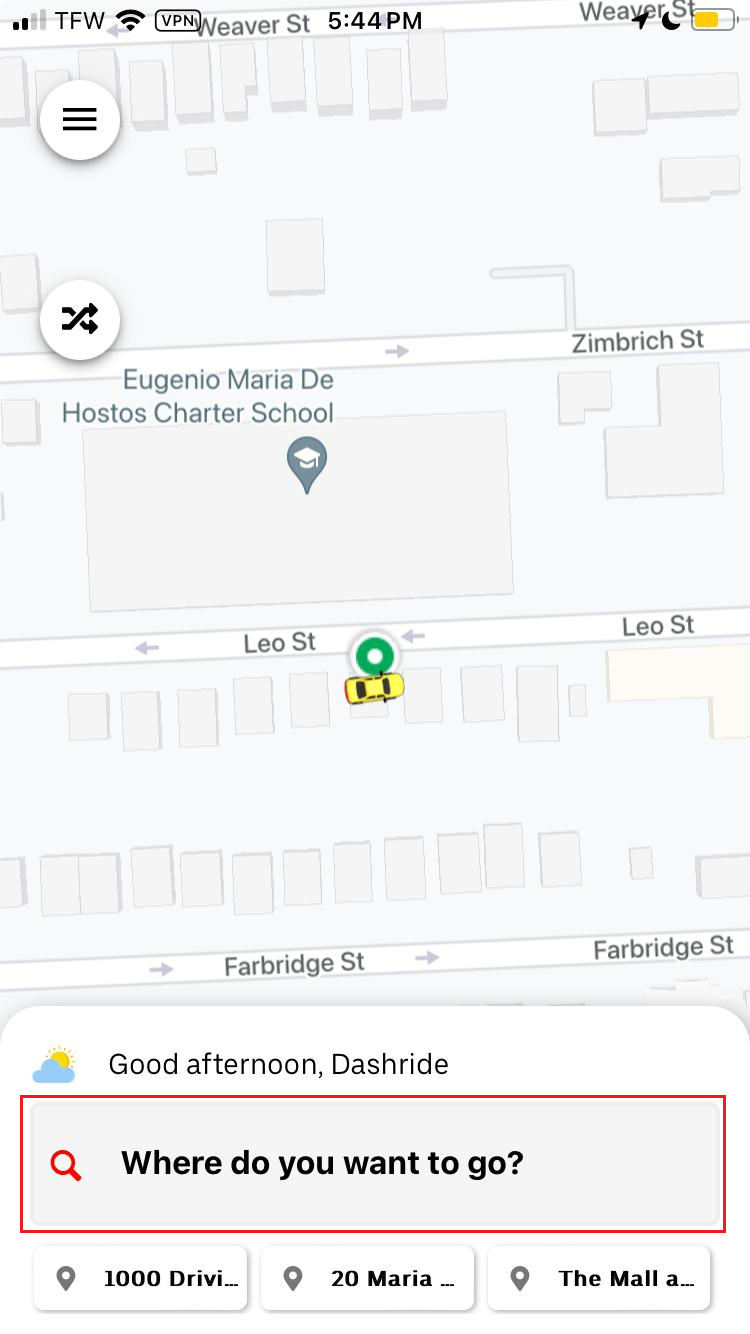
The screenshot above shows the rider app’s homepage when you open the rider app.
To Request for Ride
STEP 1
To request a ride, tap the area with “Where do you want to go?”.
STEP 2:
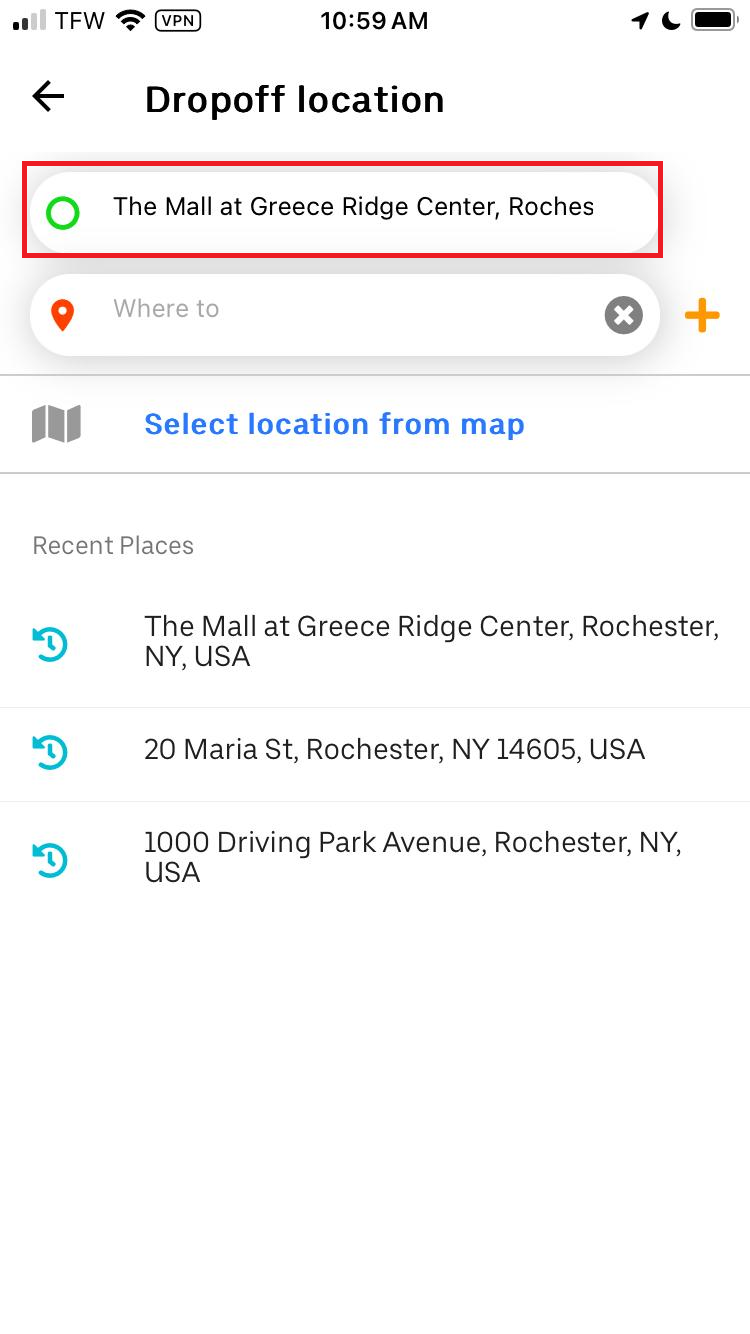
Your location and GPS settings will determine whether your area is listed as a pickup location, but you can change it.
STEP 3
How a customer/rider wants to Add a destination.
How To Add Stop (s)
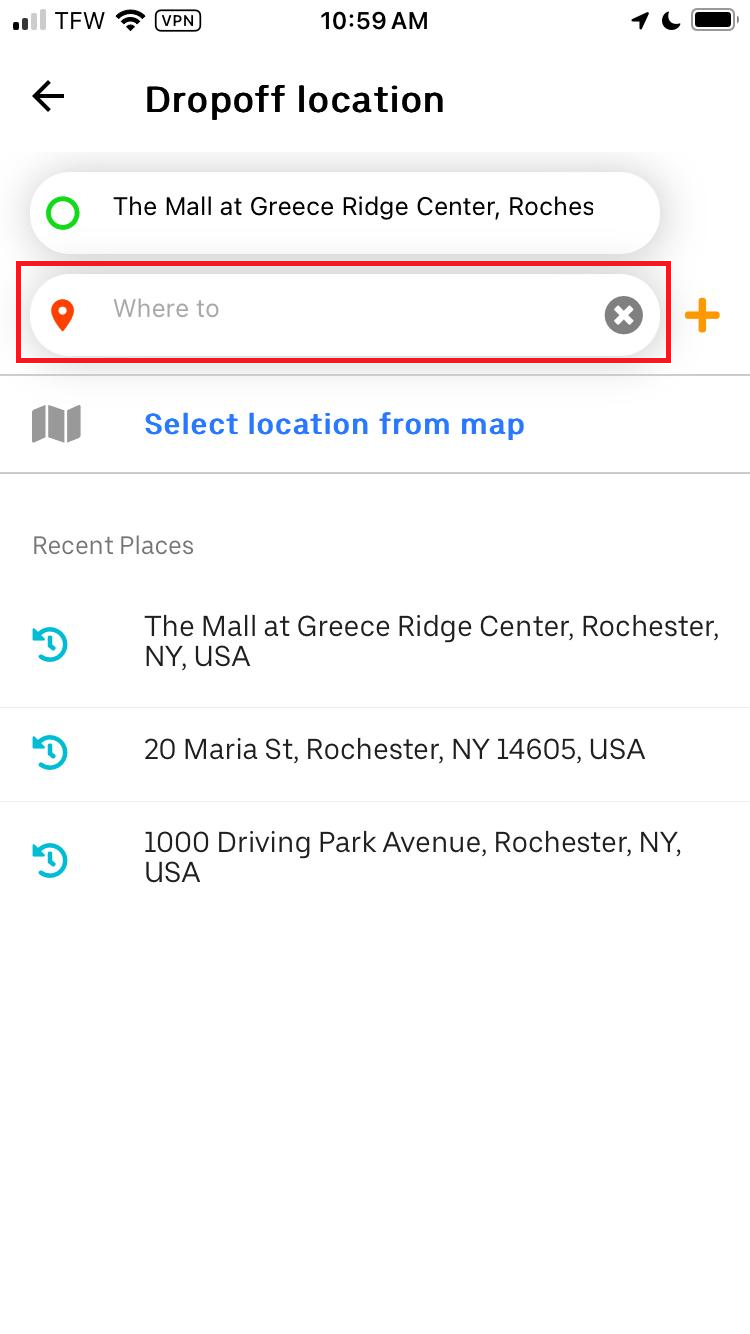
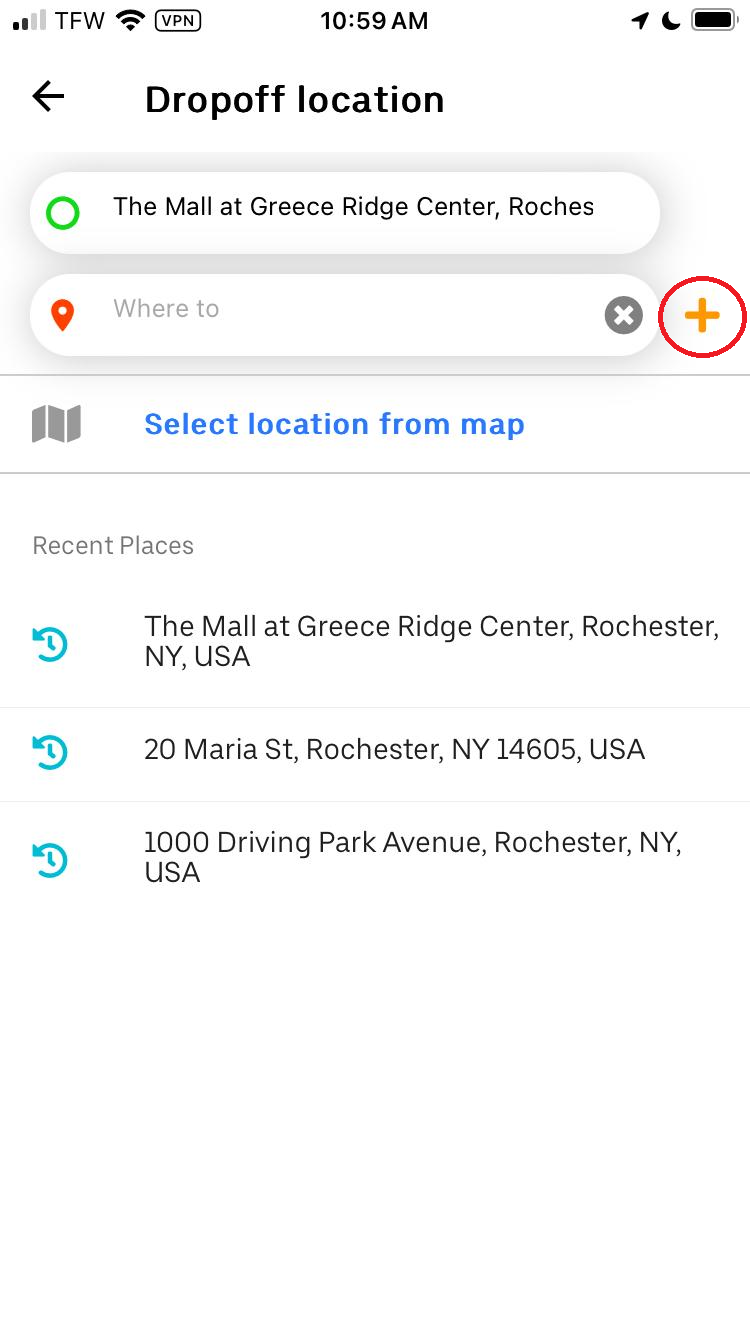
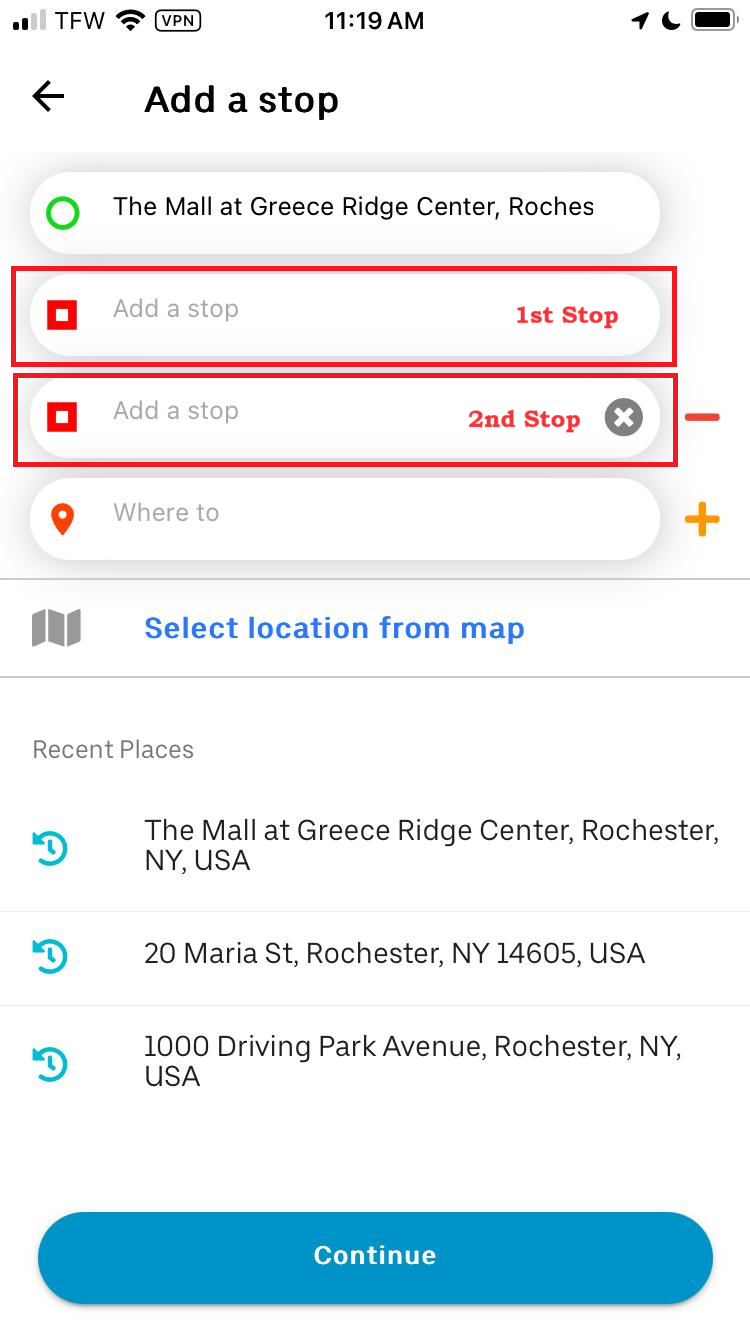
Users can use the + sign to add a stop to a ride. Clicking on the plus sign adds space for the stops.
- The 2nd upper space after the pickup will be the first stop, and the 3 space will be the second before you type in the destination.
Note: Dashride, for now, only allows 2 stops per ride request, and the spaces should be created before you add the final destination
If you forget to add a destination, don’t worry.
Just speak to your driver, and usually, they will honor your request because until you get out of the car, you will still be charged for the time you spend on the ride.
STEP 4
After successfully adding your pick, stop(s) if you want, and your destination, you will be presented with the Price and the Services Available.
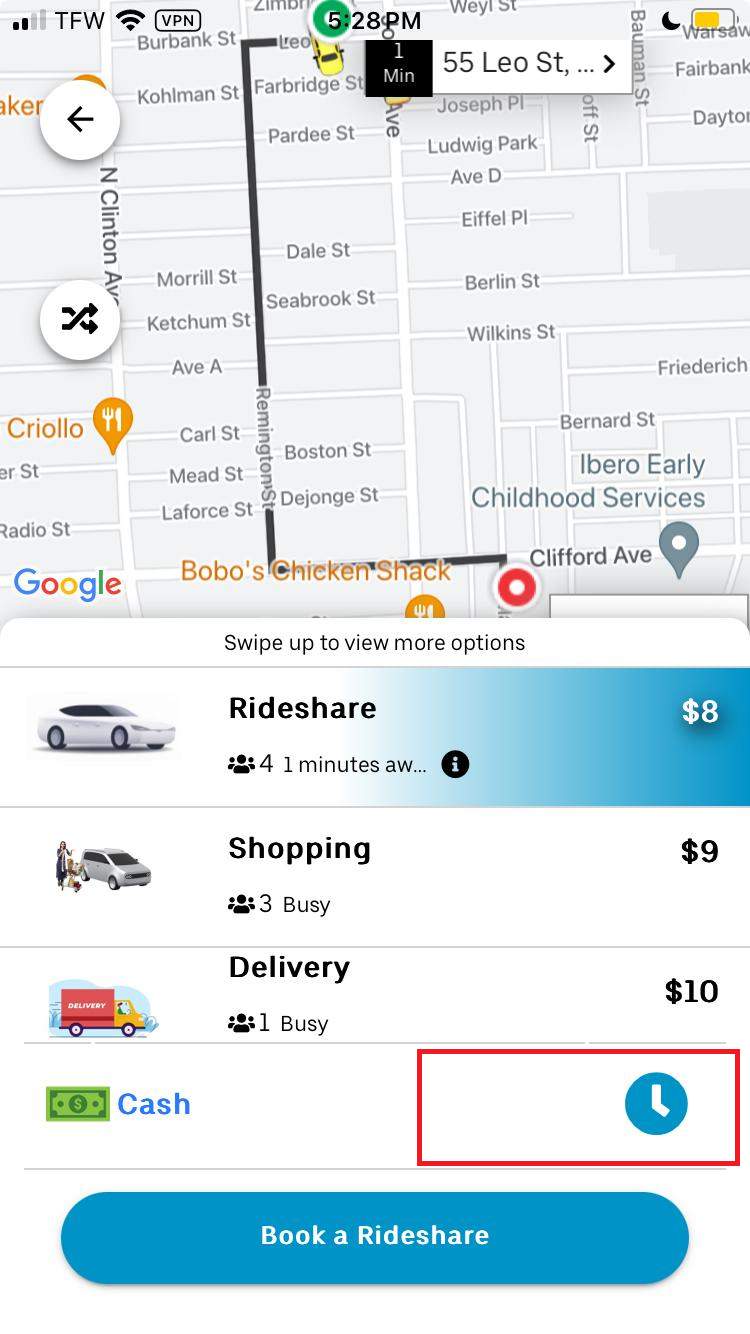
You can only select Ridehare or Shopping to request pickup and drop off and click on Book “service.”
How to choose Payment Type
Dashride currently accepts two forms of payment: Cash at-service and in-app payment (with credit or debit card)
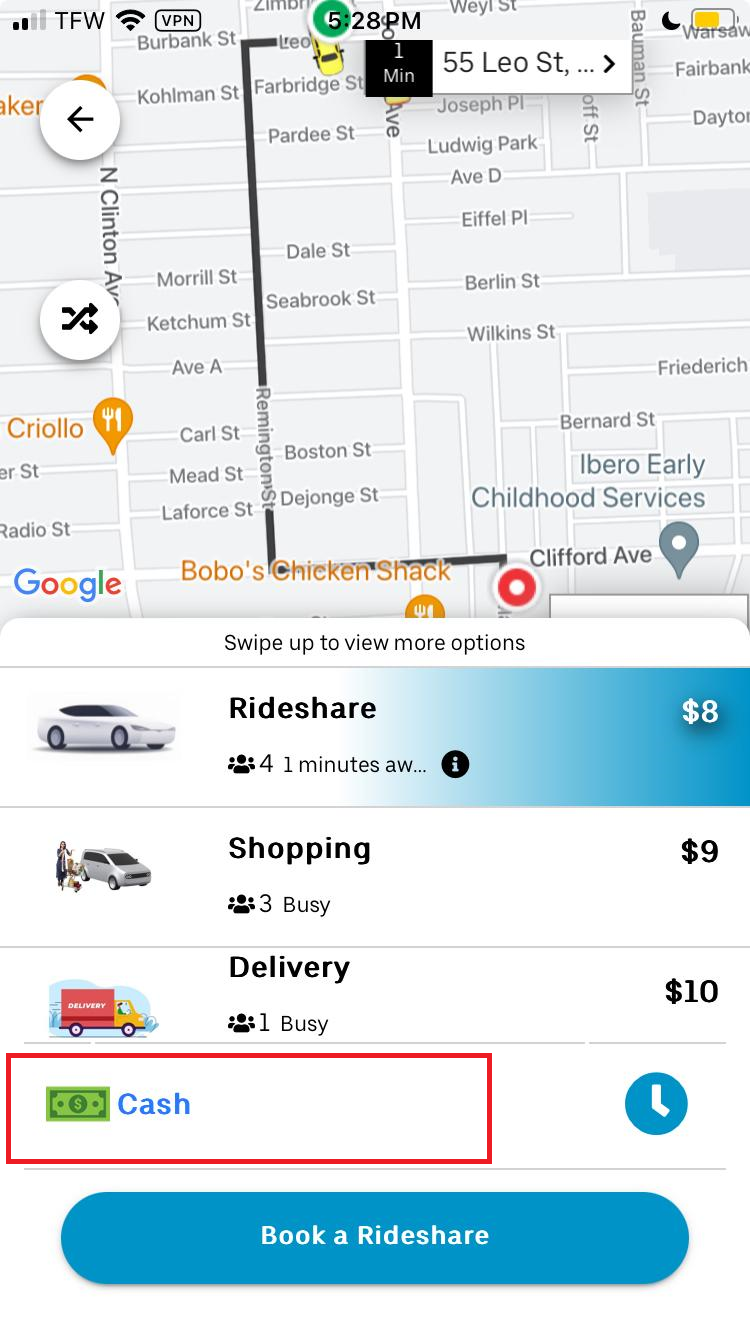
Note: Cash payment is the default payment method for Dashride services, but if you choose to use in-app/card payment, click on the cash symbol (Green) in the lower left corner and switch to wallet payment. Ensure you have enough funds to complete transactions.