Howdy! How can we help you?
Generate Salary
Generating Salary
Step – 1: Payroll
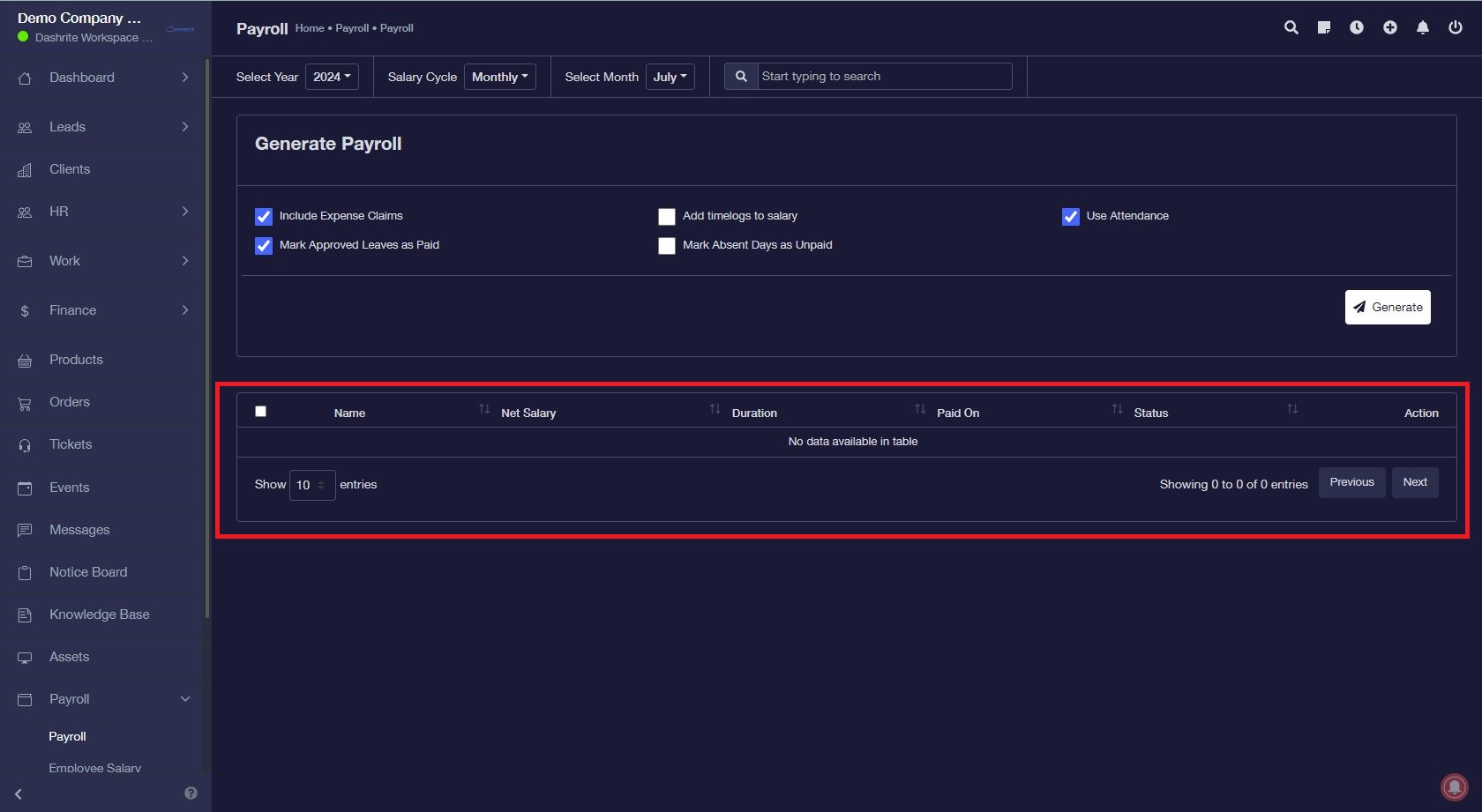
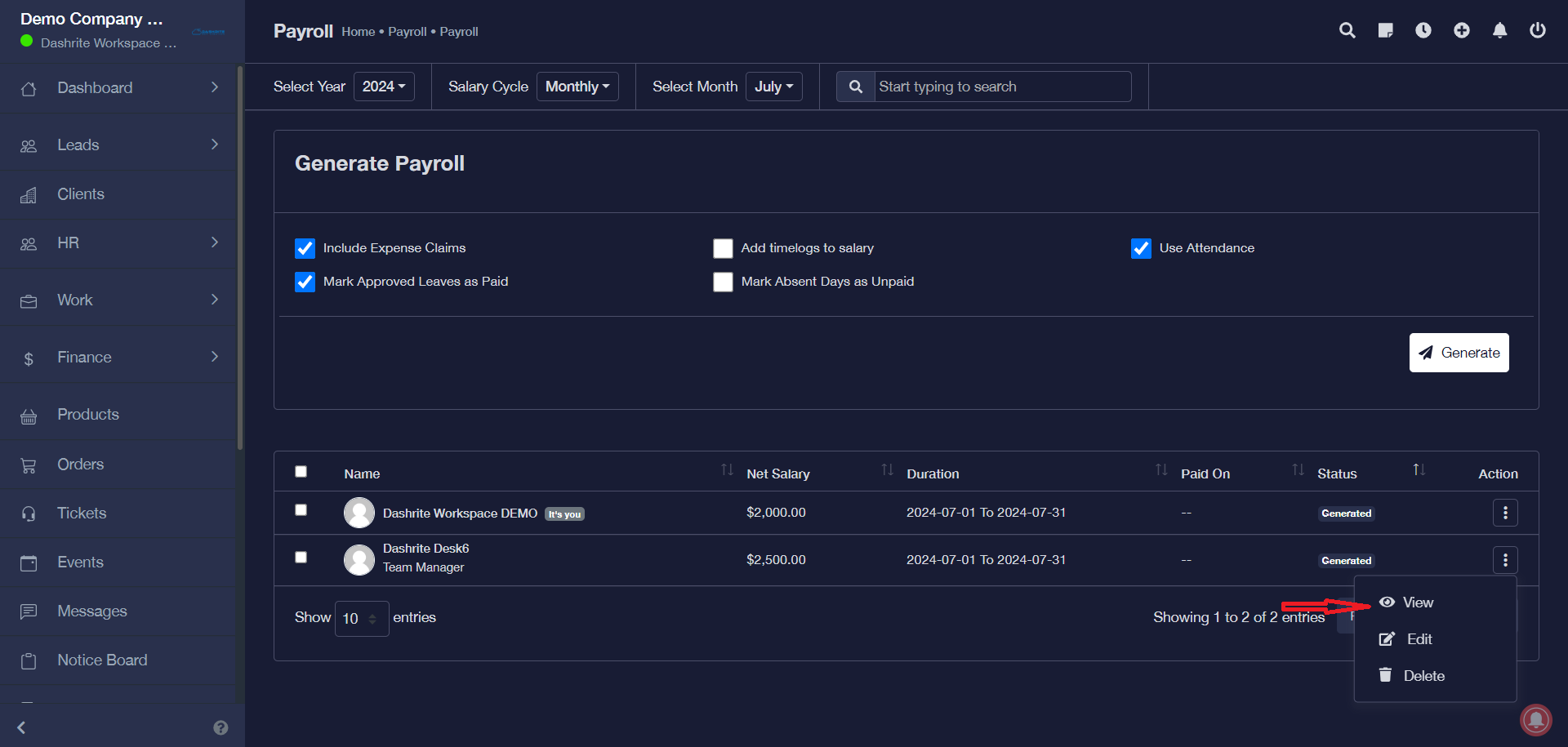
Go to Payroll -> Payroll from the left menu.
Step – 2: Generate Payroll
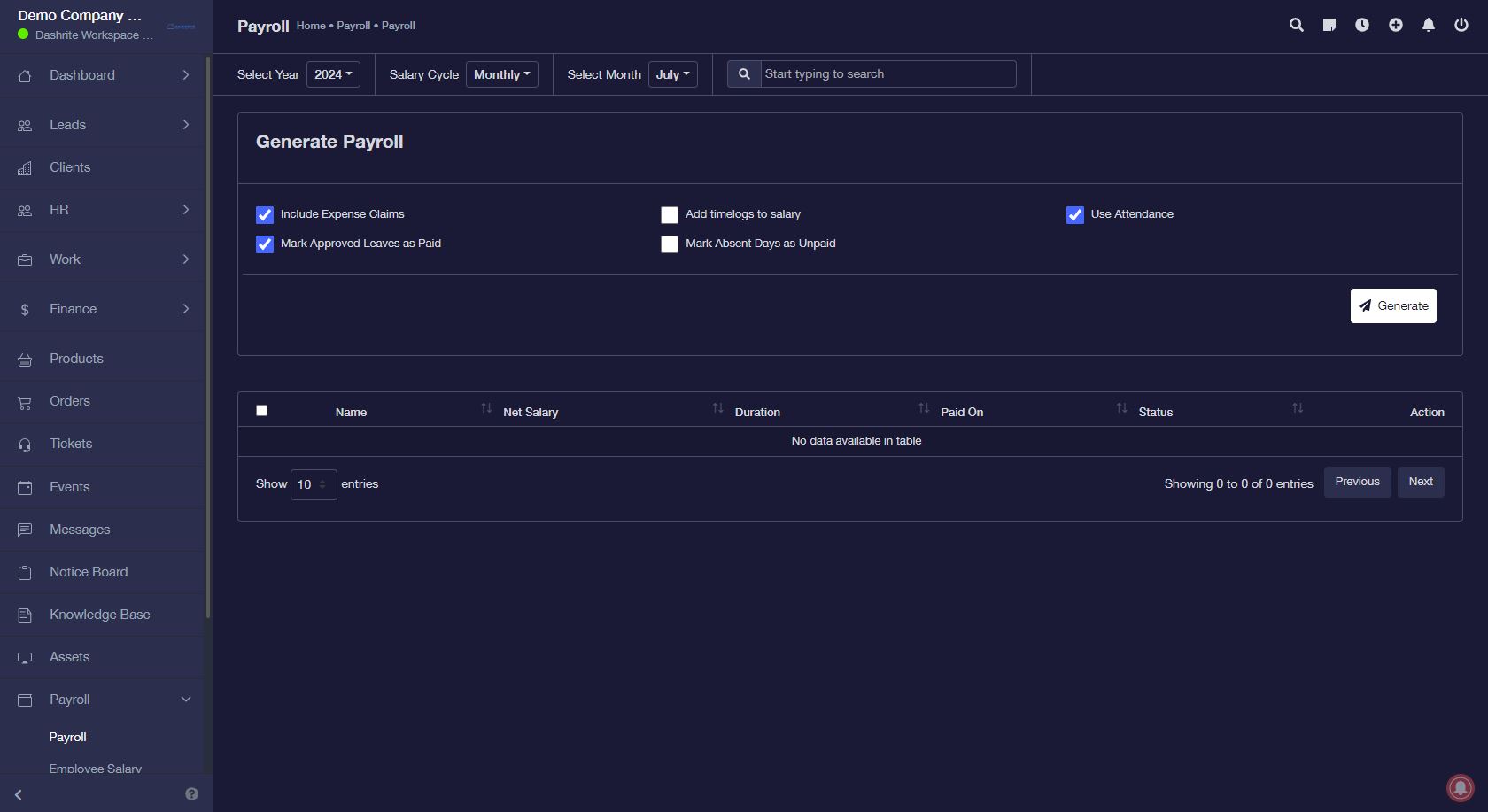
- Select the Month and Year for which you want to generate the salary.
- Mark Approved Leaves as Paid—Select this option to pay for all approved leaves.
- Mark Absent Days as Unpaid—Select this option if you do not want to pay for days when the employee was absent and did not apply for leave.
- Use Attendance – Select this option to calculate the salary according to the employee’s attendance.
The employee will be paid for the Total Present Count + Holidays if this is checked. - Include Expense Claims—This option includes the employee’s approved expenses in the salary.
- Click Generate Button
Step – 3: Change Salary Status
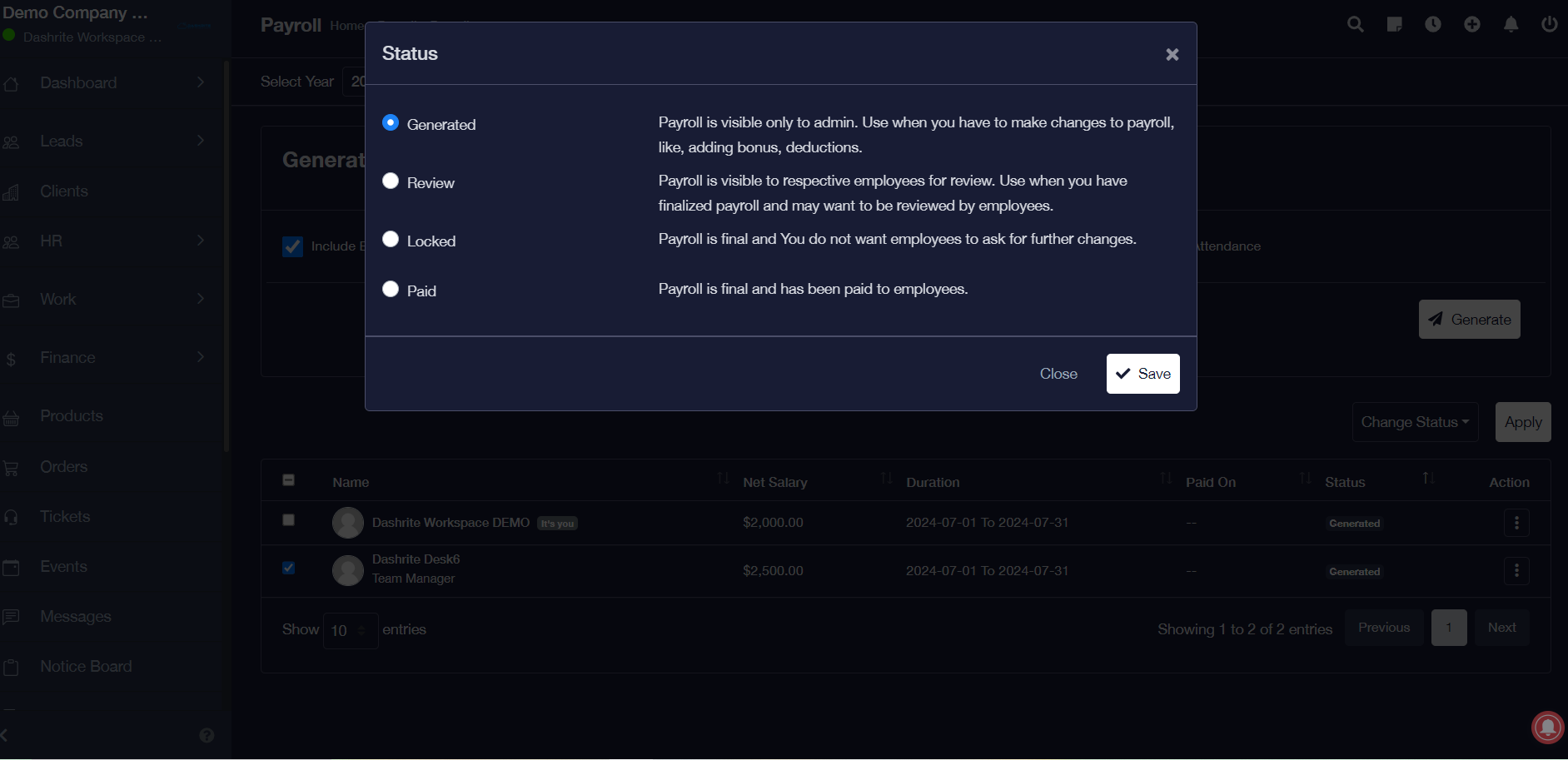
You can change the status of the generated salary to Review, Locked, and Paid. Select the salary checkbox and click the status button and select apply to change the status.
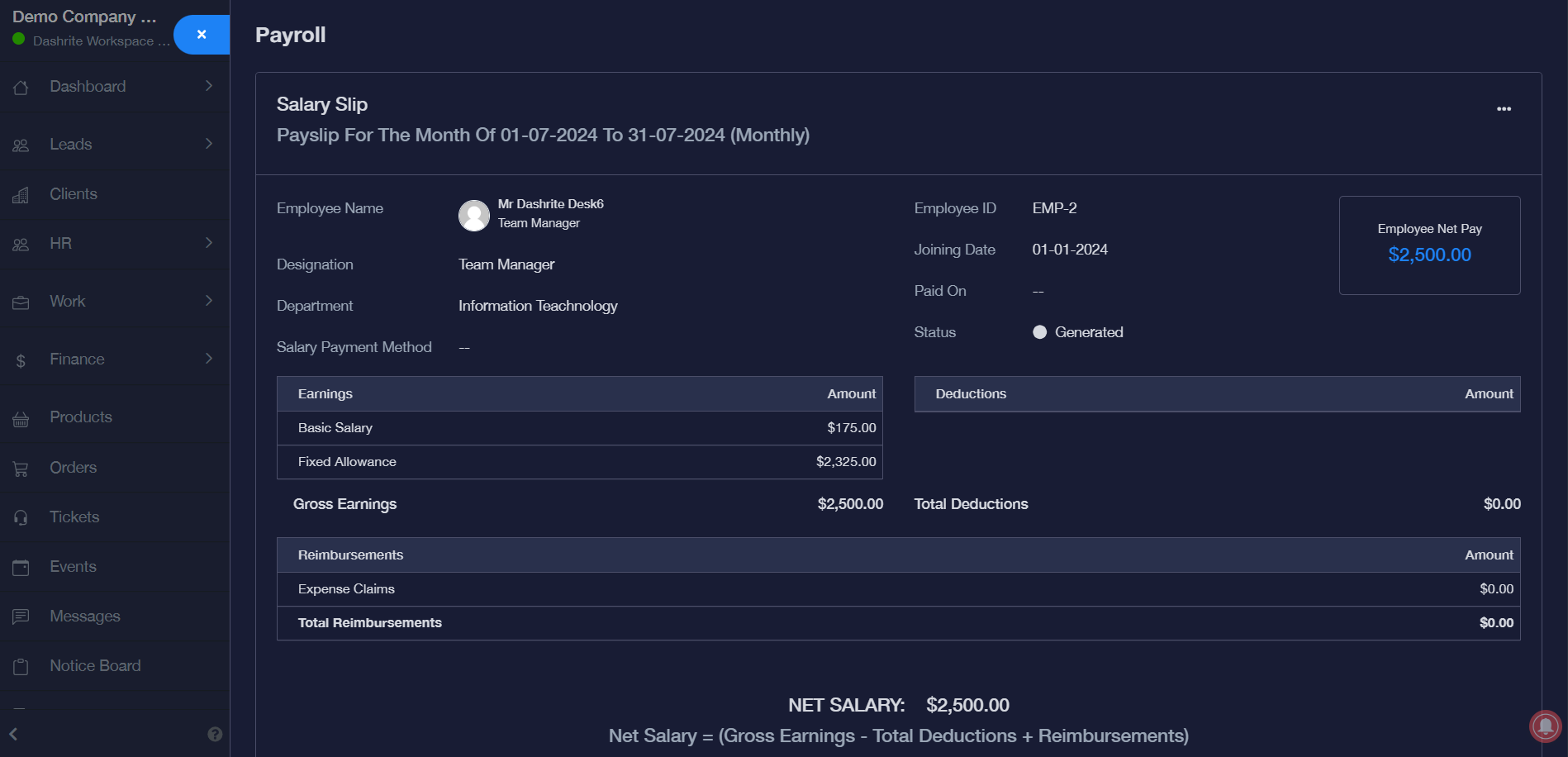
Step – 4: Salary Details
Click on the view button to view the generated salary details.
Step – 5: Edit Salary
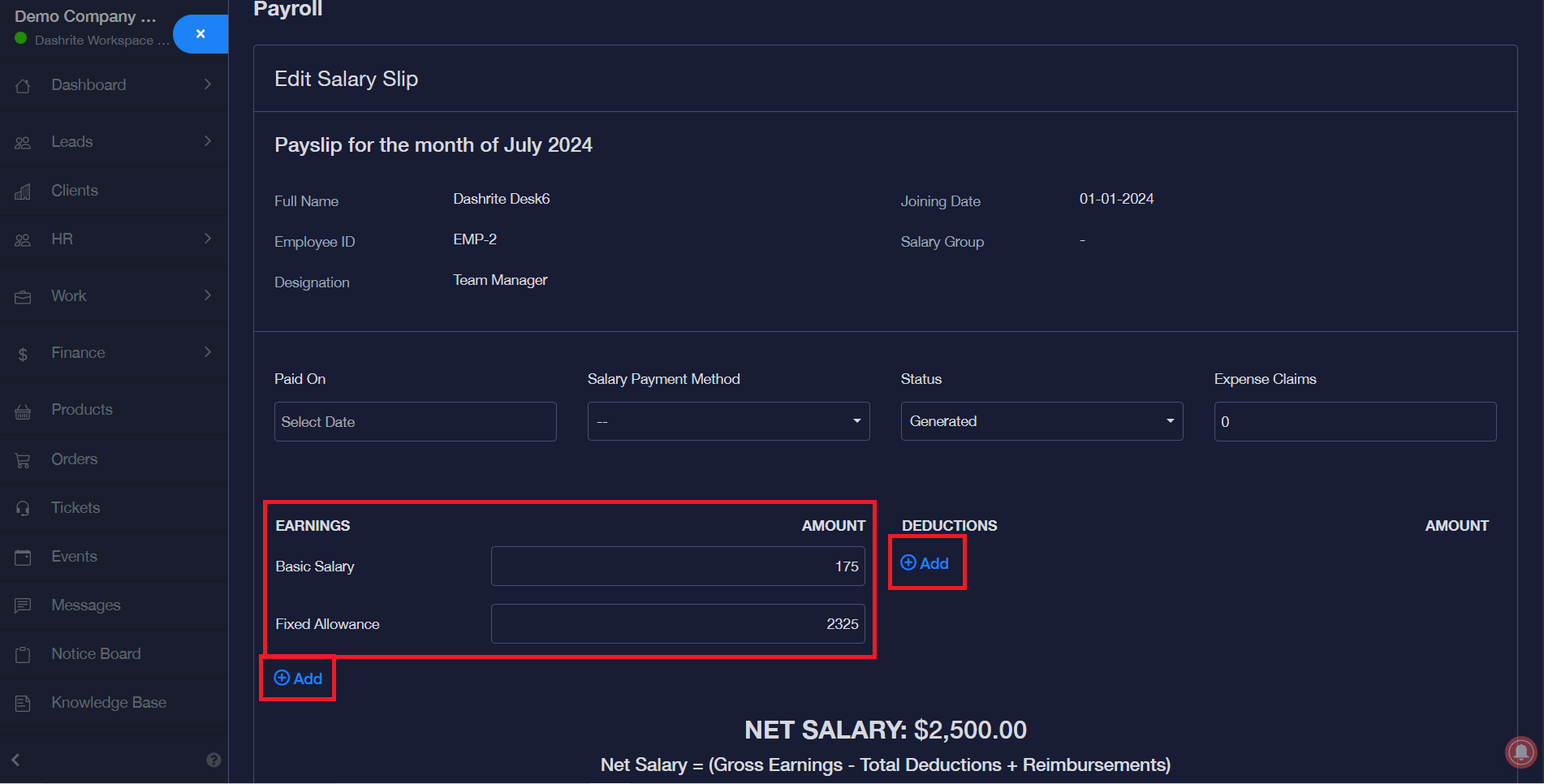
You can edit the generated salary and add more earnings/deductions to the wage.